Inbox Management: The Complete Guide to Managing Your Email
Our guide to inbox management: stopping unwanted email, clearing a backlog, sorting mail automatically, fixing sending mistakes and finding missing mail, in Gmail, Outlook, Yahoo, Apple Mail and on iPhone.
Inbox management means deciding what gets into your email, working through what's there, and setting up rules so the pile doesn't come back. Three habits do most of the work: unsubscribe from or block mail you never read, deal with each message once (reply, delete, archive or snooze it), and let filters sort routine mail into folders or labels. The buttons are different in Gmail, Outlook, Yahoo, Apple Mail and on iPhone, so this guide gives a short answer for each task and links to the step-by-step article. App steps were checked against Google, Microsoft, Yahoo and Apple help pages in November 2026.
- What inbox management is
- Stop email you don't want
- Clear the backlog
- Sort mail automatically
- Fix a sending mistake
- Read receipts, snooze and follow-ups
- When mail goes missing
- Several accounts in one inbox
- Where to find each setting
- FAQ
What inbox management is
The phrase gets used for two different things. In companies, "email management" can mean records management: which messages the business keeps, for how long, and who can search them for legal reasons. This guide is about the other meaning, your own inbox and how to keep it usable.
Most advice on the subject comes down to a short routine, whatever app you use:
- Cut the inflow. Unsubscribe from lists you skip, block senders who won't stop, and report spam rather than just deleting it.
- Check mail at set times. Two or three passes a day beats reacting to every notification.
- Decide once per message. The 4 D's: delete it, do it now if it takes a couple of minutes, delegate it, or defer it with a snooze or flag.
- Archive, then search. A few broad folders or labels are enough. Search finds the rest.
- Automate the repeat cases. A filter for receipts, one for newsletters, one for your boss.
Inbox zero is the stricter version: empty the inbox each time you process it, so anything left there is something you still have to do. Our guide to organizing your email inbox covers folders, labels and inbox zero in more detail.
Stop email you don't want
Blocking, unsubscribing and reporting spam do different jobs. Unsubscribe from legitimate senders you signed up with. Report spam and phishing. Block people and companies that keep writing after you've asked them to stop.
Block a sender or a whole domain
In Gmail on a computer, open a message from the sender, click More next to Reply, then Block. Their future mail goes to Spam. In Outlook.com, Outlook on the web and new Outlook, go to Settings > Mail > Junk email and add an address under Blocked senders or a domain under Blocked domains; that mail goes to Junk. New Outlook can't block senders on Gmail, Yahoo or iCloud accounts you've added to it, so block those at the provider. Yahoo Mail keeps a list of up to 1,000 blocked addresses under Settings > More Settings > Security and Privacy.
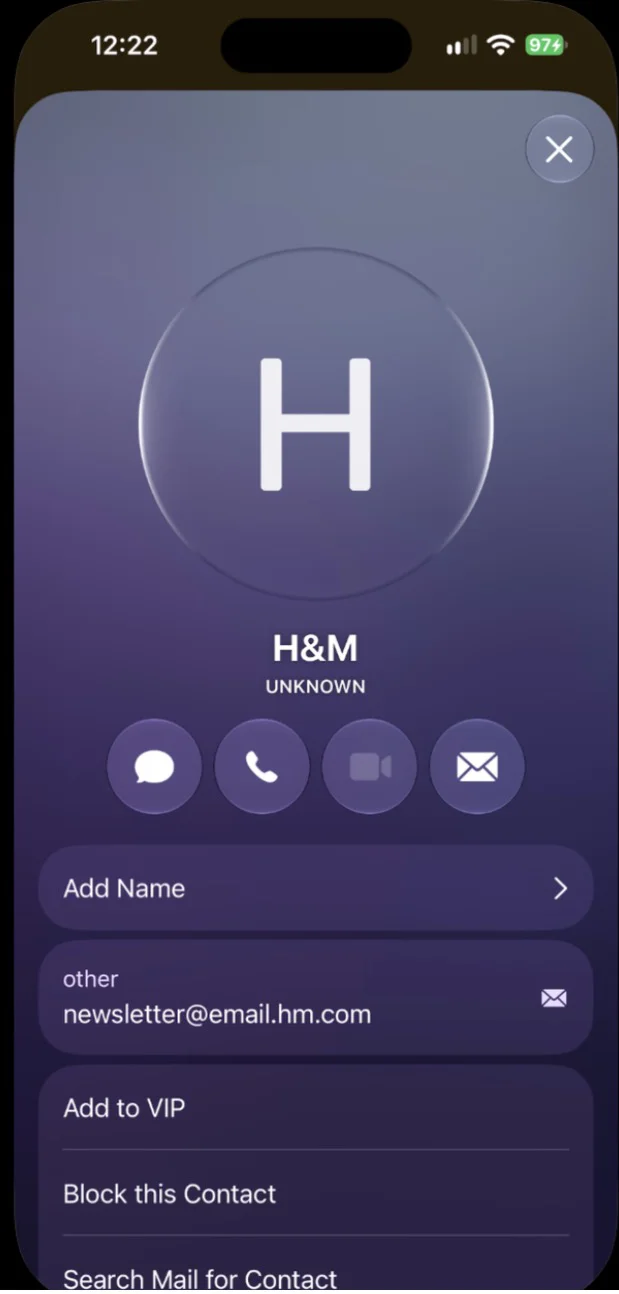
On a Mac (macOS 27), hover next to the sender's name in the message header, click the arrow and choose Block Sender; Mail allows up to 3,000. On iPhone, tap the sender's address, tap View Contact Card, then Block this Contact. Our guide on how to block emails has the steps for each app, including the Gmail and Outlook phone apps.
Stop spam
Your provider's spam filter catches most of it, and it learns from what you report. When spam does reach your inbox, use the app's Report spam or Junk button instead of just deleting it. Don't reply, and don't click the unsubscribe link in mail you never signed up for: on a real spam message it can confirm that your address is live. The FTC also takes reports at ReportFraud.ftc.gov. Messages that ask for a password, payment or personal details are phishing, and our guide to phishing emails shows how to spot them. For the full set of steps, see how to stop spam emails, and for Apple's built-in filter, junk mail filtering in Mac Mail.
Unsubscribe in bulk
Gmail is rolling out Manage subscriptions (under More in the left menu on a computer, or in the app's menu), which lists the senders who mail you most with an Unsubscribe button next to each. Apple Mail shows an Unsubscribe banner under the header of mailing-list messages. On iPhone, iCloud Mail Cleanup (Settings > your name > iCloud > Mail) can suggest promotion and update senders to unsubscribe from in one go. How to mass unsubscribe from emails compares the built-in tools and the third-party services. There are also app-specific guides for unsubscribing in Gmail and unsubscribing in Mac Mail.
Make sure the mail you need still arrives
Aggressive filtering has a cost: an invoice or a sign-in code ends up in Spam. Check the Spam or Junk folder once a week, move anything genuine back to the inbox and mark it as not spam, and add senders you rely on to your contacts. Telling your provider to always trust a sender is often called whitelisting it, and we'll cover that task in its own guide.
Clear the backlog
Delete or archive in bulk
Every app works the same way: search or filter down to the mail you want gone, select all of it, then act once. In Gmail on a computer, tick the select box, then click the link in the notice that appears to select every matching conversation, not just the 50 on the page. Deleted mail stays in Gmail's Trash for 30 days. Our guide to deleting emails in Gmail has search terms for old mail and large attachments, and Mac Mail not deleting emails fixes a Mac that won't let go.
If you might need a message again, archive it instead. Gmail's archive keeps mail under All Mail; on iPhone you can set an account to move discarded messages to Archive instead of Trash. See finding archived emails in Gmail and archiving in Mac Mail.
Mark everything as read
A big unread count is mostly noise, and clearing it makes new mail easier to spot. In Gmail, search for is:unread, select all matching conversations with the same link, then choose Mark as read. Apple Mail, Outlook and the phone apps each do it differently, and how to mark all emails as read covers every one.
Sort mail automatically
Filters (Gmail) and rules (Outlook, Apple Mail) act on new mail as it arrives: label it, move it to a folder, mark it read, forward it or delete it. In Gmail, open the search options, enter a sender or words, click Create filter and pick the action; existing filters live under Settings > Filters and Blocked Addresses. Start with two or three filters for mail you never need to see in the inbox, such as receipts and newsletters.
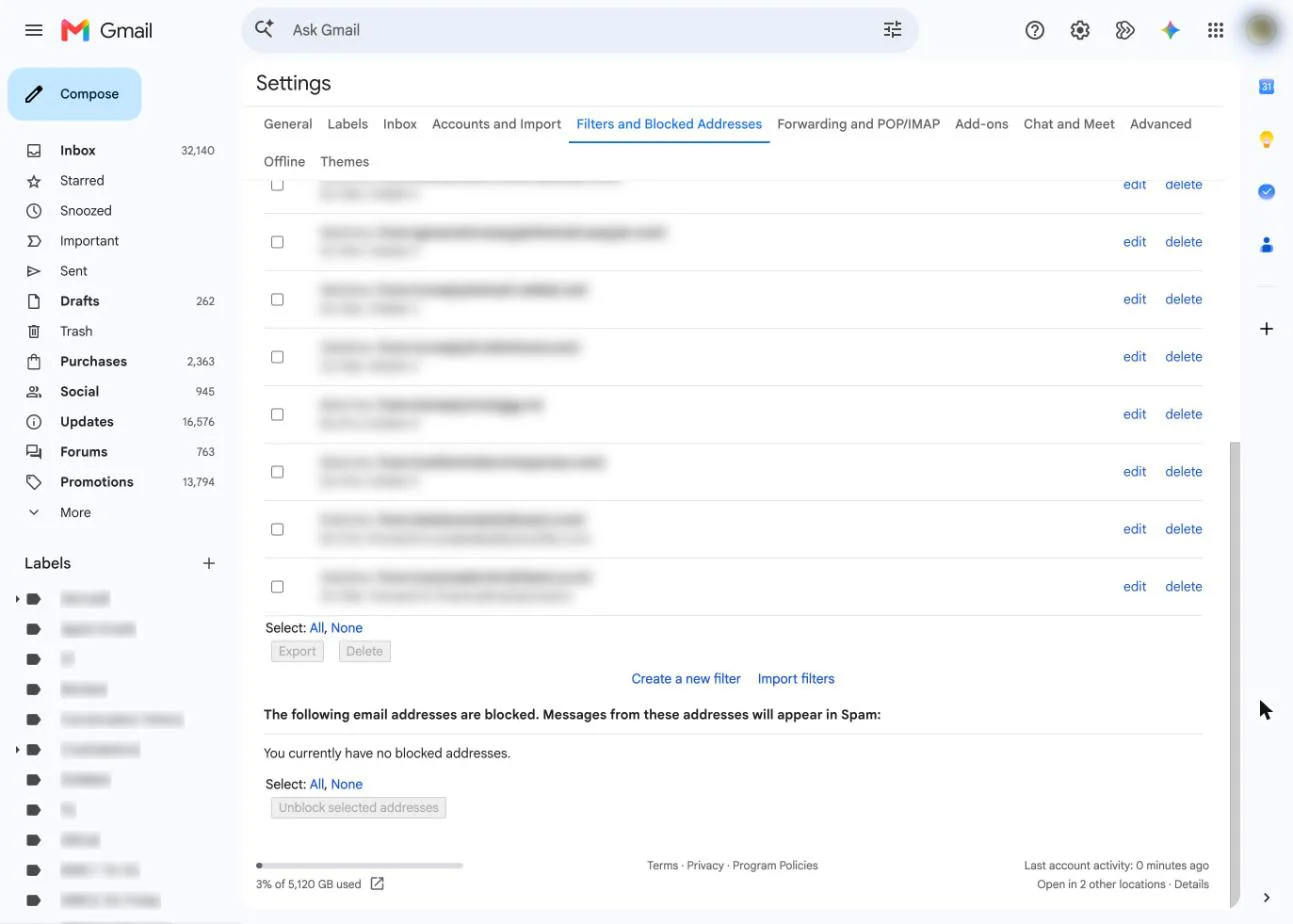
Step-by-step guides: creating rules in Gmail, filters in Outlook and Hotmail and Smart Mailboxes in Mac Mail. Mail on iPhone and Mac now sorts mail into Primary, Transactions, Updates and Promotions on its own, and you can move a sender to another category if it guesses wrong.
Two smaller tools help too. A smart inbox separates mail from people from automated mail, and pinning an email keeps a message you're working on at the top of the list.
Fix a sending mistake
Once a message reaches the other person's server, you can't pull it back. What most apps offer is a short delay before sending:
- Gmail: Undo appears for 5, 10, 20 or 30 seconds, set under Settings > See all settings > Undo Send.
- Outlook.com: Undo Send can hold mail for up to 30 seconds (Settings > Mail > Compose). Recall works only between work or school Microsoft 365 accounts in the same organization, and only if the message hasn't been opened.
- Mail on iPhone: tap Undo Send within 10 seconds, or set a longer Undo Send Delay in Settings > Apps > Mail.
Deleting a sent message only removes your copy. Can you unsend an email? covers every app, and can you delete an email you sent explains what the recipient still sees. For mail that shouldn't go out yet, schedule it instead: Gmail's Schedule send holds up to 100 scheduled emails, and you cancel one from the Scheduled folder.
Read receipts, snooze and follow-ups
Read receipts tell you when a message was opened, but only when the recipient's app sends one back. Gmail offers them only on work or school accounts. Our guide to email read receipts covers Gmail, Outlook and the workarounds, with separate guides for read receipts in Mac Mail and telling if someone read your email in Gmail.
Snooze hides a message until the time you choose, then puts it back at the top of the inbox. In Gmail, hover over a message, click the Snooze icon and pick a time; snoozed mail waits in the Snoozed folder. Apple's version is covered in snooze settings in Mac Mail. Snoozing a sent message is a cheap follow-up reminder: if there's no reply by Thursday, it comes back.
When mail goes missing
Not receiving emails
Check, in this order: the Spam or Junk folder, your blocked list and filters, forwarding rules, and storage (a full Gmail account stops receiving mail). Our checklist for why you're not receiving emails walks through each, and there are app-specific fixes for Gmail not receiving emails, iPhone not receiving emails and Mac Mail not receiving messages.
Stuck in the outbox or bounced
A message stuck in the outbox hasn't left your device, usually because of an outgoing-server or sign-in problem; see Mac Mail outbox stuck. A message from Mailer-Daemon means the other server rejected it, and the bounce says why. What a Mailer-Daemon message means explains the common codes.
Recover deleted emails
Recovery depends on your provider's Trash and how long it keeps things. Gmail's Trash keeps mail for 30 days. Outlook.com empties Deleted Items after 30 days, then lets you recover removed items for another 30 days; Junk is cleared after 14 days. iCloud Mail doesn't keep deleted messages longer than 30 days, whatever your iPhone setting says. After that, no app can bring the mail back. How to recover deleted emails has the steps for each provider.
Several accounts in one inbox
A unified inbox shows mail from all your accounts in one list, so you work through one inbox instead of three. Apple Mail and most third-party email apps support it. Two things to know. Spam filtering happens at each provider, not in the app. And blocks and rules may or may not reach every account: new Outlook, for example, can't block senders on Gmail or iCloud accounts you've added. What a unified inbox is explains the setup, and unified inbox vs shared inbox covers the team version.
How Canary Mail handles this
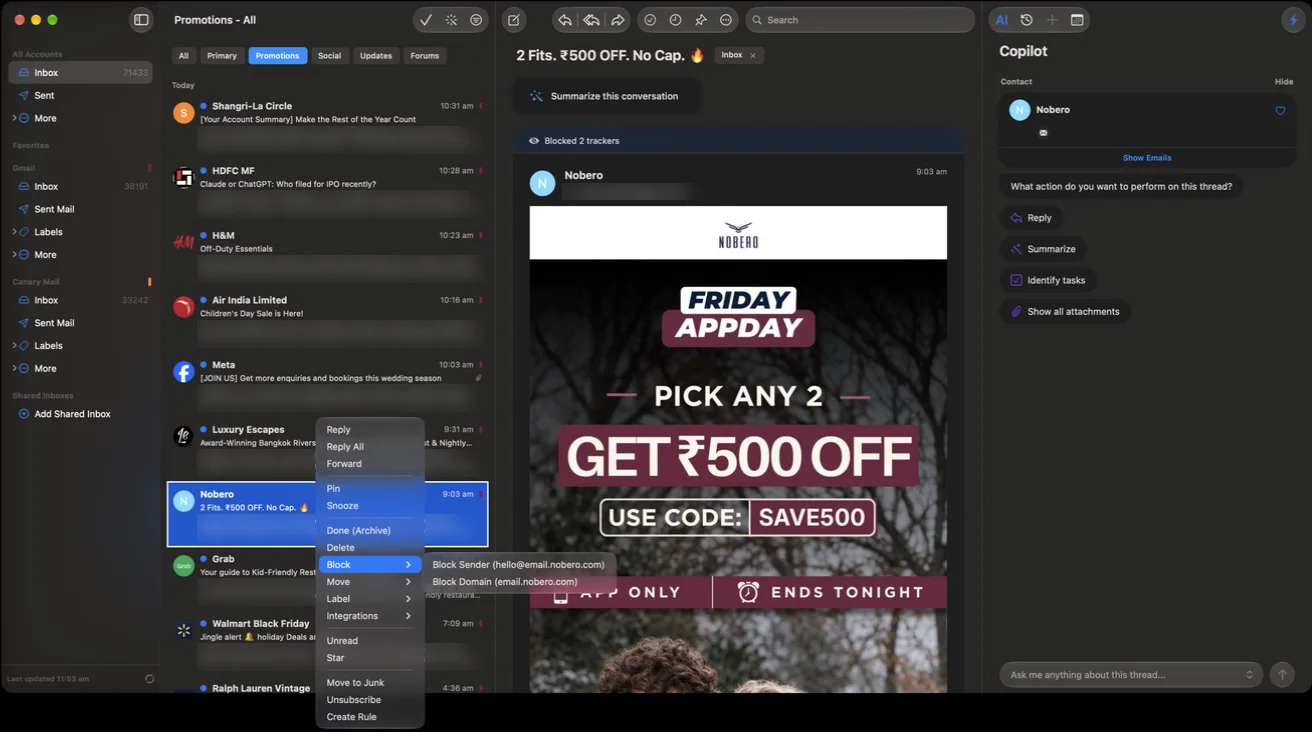
Disclosure: we make Canary Mail. Canary is an email app for Mac, Windows, iPhone, iPad and Android that works with Gmail, Outlook, iCloud, Yahoo and IMAP accounts, with a unified inbox and unlimited accounts on the free plan. From any message you can block the sender or the whole domain, and Canary either moves their mail to Trash or marks it as blocked, depending on your settings. 1-Click Unsubscribe is on every plan, and Bulk Cleaner picks out low-priority mail so you can archive or delete it in one action. Rules are on the paid Growth and Pro+ plans. Canary has no spam filter of its own: it uses your provider's, so reporting spam still happens at Gmail, Outlook or iCloud.
Where to find each setting
Menu paths as of November 2026. Phone apps differ in places, and the linked guides above cover them.
| Task | Gmail (web) | Outlook.com / new Outlook | Apple Mail (Mac) | Mail on iPhone | Canary Mail |
|---|---|---|---|---|---|
| Block a sender | Open message > More > Block | Settings > Mail > Junk email > Blocked senders | Arrow next to sender name > Block Sender | Sender > View Contact Card > Block this Contact | Arrow next to sender > Block (sender or domain) |
| Report spam | Report spam | Junk | Move to Junk | Move to Junk | Uses the provider's filter |
| Unsubscribe | Manage subscriptions (rolling out) or the link in the message | Link in the message | Unsubscribe banner in the message | Unsubscribe banner, or iCloud Mail Cleanup | 1-Click Unsubscribe |
| Automatic sorting | Filters | Rules | Rules, Smart Mailboxes, categories | Categories, iCloud rules | Rules (Growth and Pro+) |
| Undo send | 5 to 30 seconds | Up to 30 seconds | Undo Send | 10 seconds, longer with Undo Send Delay | Delay Send |
| Deleted mail kept | 30 days in Trash | 30 days, plus 30 recoverable | Depends on the account | Up to 30 days on iCloud | Follows the provider |
For everything else in a single app, see our guides to Gmail, Apple Mail and Mail on iPhone. Encryption and phishing have their own hub: our guide to email security.
Frequently asked questions
What is inbox management?
Inbox management is how you control what lands in your email, how you work through it and where it ends up. In practice that means blocking and unsubscribing at the source, handling each message once (reply, delete, archive or schedule it), and letting filters sort routine mail for you.
What are the 4 D's of email management?
Delete, Do, Delegate and Defer. For each message you either delete or archive it, answer it now if that takes a couple of minutes, pass it to the right person, or snooze or flag it for a set time. The order and wording vary between sources, but the idea is the same: decide once per message.
How do I stop getting so many emails?
Unsubscribe from newsletters and shops you no longer read, block senders who ignore unsubscribe requests, and report spam so your provider's filter learns. For a big backlog, use your app's unsubscribe list (Gmail's Manage subscriptions, or iCloud Mail Cleanup on iPhone) instead of opening messages one by one.
Is it better to delete or archive emails?
Archive anything you might need again, such as receipts, contracts and threads with people you work with. Delete the rest. Deleted mail sits in Trash for a limited time (30 days in Gmail and iCloud Mail) and then it's gone, while archived mail stays searchable.
How do I clean up thousands of emails at once?
Search for the mail you want gone (for example a sender, or older_than:1y in Gmail), select everything that matches, then delete or archive it in one action. Gmail shows a link to select all matching conversations, not just the 50 on the page.
Why are my emails going to spam?
Your provider's spam filter decided they looked like spam, or you blocked the sender at some point. Move the message to your inbox and mark it as not spam, check your blocked list, and add the sender to your contacts.
Can I manage several email accounts in one app?
Yes. Apple Mail and most third-party email apps can show several accounts in one combined inbox. Blocks and spam filters still run per account at the provider, so a sender you block in one account can still reach another.
Sources
- Google Gmail Help: Block or unblock a sender (answer 8151)
- Google Gmail Help: Unsend Gmail messages (answer 2819488)
- Google Gmail Help: Delete or recover deleted Gmail messages (answer 7401)
- Google Gmail Help: Create rules to filter your emails (answer 6579)
- Google Gmail Help: Manage your subscriptions (answer 15621070)
- Google Gmail Help: Schedule emails to send later (answer 9214606)
- Google Gmail Help: Snooze emails until later (answer 7622010)
- Google Gmail Help: Request or return a read receipt (answer 9413651)
- Microsoft Support: Block senders or unblock senders in Outlook
- Microsoft Support: Recover deleted email messages in Outlook.com
- Microsoft Support: Recall or replace an email message that you sent
- Yahoo Help: Block and unblock email addresses in Yahoo Mail (SLN28140)
- Apple Mail User Guide for Mac (macOS 27): Reduce junk mail
- Apple iPhone User Guide (iOS 27): Flag or block emails; Unsend email with Undo Send; Delete and recover emails; Automatically clean up iCloud Mail; Automatically categorize incoming emails
- FTC Consumer Advice: How to get less spam in your email
- Canary Mail Help: How to block senders on macOS and iOS; How is spam handled in Canary?
Canary Mail brings Gmail, Outlook, iCloud, Yahoo and IMAP accounts into one inbox, with blocking and 1-Click Unsubscribe on every plan. Free on Mac, Windows, iPhone, iPad and Android.
Download Canary Mail