Open your Trash folder (Deleted Items in Outlook), select the email and move it back to your inbox. That works as long as the provider hasn't erased it yet. Gmail and iCloud Mail keep deleted email for 30 days. Outlook.com keeps it in Deleted Items for 30 days, then gives you another 30 days through Recover items deleted from this folder. Yahoo's help says Trash is cleared after 7 days, and it takes restore requests for mail lost in the last 7 days.
Once that window closes, or once you empty the Trash, the provider says the email can't be recovered. Your options then are a copy somewhere else: a work admin, a backup, or the person who sent it. The steps for each app are below. For blocking, cleaning up and other inbox tasks, see our guide to managing your inbox.
| Email service | Where deleted mail goes | How long it stays | Second chance |
|---|---|---|---|
| Gmail | Trash | 30 days | Work or school accounts: your admin can restore for 25 more days |
| Outlook.com | Deleted Items | 30 days | Recover items deleted from this folder: 30 more days |
| Microsoft 365 work or school | Deleted Items | Set by your admin | Recoverable Items, for as long as your admin allows |
| Yahoo Mail | Trash | 7 days | Restore request for mail lost in the last 7 days |
| iCloud Mail | Trash | 30 days | None (iCloud Data Recovery doesn't cover mail) |
First, check that the email is really deleted
A lot of "deleted" email was archived, filtered or filed somewhere else. Before you work through the steps below, rule these out:
- Search everywhere, including Trash. In Gmail on a computer, open the search options and set "Search" to Mail & Spam & Trash. In the Gmail app, type in:anywhere before your search words.
- Look in Archive or All Mail. Archived Gmail messages leave the inbox but stay under All Mail. Our guide to finding archived emails in Gmail shows where they go on each device. Apple Mail can be set to archive instead of delete, too.
- Check your filters and rules. A rule that deletes or moves mail from a sender can make new emails vanish as they arrive.
- Check your other accounts. If you have more than one address, the email may simply be in the other inbox.
If new emails never show up at all, that's a delivery problem rather than a deleted one. Our guide to why you're not receiving emails covers that.
How to recover deleted emails in Gmail
Gmail moves deleted messages to Trash and keeps them there for 30 days. After that, or after you empty Trash, Google says the message is permanently deleted and can't be recovered. Deleted drafts never go to Trash, so you can't get those back.
On a computer
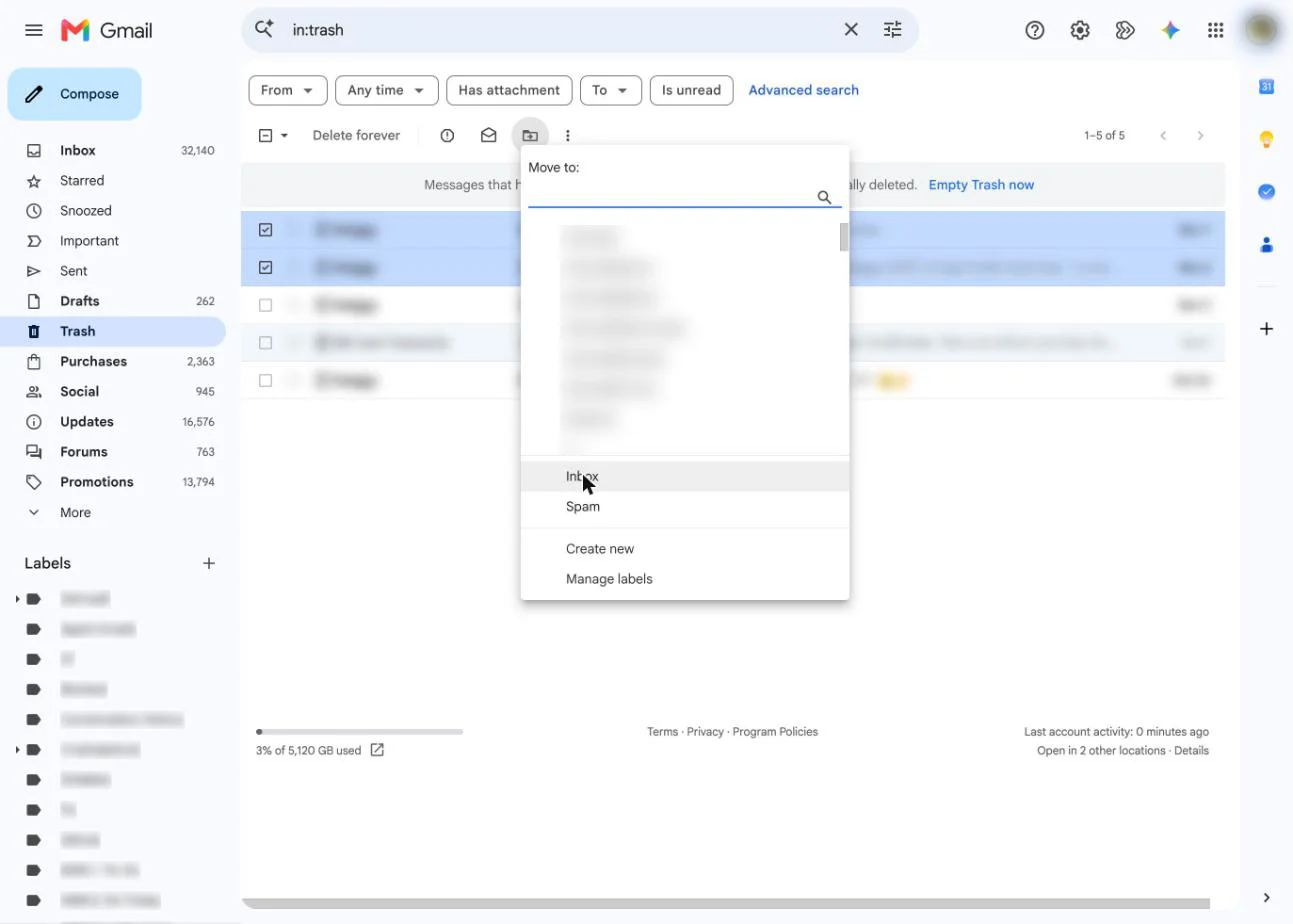
- Open Gmail. In the left sidebar, click More, then Trash.
- Tick the box next to each message you want back.
- Click Move to and choose Inbox (or a label).
In the Gmail app (Android, iPhone and iPad)
- Tap Menu (top left), then Trash.
- Touch and hold each message you want to restore.
- Tap More (top right), then Move to on Android or Move on iPhone and iPad.
- Pick Inbox or another label.
If it's been more than 30 days
- Personal Gmail: Google's help says messages deleted more than 30 days ago can't be recovered. The Gmail Message Recovery Tool that shows up in search results is for one case only: email that may have been deleted because someone got into your account without permission. You sign in and Google takes it from there, with no promise of results. If that's your situation, also change your password and check your account's security settings. Our guide to email security has the steps.
- Work or school Gmail (Google Workspace): after the 30 days, your admin has another 25 days to restore mail from the Admin console. Ask them quickly. Restored mail can take several days to show up, and spam and deleted drafts can't be restored.
If you were trying to clear space and deleted too much, our guide to mass deleting emails in Gmail explains how Trash, storage and archiving fit together.
How to recover deleted emails in Outlook
Outlook has two layers. Deleted email goes to Deleted Items first. When something leaves Deleted Items (you empty it, delete from it, or 30 days pass), it moves to a hidden Recoverable Items folder for a while longer. Microsoft's numbers for personal Outlook.com accounts are 30 days in Deleted Items, then 30 more days in Recoverable Items. Junk Email is also deleted after 30 days.
Outlook.com and Outlook on the web
- Open Deleted Items in the folder list.
- To restore something that's still there, tick it (or right-click it), choose Move and pick Inbox.
- If it's not there, select Recover items deleted from this folder at the top of the message list.
- Select the messages and choose Restore. Ctrl-click picks several, and Shift-click picks a range.
Restored items go back to their original folder where possible, or to the Inbox if that folder is gone.
New Outlook for Windows
Open Deleted Items, then select Recover next to "Recover items deleted from this folder". Pick the items and select Restore on the Home ribbon, then Go back to deleted items. For items still in Deleted Items, right-click and choose Restore, or use Move.
Classic Outlook for Windows
- Make sure you're online, then select Deleted Items.
- On the Home tab, select Recover Deleted Items From Server.
- Select the items, choose Restore Selected Items, then OK. They come back to Deleted Items, so move them on from there.
If your account shows a Trash folder instead of Deleted Items, or the Recover command is missing, Microsoft says the account doesn't support this kind of recovery. That's usually an IMAP or POP account from another provider, so use that provider's own Trash instead.
Outlook on a phone
Microsoft says you can't recover messages that have left Deleted Items from the Outlook app on iPhone or Android, or from a mobile browser. Use a computer for that step.
Work or school accounts
Your organization sets how long items stay in Deleted Items and in Recoverable Items, so the 30-day figures may not apply. If an email isn't in the recovery list, ask your IT admin. Microsoft says an admin may still be able to recover it after your own window closes.
One more Outlook.com setting to check: under Settings > Message handling, clear Empty my deleted items folder if you don't want Deleted Items emptied every time you sign out.
How to recover deleted emails in Yahoo Mail
Yahoo gives you the shortest window of the big providers. Its help pages say email in Trash is deleted after 7 days.
- On a computer (new Yahoo Mail), click More below your folders and select Trash.
- Select the message and click Restore to Inbox.
- In the Yahoo Mail app, tap your profile icon, swipe down and tap Trash, select the email, tap Move and choose Inbox.
If the email isn't in Trash, Yahoo still offers a restore request on its "Recover lost or deleted emails" help page. You pick a point in time to restore to. Know these limits before you send one:
- It only covers email lost or deleted in the last 7 days.
- A request can't be canceled, and Yahoo says restores aren't always successful.
- Spam and Drafts aren't restored. Mail from Trash, Sent, Archive and your own folders comes back to the Inbox.
How to recover deleted emails in iCloud Mail
iCloud Mail keeps deleted email in Trash for 30 days, then erases it. Deleting at icloud.com removes the email from every device that uses iCloud Mail.
- Go to icloud.com/mail and sign in.
- Open Trash in the Mailboxes list.
- Select the email and move it to your inbox, or drag it there.
Two settings can cut that window short. Apple warns that if you read iCloud Mail in another app, such as Mail on your iPhone, mail might be deleted sooner depending on that app's settings. And if "Move deleted messages to" is turned off in iCloud Mail's Mailbox Behavior settings, deleted email is erased right away.
Don't count on iCloud's Data Recovery page to help. It restores contacts, calendars and bookmarks (and recently deleted iCloud Drive files), not email. Once you empty the Trash, Apple says the emails can't be recovered.
How to recover deleted emails in Apple Mail on Mac
- Click a Trash mailbox in the Mail sidebar. Each account has its own.
- Drag the message to your inbox or another mailbox. Or select it and choose Message > Move to.
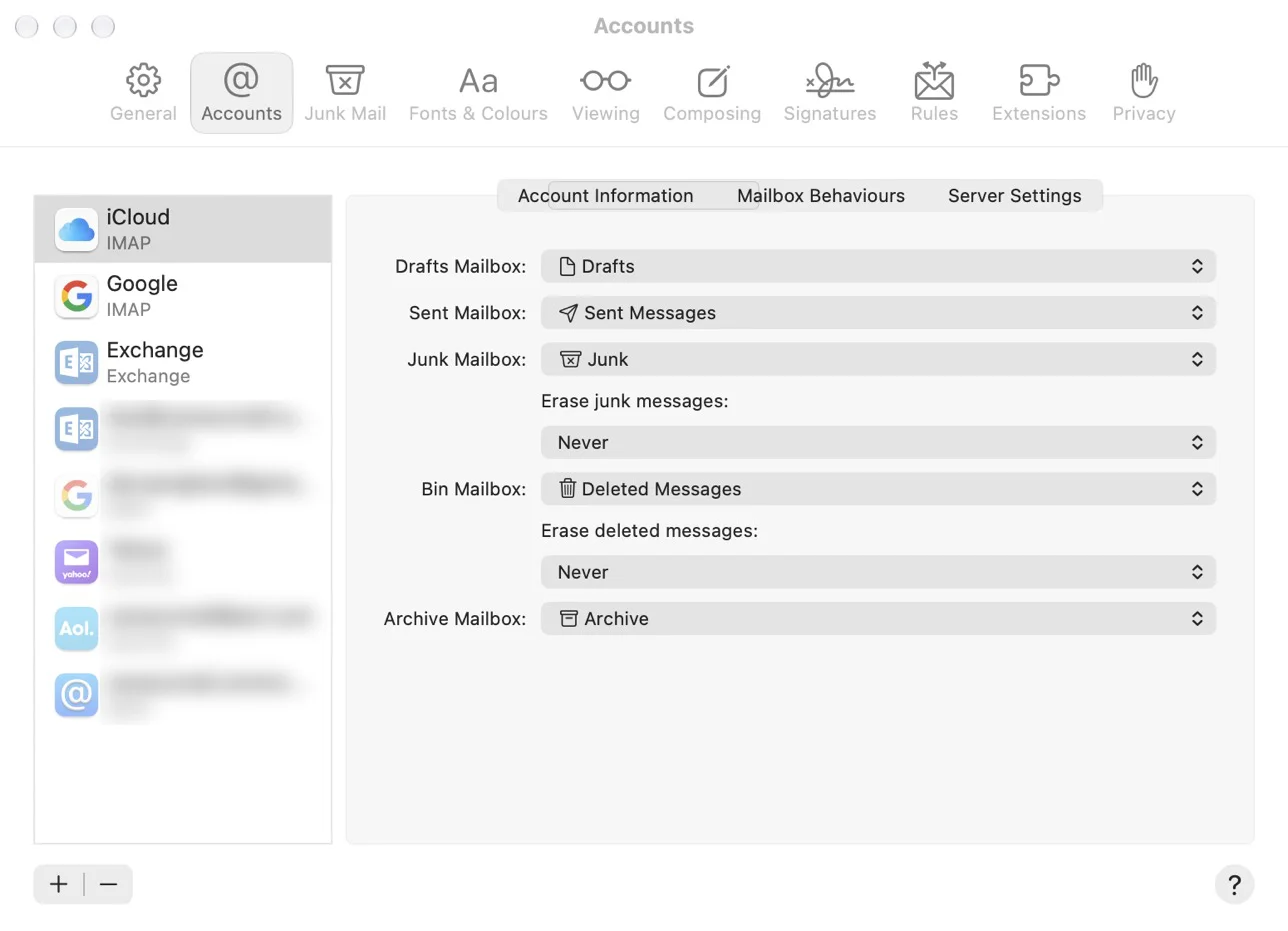
How long Trash keeps messages depends on two settings. Go to Mail > Settings > Accounts, select the account and click Mailbox Behaviors. If Trash Mailbox is set to None, deleted messages skip the Trash entirely. Erase deleted messages sets when Mail empties it. Your provider's own limit still applies on top (30 days for iCloud and Gmail).
If the message is gone from Trash and you back up with Time Machine, there's one more option. It only works if Mail had downloaded the message before it was erased. Restore your Mail folder (in your user Library) from a backup made before the deletion to a different folder, then use File > Import Mailboxes and choose Apple Mail. The messages appear in a new mailbox called Import. If Trash won't empty or deletes keep coming back, see our fixes for Mac Mail not deleting emails.
How to recover deleted emails on iPhone and iPad
If you deleted it a second ago, shake your iPhone and tap Undo. That only works if Shake to Undo is on, under Settings > Accessibility > Touch.
Otherwise, go to the Trash:
- In the Mail app, tap the back button until you see Mailboxes.
- Tap Trash under the right account, then tap the message.
- Tap the move (folder) icon and choose Inbox or another mailbox.
Not sure which account it was in? On the Mailboxes screen, tap Edit and turn on All Trash. That adds one mailbox with deleted messages from every account.
To keep deleted mail longer, go to Settings > Apps > Mail > Mail Accounts. For iCloud, tap iCloud, then Mailbox Behaviors. For other accounts, tap the account, then Account Settings > Advanced. Tap Remove and choose a longer interval. The provider can override it: Apple notes that iCloud never keeps deleted mail longer than 30 days, even if you choose Never. In the same settings you can make the swipe or trash button archive mail instead of deleting it. For more Mail app settings, see our iPhone Mail guide.
Canary Mail
Disclosure: we make Canary Mail. Canary is an email app, not an email service. It connects to your existing Gmail, Outlook, iCloud, Yahoo and IMAP accounts, so a deleted email follows your provider's rules above. It sits in that account's Trash (Deleted Items in Outlook) until the provider erases it. To get it back, open that account's Trash folder in Canary's sidebar and move the message to your inbox, or use the provider's own steps. Canary can't recover anything your provider has already erased.
Where it helps is the "which account was it?" problem. The unified inbox shows the Inbox, Sent, Drafts and Junk folders of every account in one view (unlimited accounts on the Free plan), and its search covers all your connected accounts.
Can you recover permanently deleted emails?
Usually not from your own account. Once an email leaves the provider's last recovery stage (Gmail's Trash after 30 days, Outlook's Recoverable Items, Yahoo's 7-day restore window, iCloud's Trash), the provider says it's gone. Data recovery programs scan your own computer's disk. They can't reach a copy your provider deleted from its servers.
A copy might still exist somewhere else, though:
- Your admin. On a work or school account, Google Workspace admins have 25 days after the Trash period, and organizations that use Google Vault may be able to search and export older mail. Microsoft 365 admins may be able to recover items after your window closes.
- The other person. Ask the sender to forward it again. If it's a message you sent, the recipient still has their copy.
- Another device or app. An email app that downloaded mail with POP, or a Mac with a Time Machine backup, may still hold a copy (see the Apple Mail section above).
- A backup or export you made before the deletion.
A related point: deleting an email you sent only removes your copy. It doesn't remove it from the recipient's inbox. Our post on whether you can delete an email you sent covers that.
Still can't find it?
- Email keeps disappearing. Look for a filter or rule that deletes it, a forwarding setting that removes the original, or an email app connected with POP that downloads mail and deletes it from the server. Google warns that deleting an email on any device synced with Gmail deletes it everywhere.
- Emails vanished that you didn't delete. Someone else may have access to your account. Change your password, check forwarding and connected apps, then use Gmail's Message Recovery Tool or a Yahoo restore request while you're still inside their windows.
- The Outlook recover option is missing. You're probably in the Outlook phone app or a mobile browser, or the account is IMAP or POP. Use Outlook on the web on a computer, or the provider's own Trash.
- Restored emails disappeared again. Yahoo puts restored mail back in the folder it was in at the point you chose, and that can be Trash. Move it out, or it will be deleted again.
To avoid this next time, archive instead of deleting, and set Apple Mail and the iPhone Mail app to keep Trash as long as your provider allows. For the rest of your inbox chores, see our inbox management guide.
Frequently asked questions
How do I recover permanently deleted emails?
In Outlook.com, open Deleted Items and select Recover items deleted from this folder (it works for 30 days). On a Google Workspace or Microsoft 365 work account, ask your admin. For personal Gmail, Yahoo and iCloud, mail that has left the Trash can't be recovered by the provider, so look for a copy with the sender, in a backup or on another device.
Are deleted emails gone forever?
Not right away. Deleted email sits in Trash for 30 days in Gmail and iCloud Mail, and 7 days in Yahoo. Outlook.com keeps it in Deleted Items for 30 days and then lets you recover it for 30 more. After that, or after you empty the Trash, the providers say it can't be recovered.
How long do deleted emails stay in Trash?
Gmail: 30 days. iCloud Mail: 30 days. Outlook.com: 30 days in Deleted Items, plus 30 days in Recoverable Items. Yahoo: 7 days. Work and school accounts follow the rules your admin sets.
Can I recover deleted Gmail emails after 30 days?
Not on a personal account. Google says messages are permanently deleted after 30 days in Trash. The Gmail Message Recovery Tool is only for email deleted by someone who got into your account without permission. On a Workspace account, your admin can restore mail for 25 days after the Trash period ends.
How do I get deleted emails back on my iPhone?
Shake the iPhone right after deleting and tap Undo. Otherwise, in the Mail app go to Mailboxes, tap Trash for the account (or All Trash), open the email, tap the move icon and pick Inbox.
How do I recover emails deleted from Deleted Items in Outlook?
On a computer, open Deleted Items and select Recover items deleted from this folder (Outlook.com, Outlook on the web and new Outlook). In classic Outlook, use Recover Deleted Items From Server on the Home tab. You can't do this in the Outlook phone app.
Can Yahoo restore deleted emails?
Sometimes. Yahoo takes restore requests for email lost or deleted in the last 7 days. Requests can't be canceled, Spam and Drafts aren't restored, and Yahoo says restores aren't always successful.
Sources
- Google: Delete or recover deleted Gmail messages
- Google: Gmail messages are missing
- Google: Gmail Message Recovery Tool
- Google: Archive or mute Gmail messages
- Google Workspace: Restore a user's permanently deleted email
- Microsoft: Recover and restore deleted items in Outlook
- Microsoft: Restore deleted email messages in Outlook.com
- Microsoft: Email is missing from your Outlook.com inbox
- Yahoo: Recover lost or deleted emails
- Yahoo: Move deleted emails from Trash to the Inbox
- Yahoo: Restore emails from trash in New Yahoo Mail
- Apple: Delete email in Mail on iCloud.com
- Apple: If you accidentally deleted your contacts, calendars, or bookmarks from iCloud
- Apple: Delete and recover emails in Mail on iPhone
- Apple: Adjust how iPhone responds to your touch (Shake to Undo)
- Apple: Delete emails and manage storage in Mail on Mac
- Apple: Import or export mailboxes in Mail on Mac
- Apple: Restore items backed up with Time Machine on Mac
- Canary Mail: My folders aren't listed in Unified View