To stop spam emails, report each one as spam (or junk) instead of just deleting it, block senders and whole domains that keep coming back, and use the unsubscribe link only for companies you actually signed up with. Then cut off the supply: give sites an alias instead of your real address, and stop images loading automatically so spammers can't tell your address is live. You can't get spam to zero, but these steps usually turn a flood into a few messages a week.
Below are the exact steps for Gmail, Outlook, Yahoo Mail, Apple Mail on the Mac and the iPhone, followed by why some spam still gets through and how to spot the messages that are scams rather than junk. For blocking, unsubscribing and the rest of inbox upkeep, see our guide to managing your inbox.
Spam, phishing or a newsletter? Each needs a different fix
Most "spam" is one of three things, and the right action depends on which.
| What it is | How to recognize it | What to do |
|---|---|---|
| Newsletter or promotion you signed up for | A company you know, often after a purchase or a free trial | Unsubscribe |
| Spam | Unknown sender, bulk ads, offers you never asked for | Report as spam, then block if it repeats |
| Phishing or scam | Asks you to log in, pay, confirm details, or open an attachment | Report as phishing, don't click anything, delete |
Don't use the unsubscribe link in mail from a sender you don't recognize. CISA warns that unsubscribe options in spam are often just a way to collect working addresses, and Yahoo advises never replying to ask to be removed. Clicking or replying tells the sender a real person reads your inbox.
How to stop spam in Gmail
Gmail's filter is on for every account. Your job is to report what gets past it, because Google says that as you report more spam, Gmail gets better at catching similar mail.
Report spam
- On a computer: select one or more emails, then click Report spam at the top.
- In the Android or iPhone app: open the email, tap More (three dots) at the top right, then tap Report spam. To report several at once, tap each sender's profile picture to select them first.
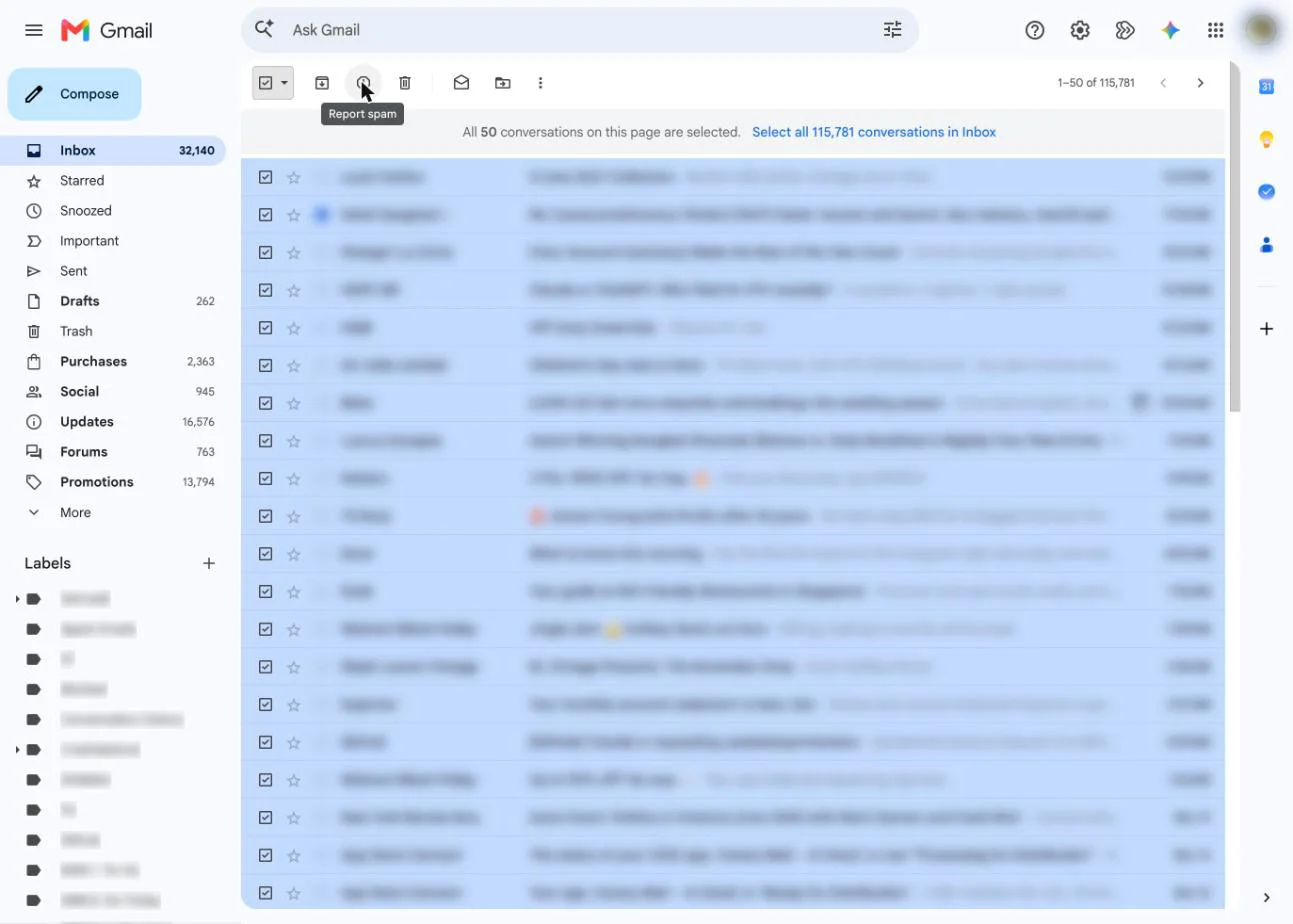
Reported mail moves to Spam, and later emails from the same sender may go straight there. Gmail deletes anything in Spam after 30 days. If you report something by mistake, open Spam, select it and click Not spam.
Report phishing
If an email asks for a password, payment or personal details, report it as phishing, not spam. On a computer, open the message, click More next to Reply, then Report phishing. Google documents this option for Gmail on a computer.
Block a sender
Open an email from the sender, click (or tap) More next to Reply, then Block "sender". This works on a computer and in both apps. Everything they send afterwards goes to Spam. You can review the list on a computer under Settings > See all settings > Filters and Blocked Addresses.
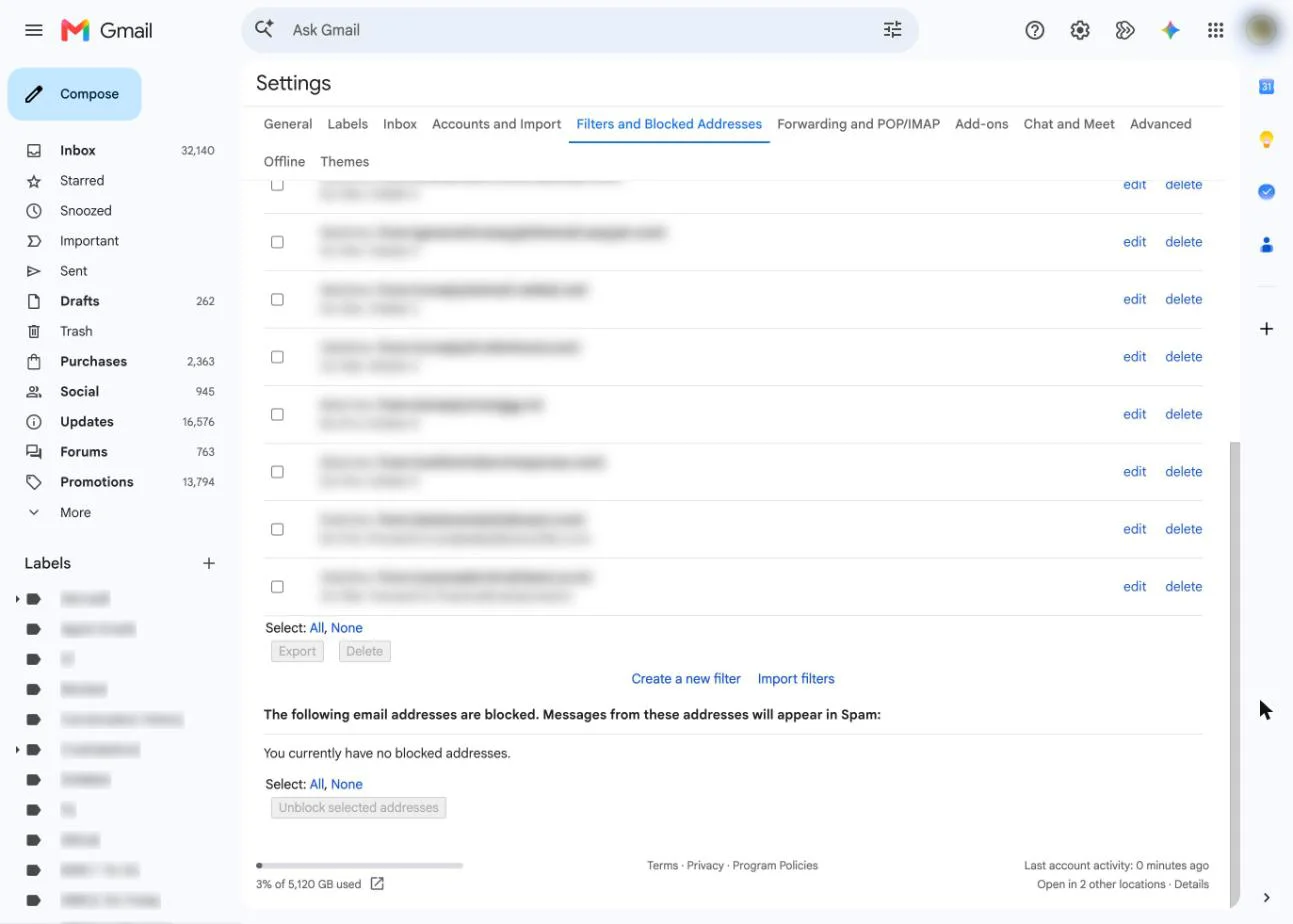
Gmail's block works on single addresses. To catch a whole domain, use a filter, as below. Our step-by-step guide covers how to block emails in every app, including domains.
Filter what keeps slipping through
- On a computer, click Show search options in the search bar.
- Enter what the spam has in common: a domain in the From field (for example @example.com) or words that keep appearing.
- Click Create filter, choose Delete it or a label, then click Create filter again.
Filters only apply to new mail and run only on the computer version, though they then work in every app. Choose a label rather than Delete until you're sure the filter isn't catching mail you need. Our guide to creating rules and filters in Gmail has more examples.
How to stop spam in Outlook and Outlook.com
The steps depend on which Outlook you have. Outlook.com, Hotmail and the new Outlook for Windows share one set of settings. Classic Outlook for Windows has its own.
Report junk or phishing
- Outlook.com, Outlook on the web and the new Outlook: select the message, then choose Report > Report junk or Report > Report phishing above the reading pane.
- Outlook for iPhone and Android: open the email, tap ⋮ at the top right, tap Report Junk, then choose Junk, Phishing or Block Sender.
- Classic Outlook (Microsoft 365): recent versions have the same Report button on the Home tab.
One catch on Outlook.com: Microsoft says reporting a message as phishing reports the sender but doesn't block them. If they keep writing, block them too.
Block senders and whole domains
- Go to Settings > Mail > Junk email.
- Type an address under Blocked senders, or a domain under Blocked domains, and select Add.
- Select Save.
Blocked mail goes to the Junk Email folder, and the list holds up to 10,000 addresses and domains. In classic Outlook, right-click a message and choose Block > Block Sender, or manage the list under Home > Block > Junk E-mail Options > Blocked Senders.
Two things to know. Outlook empties Junk automatically (Microsoft's help pages say 14 days in one place and 30 in another), so check it for real mail every week or so. And the new Outlook for Windows can't block senders for Gmail, Yahoo or iCloud accounts you've added to it; Microsoft says to block those in the provider's own settings. Our Hotmail spam filter guide covers safe senders and inbox rules in more detail.
How to stop spam in Yahoo Mail
- Report spam on the web: select the email and click Mark as spam. Future mail from that sender goes to the Spam folder.
- Report spam in the app: open the email (or tap Edit to select several), tap More, then Mark as spam.
- Block an address: on the web, click More below your folders, then Settings > Security and Privacy. Under "Blocked addresses", click Add, enter the address and click Save. You can block up to 1,000 addresses.
When you mark a message from a mailing list Yahoo trusts as spam, it offers to unsubscribe you instead. For a company you signed up with, that's the better choice. Yahoo also asks you to report spam in its own apps or website rather than in other email apps, because its filter learns from those reports.
How to stop spam in Apple Mail on the Mac
Apple Mail has its own junk filter on top of your provider's. Check that it's on: choose Mail > Settings, click Junk Mail and make sure Enable junk mail filtering is selected. Then pick Move it to the Junk mailbox once you trust it.
- Mark as junk: select the message and click the Junk button in the toolbar. Each time you mark something junk or not junk, the filter improves.
- Block a sender: select a message, move the pointer next to the sender's name in the header, click the arrow and choose Block Sender. You can block up to 3,000 senders.
- Send blocked mail to the Trash: in Mail > Settings > Junk Mail > Blocked, choose Move it to the Trash.
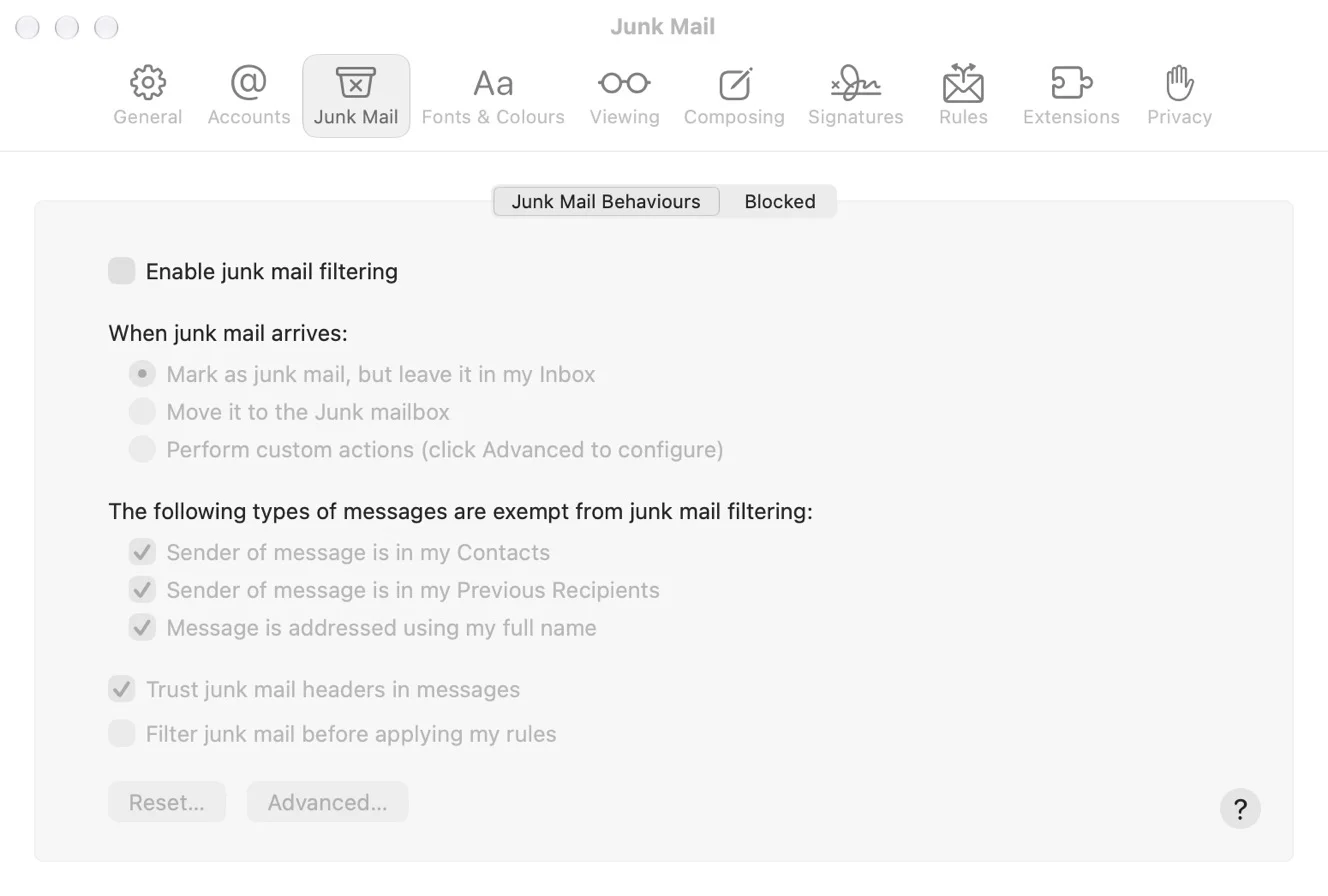
Even with Mail's filter off, your provider may still move mail to Junk on the server. Our guide to junk mail filtering in Mac Mail explains how the two filters interact and what the advanced options do.
On iCloud.com, select the message, click More and choose Move Message to Junk. iCloud deletes mail in Junk after 30 days, and mail from your contacts or people you've recently written to doesn't go to Junk.
How to stop spam on iPhone and iPad
- Report junk in the Mail app: swipe left on the message, tap More, then tap Move to Junk. Apple says future messages from that sender are then marked as junk.
- Block a sender: open a message from them, tap their address, tap View Contact Card, then Block this Contact. Blocked email goes to the Trash, and the block applies across your Apple devices. In iOS 26 you can also add or remove addresses under Settings > Privacy & Security > Blocked Contacts.
- Stop images confirming your address: go to Settings > Apps > Mail > Privacy Protection and turn on Protect Mail Activity.
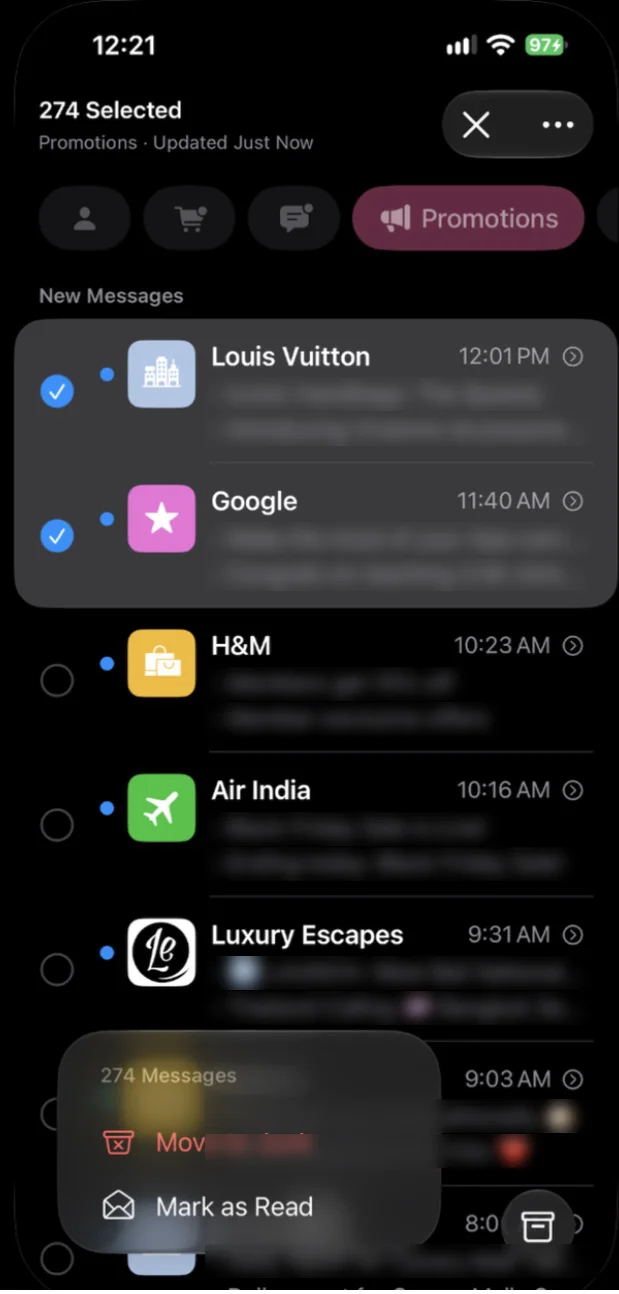
If you read Gmail, Outlook or Yahoo in their own iPhone apps, use the app steps in those sections above. Their reports go straight to the provider's filter.
Canary Mail
Disclosure: we make Canary Mail. Canary doesn't have a spam filter of its own. It uses the filter of each provider you connect, so if Gmail or iCloud calls a message spam, Canary shows it in that account's Spam or Junk folder. If too much spam gets through, the fix is in the provider's settings, using the steps above.
What Canary adds:
- Block a sender or a whole domain. On the Mac, click the arrow next to the sender's name and choose Block. On iPhone, tap the sender's name in the email header, then Block. Blocked mail goes to the Trash or is marked as blocked, depending on your settings. On iOS, the block list is under Settings > Rules. Blocks apply to new mail only, not to what's already in your inbox.
- 1-Click Unsubscribe on every plan, for newsletters you signed up for.
- Tracker and pixel blocking, so opening an email doesn't tell the sender your address is active.
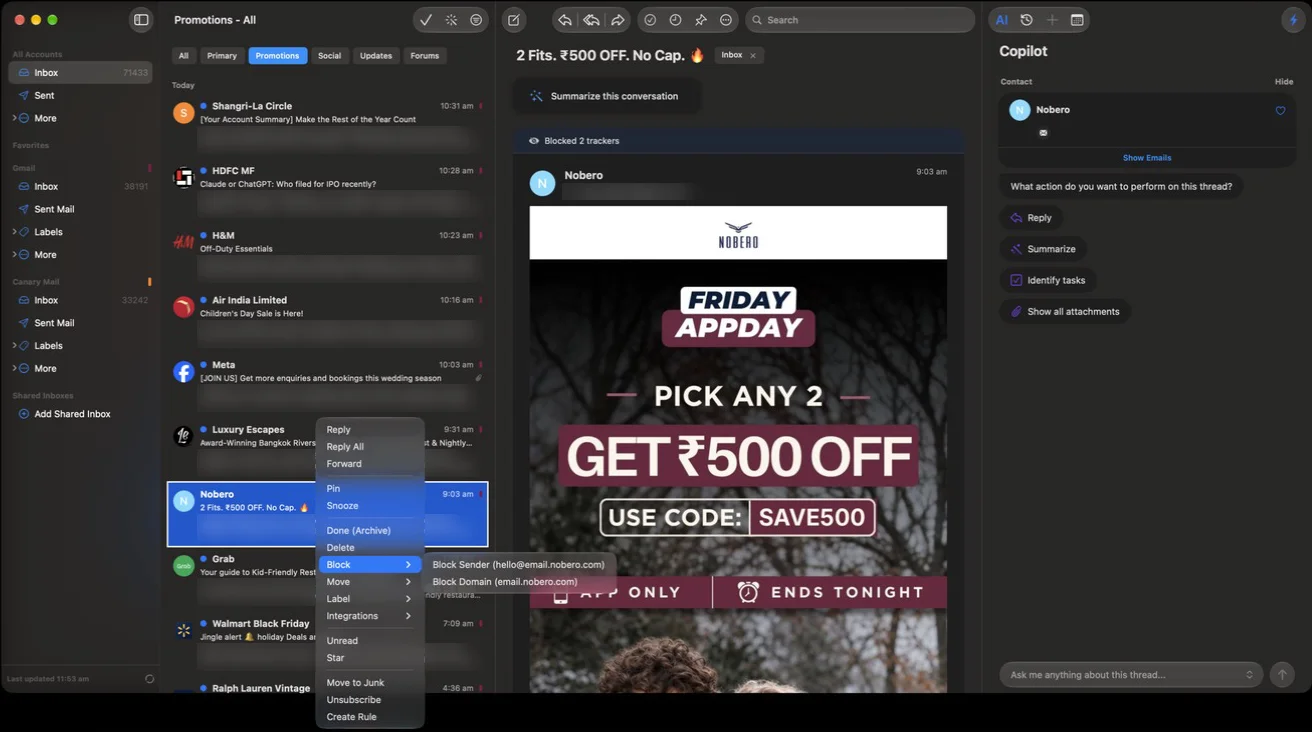
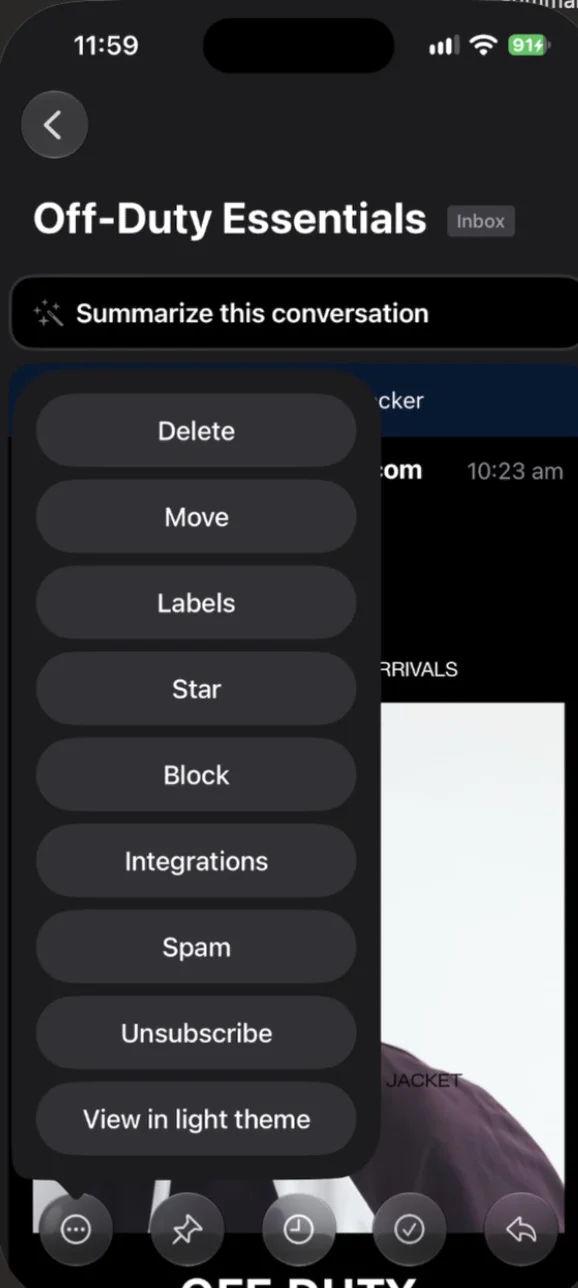
Canary's block list is a Canary setting. If you also check mail in Gmail, Outlook or Yahoo's own apps, block persistent senders in the provider's settings too.
Unsubscribe only from senders you know
A lot of what feels like spam is mail you agreed to at some point: a store you bought from once, an app you tried, a box you forgot to untick. For these, unsubscribing works better than blocking, because the sender stops mailing you instead of your filter hiding it. Under US law, a company sending marketing email has to honor an opt-out within 10 business days, according to the FTC's CAN-SPAM guide.
- Gmail: click Unsubscribe next to the sender's name, or go to More > Manage subscriptions on a computer (still rolling out) to see every mailing list in one place. After you unsubscribe, anything that sender still sends goes to Spam.
- Outlook.com: Settings > Mail > Subscriptions lists your subscriptions with an Unsubscribe button for each.
- Apple Mail: when a message comes from a mailing list, a banner under the header has an Unsubscribe link.
Use these built-in buttons rather than links at the bottom of an email you don't trust. If you have hundreds to get through, our guide on how to mass unsubscribe from emails compares the faster ways, including Gmail's tools and unsubscribing in Gmail step by step.
Keep your real address away from spammers
Reporting and blocking deal with spam that already has your address. These habits slow down how fast new spammers get it.
- Use an alias for sign-ups. With iCloud+, Hide My Email creates random addresses that forward to your inbox. In Safari or Mail, tap the email field or the From field and choose Hide My Email. If one address starts getting spam, delete it. Gmail users can add a plus tag (yourname+shop@gmail.com) to see who shared the address. Our guide to email aliases compares the options in Gmail, Outlook.com and iCloud.
- Block remote images. Spammers use images to check whether an address is active. Turn on Protect Mail Activity on Apple devices (on the Mac, it's in Mail > Settings > Privacy; on iCloud.com, in Settings > Privacy & Security).
- Read the privacy policy and untick the boxes. The FTC and CISA both point out that companies may share or sell your address, and sign-up forms often come with marketing boxes already ticked.
- Don't post your address publicly. Bots collect addresses from websites, forums and social profiles.
- Keep your devices updated. The FTC's spam advice also covers your devices: install security updates, turn on automatic updates and change preset passwords, so spammers can't take them over.
Still getting spam? Why it gets through
- The sender changes addresses. Blocking one address doesn't stop the next. Report every message as spam (it trains the filter on the content, not just the address) and block the domain if it stays the same.
- The From address is forged. Yahoo explains that a blocked sender can still reach you when the visible From address has been faked. The real address is in the full headers, in the top Received or Mailfrom line.
- You're managing spam in the wrong place. A junk folder in a desktop app may not report back to your provider. Report spam in the provider's own website or app when you can. In Gmail's case, Google says moving a message into Spam also sends it to Google for analysis.
- A contact's account was hacked. If spam comes from someone you know, Gmail says their account has probably been taken over. Report it and let them know.
- It's a sudden flood of sign-ups. Hundreds of newsletter confirmations in an hour is usually email bombing, which can be cover for someone using your accounts. Check your bank and email for logins and purchases you didn't make; our guide to phishing emails explains what to do.
- Good mail is going to spam instead. That's the opposite problem. Mark it as not spam and add the sender to your contacts, and see why you're not receiving emails if messages are missing altogether.
If spam is still unmanageable after all of this, the last resort is a new address that you give out carefully, with aliases for everything else.
How to tell spam from a scam
Ordinary spam is annoying. Phishing is spam that wants something from you. The FTC lists the stories scammers tell most often:
- they've noticed suspicious activity or login attempts on your account;
- there's a problem with your payment information;
- you need to confirm personal or financial details;
- there's an invoice you don't recognize, or a link to make a payment;
- you're eligible for a government refund, or a coupon for free stuff.
Look at the actual sender address, not just the name. Gmail warns about addresses that swap letters for numbers (an "0" for an "O"), and Outlook shows a question mark in the sender photo when it can't verify who sent a message. If you think the message might be real, contact the company through a website or phone number you already know.
Report it as phishing in your email app, then delete it. In the US you can also forward phishing emails to the Anti-Phishing Working Group at reportphishing@apwg.org and report the attempt at ReportFraud.ftc.gov. If you already clicked a link or replied, our guide to spotting and reporting phishing emails has the next steps, and our email security guide covers protecting the account itself.
For the other jobs that keep an inbox under control, like bulk deleting, marking everything as read and recovering deleted mail, see our guide to managing your inbox.
Frequently asked questions
Is it better to block spam emails or just delete them?
Report them. Deleting does nothing about the next one, and blocking only stops that exact address. Reporting as spam teaches your provider's filter what the message looks like, so it can catch similar mail from new addresses. Block senders who keep getting through anyway.
Why am I suddenly getting a lot of spam emails?
Usually your address has started circulating: a data breach at a site you use, a list that was shared or sold, or a reply or click that confirmed the address is live. A sudden wave of newsletter sign-ups can also be email bombing, which is meant to hide security alerts, so check your accounts.
Will spam emails eventually stop?
Not completely. Spam costs almost nothing to send, so some always reaches every address. Reporting, blocking and using aliases for sign-ups cut it down a lot, and most of what remains lands in your spam folder instead of your inbox.
How do I block spam emails without opening them?
Select the message from the list instead of opening it. In Gmail, tick the box and click Report spam. In Outlook, select it and choose Report. On iPhone, swipe left, tap More, then Move to Junk. Apple recommends deleting suspected junk without opening it, since opening can tell spammers the address is active.
Why do I keep getting spam emails even after blocking them?
Spammers switch addresses, and some forge the From line so the real sender isn't the one you blocked. Report each message as spam, block the whole domain where your provider allows it, and use a filter for words or domains that keep showing up.
How do I stop spam emails on my iPhone?
In the Mail app, swipe left on the message, tap More and choose Move to Junk. To block a sender, tap their address, then View Contact Card and Block this Contact. Turn on Protect Mail Activity in Settings > Apps > Mail > Privacy Protection so images don't confirm your address.
Is it safe to open a spam email?
Opening one is rarely harmful by itself, but it can load tracking images that confirm your address to the sender. The real risk is clicking links, opening attachments or replying. If you opened one, don't interact with it; report it and delete it.
Sources
- FTC: How to get less spam in your email
- FTC: How to recognize and avoid phishing scams
- FTC: CAN-SPAM Act: a compliance guide for business
- CISA: Reducing spam
- Google: Report spam in Gmail
- Google: Avoid and report phishing emails
- Google: Block an email address in Gmail
- Google: Create rules to filter your emails
- Google: Manage your subscriptions in Gmail
- Google: Send emails from a different address or alias
- Microsoft: Block or unblock senders in Outlook
- Microsoft: Filter junk email and spam in Outlook
- Microsoft: Phishing and suspicious behavior in Outlook
- Microsoft: How do I report phishing or junk email? (Outlook mobile)
- Microsoft: Report phishing and suspicious emails in Outlook
- Microsoft: Manage email subscriptions in Outlook.com
- Yahoo: Manage spam and mailing lists in New Yahoo Mail
- Yahoo: Block and unblock email addresses in New Yahoo Mail
- Yahoo: Stop spam and junk mail in the Yahoo Mail app
- Yahoo: Spot and stop emails from a blocked address
- Apple: Report and reduce spam in iCloud Mail
- Apple: Reduce junk mail in Mail on Mac
- Apple: Change Blocked settings in Mail on Mac
- Apple: Flag or block emails in Mail on iPhone
- Apple: Block phone numbers, contacts and emails on iPhone or iPad
- Apple: Set up and use Hide My Email in iCloud+
- Canary Mail: How is spam handled in Canary?
- Canary Mail: How to block senders on macOS and on iOS