When emails stop arriving, the message has usually reached your provider and been filed somewhere you didn't look, or a setting is moving it, deleting it or bouncing it. Check these in order: your Spam or Junk folder and other inbox tabs, your mailbox storage (a full mailbox sends new mail back to the sender), your filters or rules, forwarding, your blocked senders list, the address the sender used, and whether your provider is down. If the mail shows up in webmail but not on your phone, the problem is your phone's sync settings, not the account.
The checklist below works for any email account. After it, each app has its own section with the exact settings to check. For blocking, unsubscribing and other inbox tasks, see our guide to managing your inbox.
First, find out where the problem is
One test tells you which half of the checklist to read.
- Sign in to your provider's website on a computer: mail.google.com, outlook.com, mail.yahoo.com or icloud.com/mail. Webmail shows what the provider has, with no app in between.
- Send yourself an email from a different account, such as a work address or a friend's, with a subject you'll recognize. Sending from the same account can make the test look fine when it isn't.
- Wait a few minutes and see where it lands.
- It arrives in webmail but not in your app: your account works. The problem is the app or the device, so skip to the iPhone, Mac or Canary section.
- It doesn't arrive in webmail either: the cause is your account settings, your storage, an outage or the sender. Work through the checklist.
- Everything arrives except mail from one person: look at blocked senders, filters and Spam first, then ask the sender for their bounce message.
Why am I not receiving emails? The checklist
These causes apply to every provider. The app sections further down show where each setting lives.
1. The email is in Spam, Junk or another tab
Spam filters catch real mail, especially from new senders. Gmail also splits the inbox into tabs like Promotions and Updates, Outlook sorts mail into Focused and Other, and Apple Mail has categories. Search all folders for the sender's address before you change anything. If you find the message in Spam or Junk, mark it as not spam so the next one reaches your inbox.
2. Your mailbox storage is full
This is the one that loses mail. When Gmail, Outlook.com, Yahoo or iCloud runs out of space, it stops accepting new email and messages sent to you bounce back to the sender. They don't wait in a queue for you. Once you clear space, people have to send them again. Yahoo says mail sent while your mailbox is full isn't stored and can't be recovered.
| Provider | Free storage | What counts | Where to check |
|---|---|---|---|
| Gmail | 15 GB | Shared with Google Drive and Photos; Spam and Trash count | one.google.com/storage |
| Outlook.com | 15 GB of mail, plus 5 GB of Microsoft cloud storage | Deleted Items counts until it's emptied; a full cloud quota also stops email | Settings > Account > Storage |
| Yahoo Mail | Varies by country and plan | All mail and attachments | Yahoo Mail storage settings |
| iCloud Mail | 5 GB | Shared with iCloud backups, Photos and Drive | Settings > [your name] > iCloud on iPhone |
Empty Trash and Spam first, then delete old emails with large attachments.
3. A filter or rule is moving or deleting it
A filter you made months ago, or one an unsubscribe tool created for you, can archive mail, move it to a folder or delete it on arrival. Look for rules that match the sender, the subject or a whole domain, and for actions like "Delete it", "Skip Inbox" or "Move to".
4. Forwarding is sending it somewhere else
Automatic forwarding can send your mail to another address and, depending on the setting, remove your copy. If mail is being forwarded to an address you don't recognize, someone may have access to your account. Turn forwarding off and change your password. Our guide to spotting phishing emails explains how accounts usually get taken over.
5. You blocked the sender
Blocked mail doesn't disappear without a trace. Most providers send it to Spam, Junk or Trash. It's easy to block the wrong address while clearing out newsletters, so check the list. If you do want to block someone properly, our guide on how to block emails covers every app.
6. The sender has the wrong address
A typo, an old address or a missing letter sends the message somewhere else, and only the sender gets the error. Ask them to check the exact address they used and whether they got a bounce message. The bounce usually says why: the address doesn't exist, your mailbox is full, or the message was rejected as spam. Our explainer on Mailer-Daemon bounce messages decodes the common ones.
7. Your provider is having an outage
If mail stopped for everyone at once, check the status page before you change settings: the Google Workspace Status Dashboard for Gmail, Microsoft's service status page for Outlook.com, and Apple's System Status page for iCloud Mail. If there's an active incident, wait it out.
8. Your phone isn't syncing
If mail reaches webmail but not your phone, check the app's sync and background settings, Low Power Mode or Battery Saver, the notification settings, and whether the account needs you to sign in again. Removing the account and adding it back fixes many sync problems, as long as the account uses IMAP or Exchange (the mail stays on the server).
Gmail (web and app)
On a computer, search everything first: click Show search options in the search bar, set "Search" to Mail & Spam & Trash, and enter the sender. In the Android or iPhone app, type in:anywhere before your search. Gmail deletes messages in Spam and Trash after 30 days, so check soon.
Then check these settings on a computer:
- Settings > See all settings > Filters and Blocked Addresses: remove filters that delete or skip the inbox, and unblock anyone listed by mistake. Mail from blocked senders goes to Spam.
- Settings > See all settings > Forwarding and POP/IMAP: see whether mail is forwarded and whether Gmail keeps its copy.
- one.google.com/storage: when your Google storage is full, you can't send or receive email.
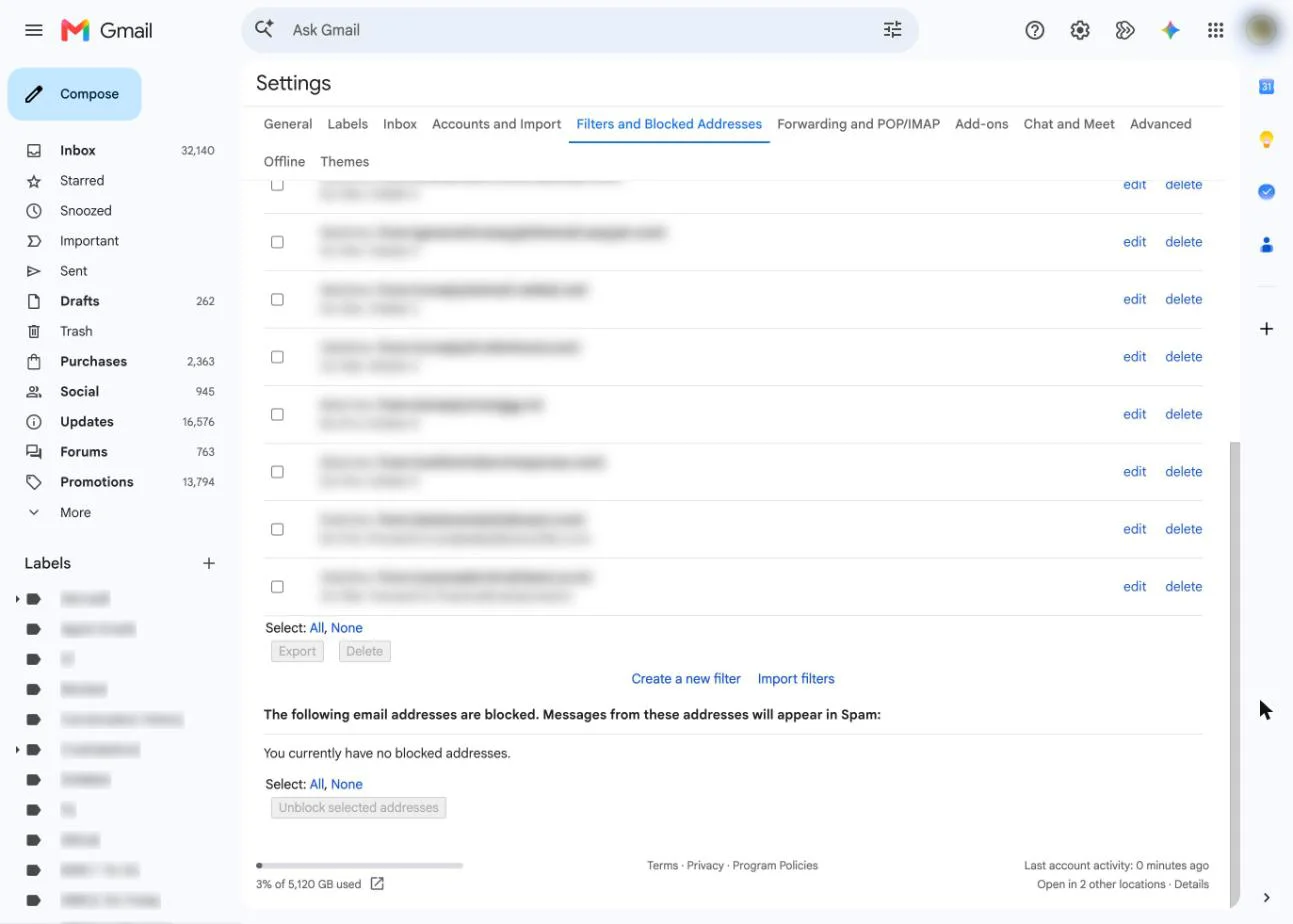
Our full guide to Gmail not receiving emails has the step-by-step fixes, the Android and iPhone app sync settings, and what "Queued" means. To rebuild a filter, see how to create rules in Gmail.
Outlook (Outlook.com, new Outlook and classic Outlook)
Microsoft's first check is storage. If your mailbox or your Microsoft cloud storage is full, you can't send or receive email in Outlook.com, and Microsoft says mail sent to you during that time goes back to the sender. Check it under Settings > Account > Storage, where you can permanently delete everything in a folder or only items older than 3, 6 or 12 months.
Then work through these in Outlook.com, Outlook on the web or new Outlook for Windows:
- The Other tab. With Focused Inbox on, Outlook sorts mail into Focused and Other, and new senders often land in Other. To see everything in one list, go to Settings > Mail > Layout and choose Don't sort my messages.
- Junk Email. Open the Junk Email folder, right-click anything that belongs in your inbox and mark it as not junk. Outlook.com deletes Junk items after 10 days.
- Blocked senders. Go to Settings > Mail > Junk email. Blocked senders and blocked domains are listed there, and their mail goes to Junk Email. Remove anyone who shouldn't be on the list.
- Rules. Go to Settings > Mail > Rules and turn off or delete any rule that moves or deletes mail you want.
- Forwarding. In Outlook.com, go to Settings > Mail > Forwarding and IMAP. In Outlook on the web and new Outlook, it's Settings > Mail > Forwarding. If forwarding is on and you didn't set it up, choose Disable forwarding and save.
- Sort order. If messages look missing, they may just be out of order. Choose Filter > Sort > Date.
In classic Outlook for Windows, look at the status bar at the bottom of the window. If it says Working Offline or Disconnected, open the Send/Receive tab and click Work Offline to go back online. Microsoft also suggests checking your internet connection, re-entering a recently changed password, and repairing Outlook if the problem continues. Rules in classic Outlook are under Home > Rules > Manage Rules & Alerts. For more on sorting Outlook mail, see our guide to filtering your Hotmail and Outlook inbox.
Yahoo Mail
Yahoo lists five account settings that can keep mail out of your inbox: your reply-to address, blocked addresses, blocked domains, the Spam folder and filters. On a computer, open Yahoo Mail, click More (below your folders), then Settings:
- Security and Privacy: the "Blocked addresses" list. Hover over an address and click the delete icon to unblock it. Blocking whole domains is a Yahoo Mail Plus feature, and those appear on the same page.
- Filters: Yahoo applies filters from the top down and can send mail to a folder or to Trash. Edit or delete any that catch the sender.
- Spam folder: select the message and click Not spam. Yahoo says future mail from that sender will then go to your inbox.
Then send yourself an email from a computer. If it doesn't arrive, Yahoo points you to the failed-delivery message. If your account looks fine, Yahoo says the issue is on the sender's side: ask them to check that they typed your full address.
Two Yahoo-specific cases. A full mailbox stops all incoming mail until you clear space, and mail sent in the meantime is lost. And if mail reaches Yahoo on a computer but not the Yahoo Mail app, update the app, then sign out and back in. Reinstalling is Yahoo's last step.
Apple Mail on Mac
Most "missing" mail on a Mac is hidden rather than lost. Check these first:
- Categories: Mail sorts messages into Primary, Transactions, Updates and Promotions. Mail outside Primary can look missing.
- Junk: the Junk mailbox in Mail, and your provider's spam folder in webmail. Mail's own settings are under Mail > Settings > Junk Mail. For tuning them, see our guide to Mac Mail junk mail filtering.
- Rules: Mail > Settings > Rules. Turn off any rule you don't recognize.
- Blocked senders: Mail > Settings > Junk Mail > Blocked. Depending on the setting, mail from blocked senders is marked but left in the inbox, or moved straight to the Trash.
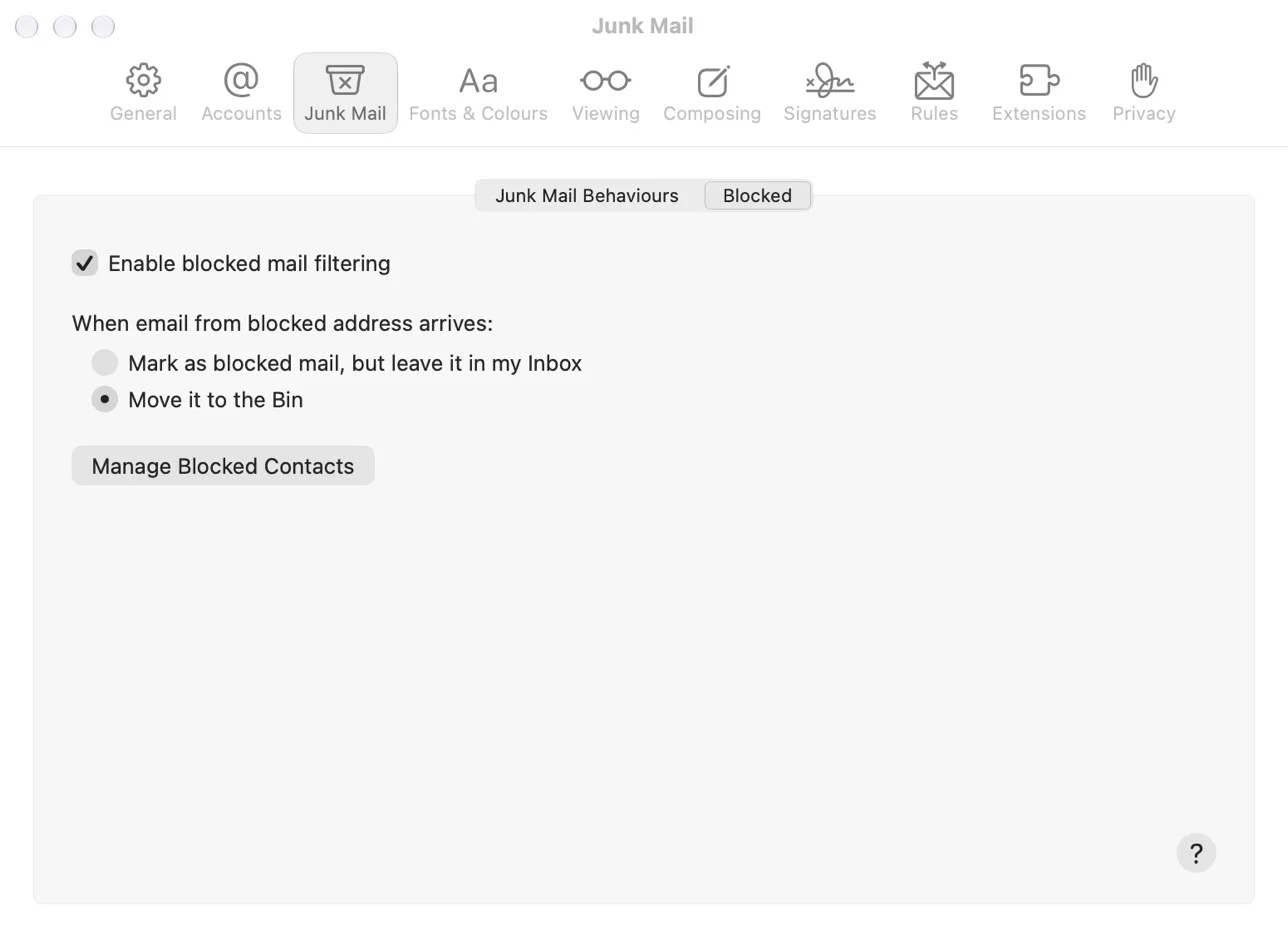
If the mail really isn't arriving, the account may be offline, its password may be out of date, or the mailbox may be full. Our guide to Mac Mail not receiving emails goes through each fix, including rebuilding a mailbox. If mail arrives only when you click Get Mail, see Mac Mail not updating the inbox.
iPhone and iPad
Apple's checklist for the Mail app starts with your connection and an outage check, then confirming your password on the provider's website. After that:
- Fetch New Data: go to Settings > Apps > Mail > Mail Accounts > Fetch New Data. Turn on Push where the account supports it. Gmail accounts usually offer only Fetch, so pick a timed schedule rather than Manual.
- Low Power Mode: it turns off email fetch, so mail waits until you open the app.
- Hidden mail: the Mail app has categories too (Primary, Transactions, Updates, Promotions), and a mailbox filter can hide messages that don't match it.
- iCloud Mail: make sure Use on this iPhone is on under Settings > [your name] > iCloud > Mail, and that you're under your iCloud storage limit. Apple says that if you run out of iCloud storage, you can't send or receive email with your iCloud address.
- Remove and re-add the account as a last step, using the Google, Outlook.com or Yahoo button rather than Other.
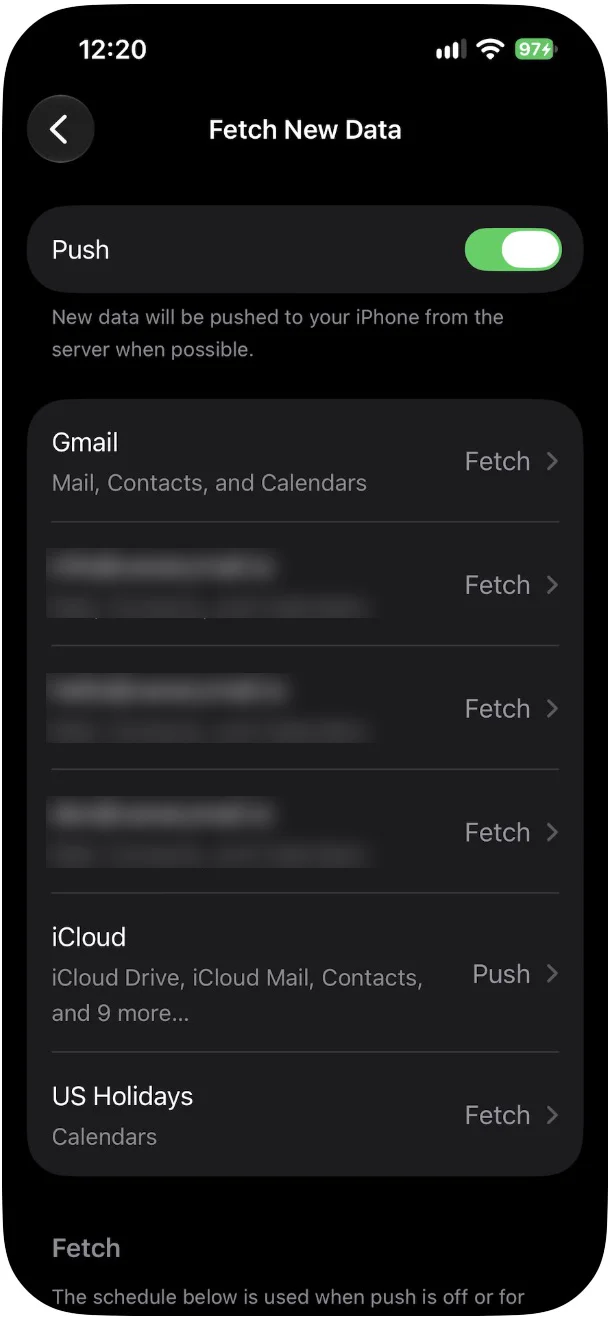
Our guide to the iPhone not getting emails has all ten fixes in order, plus provider-specific steps for Gmail, Outlook.com, Yahoo, iCloud and work accounts. For other iPhone settings, see our iPhone Mail guide.
Canary Mail
Disclosure: we make Canary Mail. Canary is an email app for Mac, iPhone, iPad, Android and Windows that works with Gmail, Outlook, Yahoo, iCloud and other IMAP accounts. It shows the mail your provider delivers, so the provider checks above (storage, provider filters, forwarding, outages) apply first. If mail is in webmail but not in Canary, check these:
- Spam: Canary doesn't have its own spam filter. It uses your provider's, so a message the provider marks as spam lands in that account's Spam or Junk folder in Canary too.
- Blocked senders: when you block a sender or a whole domain in Canary, their mail is either moved to Trash or marked as blocked in your inbox, depending on your block settings. On Mac, check the blocked list in Settings. On iPhone and iPad, blocked senders are listed under Settings > Rules.
- The filter icon: if the thread list shows only Unread, Starred or Attachments, a filter is on. Tap or click the filter icon to clear it.
- Push or Fetch on mobile: on iPhone and Android you choose between Push, which runs through Canary's push server, and Fetch, which checks from your device and can be up to about 15 minutes behind. Switch in Settings if notifications are slow.
- Smart Notifications: if it's on, Canary doesn't notify you about newsletters and similar mail. The email still arrives, just quietly.
Still not receiving emails?
If the checklist and your app's section didn't turn it up, try these less common causes.
- Give it 15 minutes, then send another test. Delivery is usually quick, but a message can take a few minutes.
- Sign in to webmail and look for a notice. Microsoft, for example, can temporarily block an account after unusual sign-in activity, and it can't send or receive until you unblock it.
- If you changed your password recently, enter the new one in every app and on every device. The ones still using the old password stop syncing.
- Ask the sender for the bounce message. It names the reason and shows whether the mail ever reached your provider.
- On a work or school account, ask IT. They can trace a message in the mail logs and check the domain's MX records and your account status. Ask them before you remove the account from your devices.
- If you use your own domain, check with your domain provider that the MX records still point to your email host.
To keep junk from burying the mail you want, our guide on how to stop spam emails covers provider filters, reporting and blocking. For everything else, start with our inbox management guide.
Frequently asked questions
Why did I suddenly stop receiving emails?
When everything stops at once, the usual causes are a full mailbox, a provider outage, a changed password or an account locked after unusual sign-in activity. Check your storage and the provider's status page first, then sign in to webmail and look for a notice.
Why are my incoming emails not showing up in my inbox?
They're usually there, just not in the inbox you're looking at. Check Spam or Junk, Gmail's Promotions and Updates tabs, Outlook's Other tab, and Apple Mail's categories. Then check for filters or rules that move mail to a folder or skip the inbox.
Can a full mailbox stop me from receiving emails?
Yes. Gmail, Outlook.com, Yahoo and iCloud all stop accepting new mail when you run out of storage, and senders get a bounce. Those messages don't come back when you free up space, so the sender has to send them again.
Why am I not receiving emails from one person?
Check your blocked senders list, your filters and your Spam or Junk folder. If none of those explain it, ask the sender to confirm your exact address and forward you any bounce message they got.
Why am I getting emails on my computer but not my phone?
Your account is fine, so the phone is the problem. Check the mail app's sync or Fetch settings, Low Power Mode or Battery Saver, and notifications. If that doesn't work, remove the account from the phone and add it back.
How do I know if my email provider is down?
Check its status page: the Google Workspace Status Dashboard for Gmail, Microsoft's service status page for Outlook.com, and Apple's System Status page for iCloud Mail. If webmail also fails to load and others report the same problem, wait for the provider to fix it.
Why am I not getting password reset or verification emails?
Check Spam, Junk and the Promotions or Updates tabs, then make sure the service has your current address. Yahoo says it may not let recovery emails reach an inactive or recycled Yahoo address, so sign in to that Yahoo account first and request the email again.
Sources
- Google: Gmail messages are missing
- Google: Manage your storage in Drive, Gmail & Photos
- Google: Block an email address in Gmail
- Microsoft: Can't send or receive email in Outlook.com
- Microsoft: Storage limits in Outlook.com
- Microsoft: Block or unblock senders in Outlook
- Microsoft: Focused Inbox for Outlook
- Microsoft: Turn automatic forwarding on or off in Outlook
- Microsoft: Inbox rules in Outlook.com and Outlook on the web
- Microsoft: I can't send or receive messages in Outlook
- Yahoo: Emails are not received in New Yahoo Mail
- Yahoo: Not receiving email on your mobile device
- Yahoo: Yahoo Mail Storage FAQ
- Yahoo: Block and unblock email addresses in New Yahoo Mail
- Apple: If you can't receive email on your iPhone or iPad
- Apple: If iCloud Mail isn't working
- Apple: Mailbox size and message sending limits in iCloud
- Apple Mail User Guide: Change Blocked settings in Mail on Mac
- Apple Mail User Guide: Automatically sort incoming emails
- Canary Mail: How is spam handled in Canary?
- Canary Mail: How to block senders on macOS
- Canary Mail: Why does Canary Mail offer push notifications?