To block emails, open a message from the sender and choose Block from the message menu. In Gmail, that's More (the three dots next to Reply) > Block "sender". In Outlook.com and the new Outlook, add the address under Settings > Mail > Junk email > Blocked senders. In Yahoo Mail, go to Settings > Security and Privacy > Blocked addresses. In Apple Mail, click the arrow next to the sender's name and choose Block Sender. Blocking only affects new mail, and the blocked messages usually go to Spam, Junk or Trash rather than disappearing.
Below are the steps for each app, including how to block a whole domain where the app allows it, what happens to blocked mail and how to unblock someone. For other inbox tasks, see our guide to managing your inbox.
Blocking at a glance
| App | Block a sender | Block a whole domain | Where blocked mail goes |
|---|---|---|---|
| Gmail | More > Block "sender" | With a filter (computer only) | Spam |
| Outlook.com, new Outlook | Settings > Mail > Junk email | Yes, Blocked domains | Junk Email |
| Classic Outlook for Windows | Right-click > Block > Block Sender | Yes, Junk E-mail Options | Junk Email |
| Yahoo Mail | Settings > Security and Privacy | Yahoo Mail Plus only | Kept out of your inbox |
| Apple Mail (Mac) | Arrow next to the name > Block Sender | No | Marked as blocked; Trash is an option on older macOS |
| Mail on iPhone and iPad | Contact card > Block this Contact | No | Trash |
| Canary Mail (Mac, iPhone) | Sender menu > Block | Yes, Block domain | Trash, or marked as blocked |
How to block emails in Gmail
When you block someone in Gmail, all their future emails go to Spam. Gmail deletes messages in Spam after 30 days.
On a computer
- Open Gmail and open a message from the sender.
- At the top right, next to Reply, click More (three dots).
- Click Block "sender name".
In the Gmail app for Android, iPhone and iPad
- Open a message from the sender.
- Next to Reply, tap More.
- Tap Block "sender name".
Block a whole domain in Gmail
Gmail's Block option works on one address at a time. To stop everything from a domain, create a filter on a computer:
- In the search bar, click Show search options.
- In From, type the domain with an @ in front, for example @example.com. Check the domain carefully: "@mail.com" would also catch every "@gmail.com" address.
- Click Create filter, tick Delete it (or Skip the Inbox if you'd rather keep a copy), then click Create filter.
Filtered messages that you delete go to Trash, so you still have 30 days to change your mind. If you use Gmail through work or school, your Google Workspace admin can also block an address or domain for the whole organization. More filter ideas are in our guide to creating rules in Gmail.
Unblock a sender in Gmail
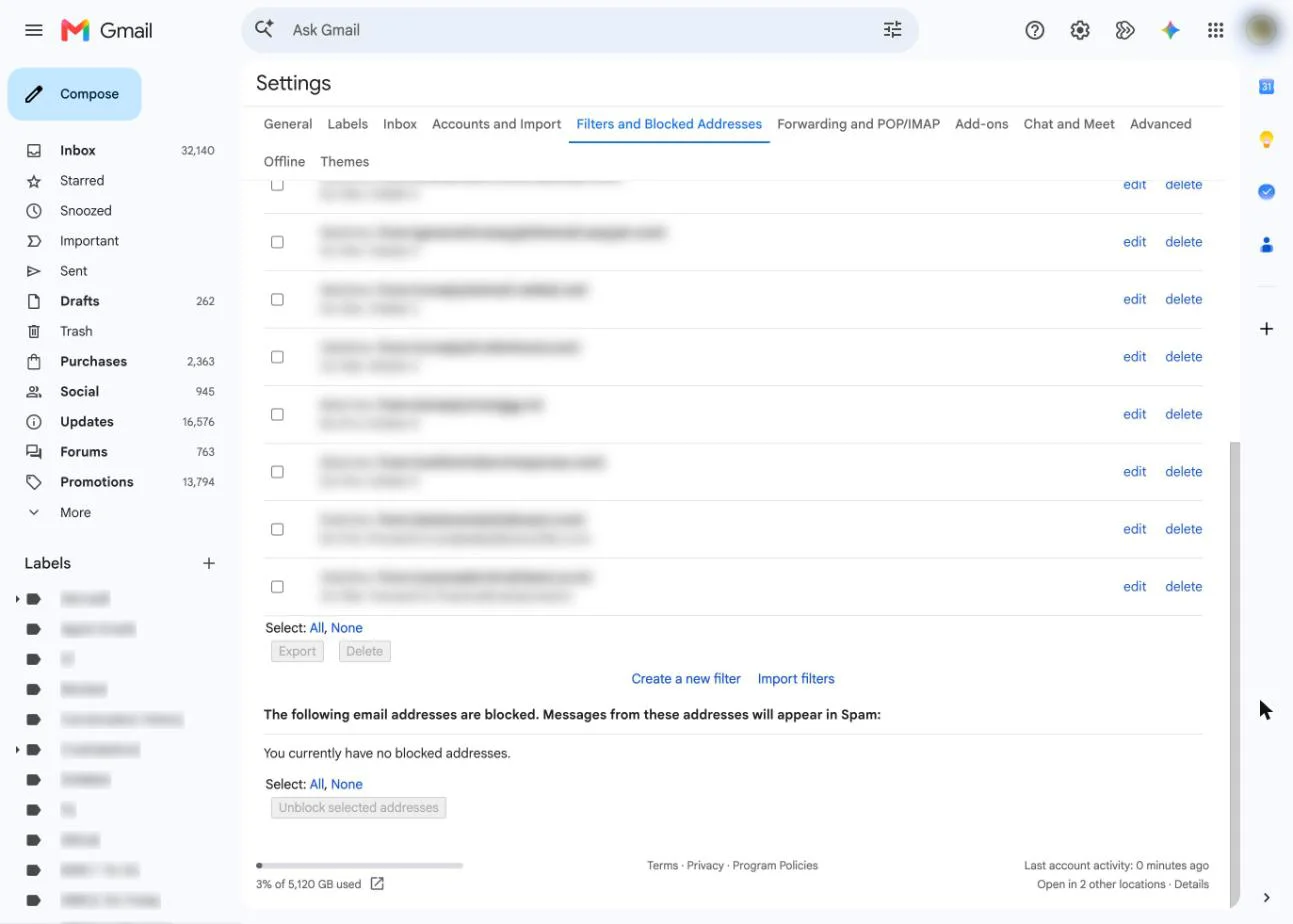
Open one of their messages (it'll be in Spam) and choose More > Unblock "sender". If you can't find a message, go to Settings > See all settings > Filters and Blocked Addresses, tick the address and click Unblock selected addresses. New mail from them lands in your inbox again. For more Gmail settings, see our Gmail guide.
How to block emails on Outlook
Outlook moves mail from blocked senders to the Junk Email folder. Microsoft deletes items in Junk Email after 14 days, and they can't be recovered after that. The blocked and safe senders lists hold up to 10,000 addresses and domains between them.
Outlook.com, Outlook on the web and the new Outlook for Windows
- Go to Settings > Mail > Junk email. If you have more than one account, pick the account first.
- To block one address, type it under Blocked senders and select Add.
- To block a whole domain, type the domain (for example, example.com) under Blocked domains and select Add.
- Select Save.
The new Outlook can't block senders for Gmail, Yahoo, iCloud or other non-Microsoft accounts added to it. Block those with the provider itself, using the steps for that provider on this page.
Classic Outlook for Windows
- Right-click a message from the sender.
- Select Block > Block Sender.
To add an address or a domain by hand, go to Home > Block > Junk E-mail Options, open the Blocked Senders tab, select Add and enter someone@example.com or example.com. In a work account, your organization may send blocked mail to quarantine instead of Junk, and people in your company's address list can't be blocked.
Outlook app on iPhone and Android
Microsoft's help pages don't document blocking in the Outlook mobile app. For an Outlook.com or Microsoft 365 account, the reliable way is to add the sender at outlook.com under Settings > Mail > Junk email. Their mail then goes to the Junk Email folder, which the app also shows.
Unblock a sender in Outlook
In Outlook.com and the new Outlook, go back to Settings > Mail > Junk email, select the address or domain and select the Remove icon. In classic Outlook, open Junk E-mail Options, select the entry on the Blocked Senders tab and click Remove. If you'd rather sort mail into folders than block it, see our guide to filtering your Outlook and Hotmail inbox.
How to block emails on Yahoo
Block an email address
- Open Yahoo Mail in a browser on a computer.
- In the new Yahoo Mail, click More in the left sidebar, then Settings. In the older version, click the Settings icon, then More Settings.
- Click Security and Privacy.
- Under Blocked addresses, click Add, enter the address and click Save.
You can block up to 1,000 addresses. Yahoo doesn't tell the sender, and they don't get a failure notice. Their messages just don't reach your inbox.
Block a domain
Domain blocking is a Yahoo Mail Plus feature, with up to 500 domains. In Settings, open Security and Privacy and use Block unwanted sender domains. In the Yahoo Mail app, tap your profile icon, then Settings, and find the same option. Yahoo notes that blocking a domain also unsubscribes you from that brand.
Unblock a sender in Yahoo
Go back to Security and Privacy, hover over the address and click the Delete icon. For a domain, click the trash icon on a computer or tap the X in the app.
How to block emails in Apple Mail on Mac
macOS Tahoe 26 and macOS 27
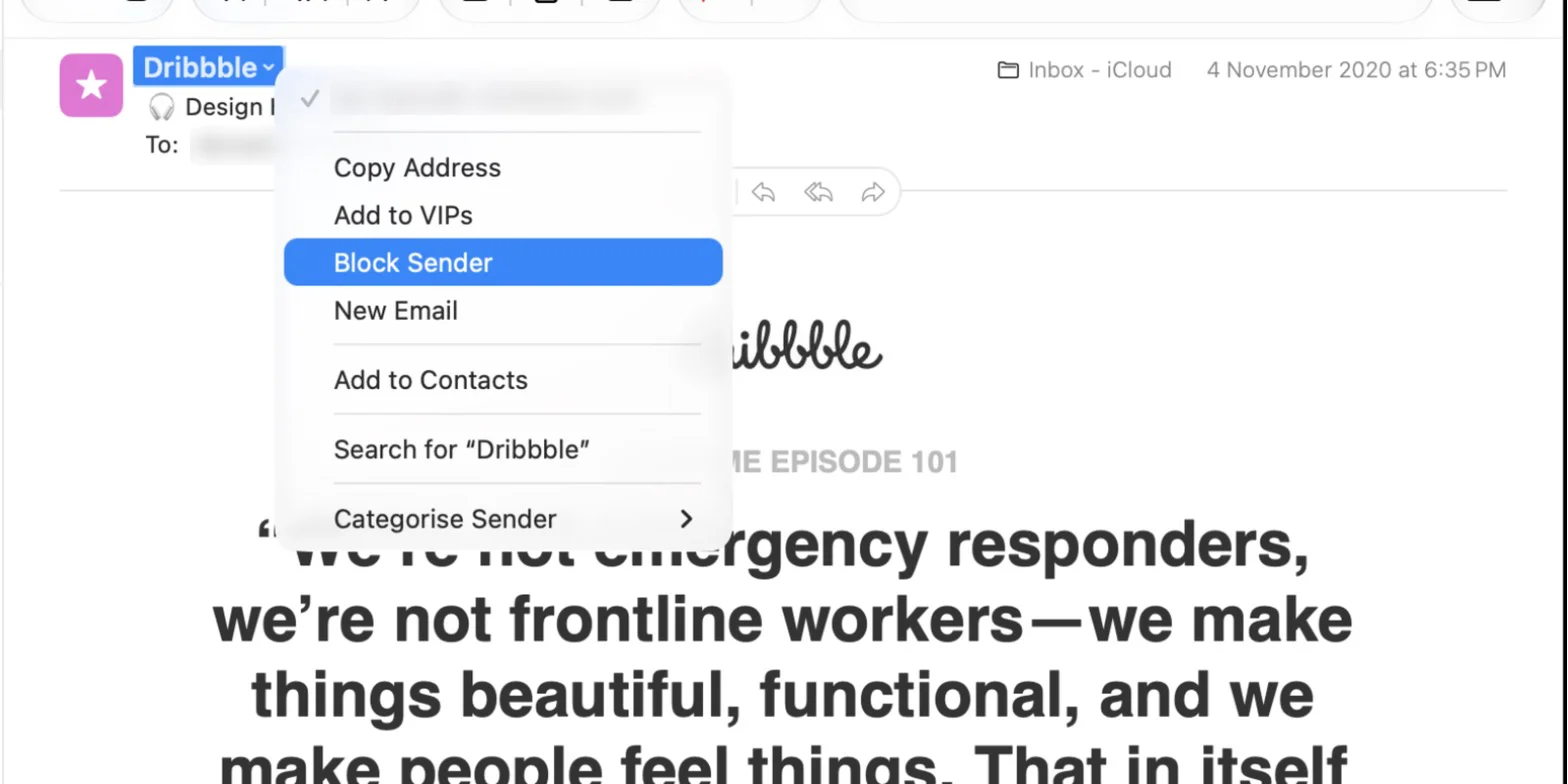
- In Mail, select a message from the sender.
- Move the pointer next to their name in the message header and click the arrow.
- Choose Block Sender.
A blocked icon appears next to the sender's name in the message list, and their messages get a banner saying they're blocked. To see everyone you've blocked, go to System Settings > Privacy & Security > Blocked Contacts. On macOS 27 you can block up to 3,000 senders.
macOS Sequoia 15 and earlier
The menu item is called Block Contact. You choose what happens to blocked mail in Mail > Settings > Junk Mail > Blocked: turn on Enable blocked mail filtering, then pick Mark as blocked mail, but leave it in my Inbox or Move it to the Trash. You can also add or remove addresses in that list.
Unblock a sender on Mac
Click the arrow next to the sender's name and choose Unblock Sender (or Unblock Contact on older versions), or remove them from Blocked Contacts in System Settings. Apple Mail can't block a whole domain, so do that with your email provider (Gmail filter, Outlook Blocked domains). For junk that isn't from one sender, our guide to junk mail filtering in Mac Mail covers the filter settings.
How to block emails on iPhone and iPad
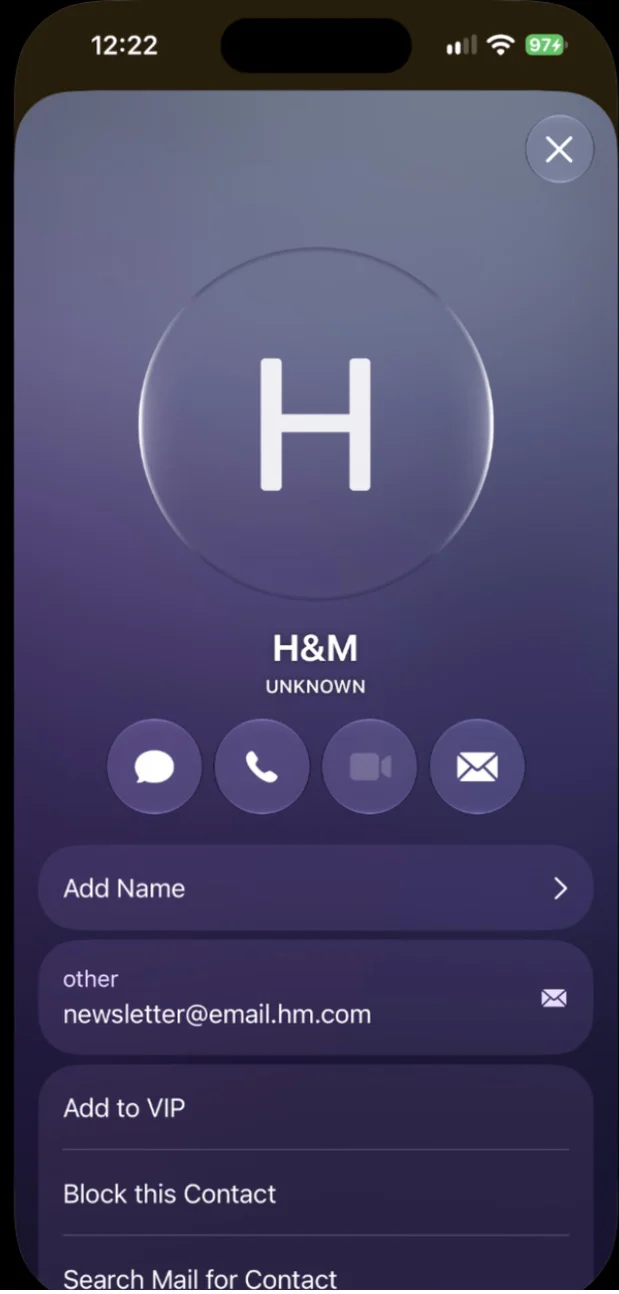
- Open the Mail app and tap a message from the sender.
- Tap their email address, then tap View Contact Card (on iOS 18 and earlier, skip this step).
- Tap Block this Contact.
Apple says email from a blocked address goes to the Trash, and that blocking works across all your Apple devices signed in to the same Apple Account. To unblock someone on iOS 26, go to Settings > Privacy & Security > Blocked Contacts, tap Edit, tap the delete button next to the contact and tap Unblock. As on the Mac, there's no way to block a domain in the Mail app itself.
How to block emails in Canary Mail
Disclosure: we make Canary Mail. Canary is an email app for Gmail, Outlook, iCloud, Yahoo and other IMAP accounts, and it can block a single address or a whole domain from inside the message.
On Mac
- Open an email from the sender.
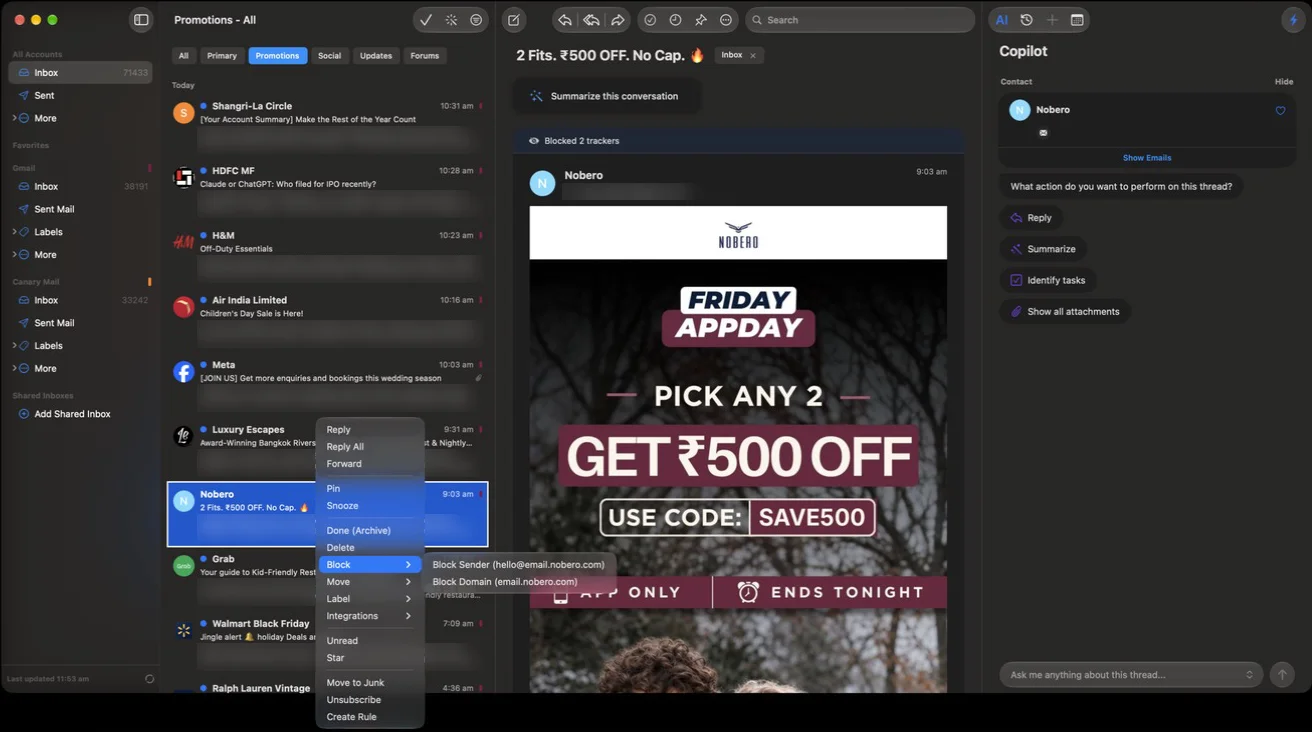
- Click the down arrow next to the sender's name and select Block.
- In the Block Sender window, choose Block Sender for that address or Block domain for every address at that domain.
- Click Block.
Depending on your Block Sender settings, mail from that sender or domain then goes to Trash automatically or stays in your inbox marked as blocked.
On iPhone and iPad
- Open the email and tap the header to show the sender's details.
- Tap the sender's name, then tap Block.
- Choose Block Sender or Block domain.
Blocked senders appear under Settings > Rules. You can also add an address or domain there with the + button, or unblock one by tapping the arrow next to it and then Delete. Blocks only apply to new mail, not to messages already in your inbox.
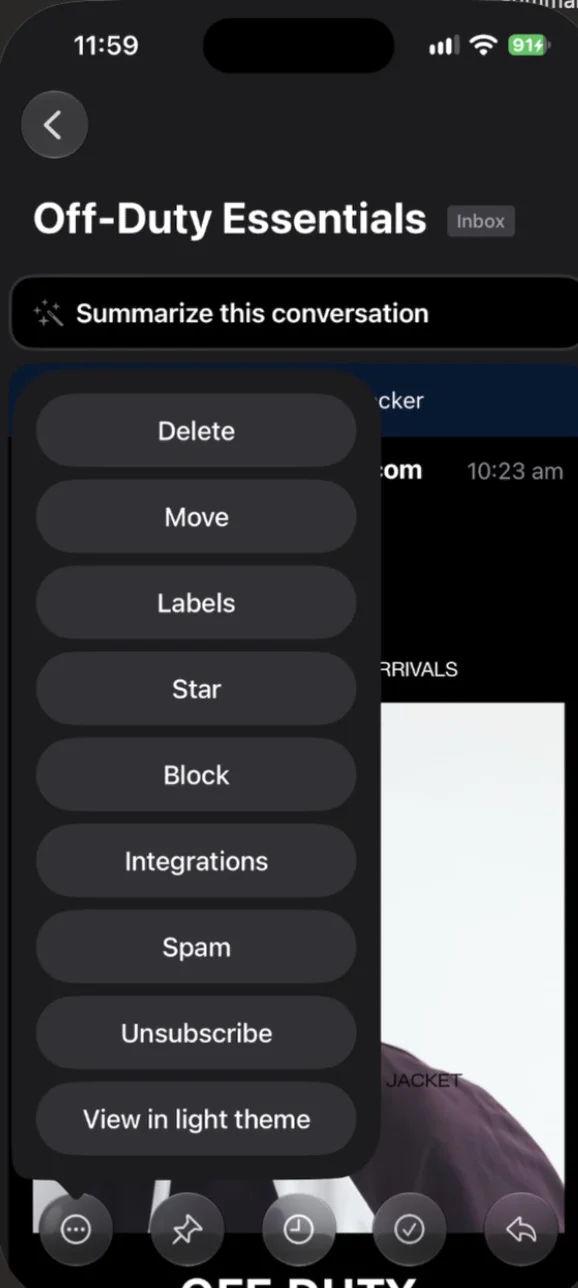
Canary doesn't have its own spam filter. It relies on your email provider's, so junk that your provider misses still needs a block, a filter or a spam report. If you also read the account in other apps or on the web, block the sender with your provider too.
Block, filter, unsubscribe or report spam?
Blocking is the right tool for one specific person or company you never want to hear from. It's often the wrong tool for everything else.
- Newsletters and shops you signed up for: unsubscribe. Gmail itself suggests unsubscribing instead of blocking for promotional mail. Our guide to mass unsubscribing from emails covers doing it in bulk.
- Spam from random addresses: report it as spam or junk. Spammers change addresses constantly, so blocking each one does little, while reporting trains your provider's filter. Don't reply to spam or click its unsubscribe link. Our guide on how to stop spam emails goes further.
- Phishing: use your provider's report phishing option and delete the message. See how to spot phishing emails.
- A whole domain, a keyword, or mail you want out of the inbox but not deleted: use a filter or rule. Filters can label, archive or delete, and in Gmail they're the only way to cover a domain.
Still getting emails after blocking?
- The sender changed address. A block covers one exact address. Block the domain instead, or report the mail as spam.
- The "From" name was faked. Yahoo explains that spoofed messages can show a different address than the one that really sent them. Check the full headers, then block or filter the real sending address.
- You're looking at old mail. Blocks apply to new messages. Delete or move the ones already in your inbox.
- You blocked in one app but read the mail in another. A block set at the provider (Gmail, Outlook.com, Yahoo) follows the account everywhere. A block set only in an email app may not. Set it with the provider.
- Outlook with a non-Microsoft account. The new Outlook can't block for Gmail, Yahoo or iCloud accounts. Block in that provider's own settings.
The opposite problem, where mail you want stops arriving, is often a forgotten block or filter. Our guide to why you're not receiving emails walks through the checks. To keep other kinds of email under control, see our inbox management guide.
Frequently asked questions
How do I block an email address?
Open a message from that address and use the app's block option: More > Block in Gmail, Block Sender in Apple Mail and classic Outlook, or add the address to the blocked list in the settings of Outlook.com or Yahoo Mail.
If I block an email sender, will they know?
No. None of these providers notify the sender. Yahoo says blocked senders get no notification and no failure notice. Gmail and Outlook just move their mail to Spam or Junk.
Can I block a whole domain?
Yes in Outlook (Blocked domains), Yahoo Mail Plus and Canary Mail. In Gmail, use a filter with @domain.com in the From field. Apple Mail can't block domains.
Is it better to block unwanted emails or just delete them?
Block a sender you never want to hear from. For spam, report it instead, because spammers switch addresses. For newsletters you signed up for, unsubscribe.
How do I block emails without opening them?
Add the address in your settings: Filters and Blocked Addresses in Gmail (with a filter), Junk email in Outlook.com, or Security and Privacy in Yahoo. In Gmail you can also tick the message in the list and choose More > Filter messages like these.
Where do blocked emails go?
Gmail sends them to Spam, Outlook to Junk Email, and Mail on iPhone to Trash. Yahoo keeps them out of your inbox. Gmail empties Spam after 30 days and Outlook empties Junk Email after 14.
Sources
- Google: Block an email address in Gmail
- Google: Create rules to filter your emails
- Google: Gmail messages are missing
- Google Workspace: Block messages from an email address or domain
- Microsoft: Block or unblock senders in Outlook
- Microsoft: Block a mail sender in Outlook
- Yahoo: Block and unblock email addresses in New Yahoo Mail
- Yahoo: Block email messages from a domain with Yahoo Mail Plus
- Yahoo: Will blocked contacts know I have blocked them?
- Yahoo: Spot and stop emails from a blocked address
- Apple: Reduce junk mail in Mail on Mac
- Apple: Change Junk Mail settings in Mail on Mac
- Apple: Flag or block emails in Mail on iPhone
- Apple: Block phone numbers, contacts and email addresses on your iPhone or iPad
- FTC: How to get less spam in your email
- Canary Mail: How to block senders on macOS and on iOS
- Canary Mail: How is spam handled in Canary?