Introduction
Apple Mail is popular among Apple users because it comes ready to use on Macs and iPhones and syncs seamlessly across devices via iCloud. Although Apple Mail Setup usually takes only a minute, it can still feel confusing - especially on macOS Sequoia and iOS 18, where iCloud Mail and privacy settings play a bigger role.
Apple Mail setup in 2026 includes new system, privacy, and sync changes, which can make the process feel more confusing than before. If Mac Mail stops sending emails, users often troubleshoot or turn to AI-powered alternatives like Canary Mail to organize messages and reduce inbox noise
This guide shows how to set up Apple Mail on Mac and iPhone, covers common issues, and shares tips to restore smooth syncing and reliable email delivery.
Mac mail setup video
iPhone mail setup video
Step 1: Open Apple Mail on macOS and iOS
Let’s start at the beginning. To begin the Apple Mail setup on macOS Sequoia and iOS 18, open the Apple Mail app on your device.
- On macOS Sequoia:
Open the Mail app from the Applications folder or click the Mail icon in the Dock.
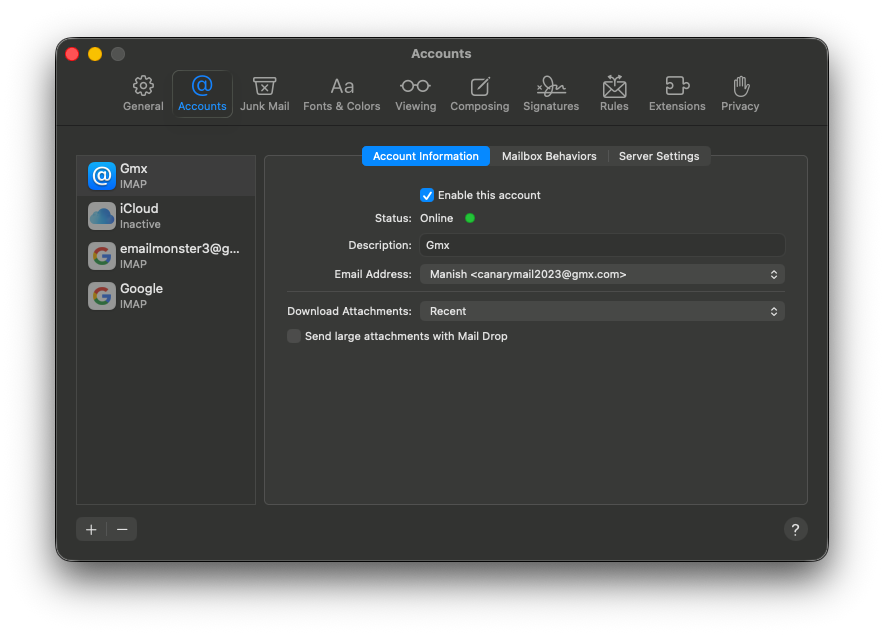
You can manage or add email accounts by going to System Settings > Internet Accounts. - On iOS 18:
Locate the Mail app on your Home Screen. Account settings can be accessed through Settings > Mail > Accounts.
Step 2: Add Your Email Account
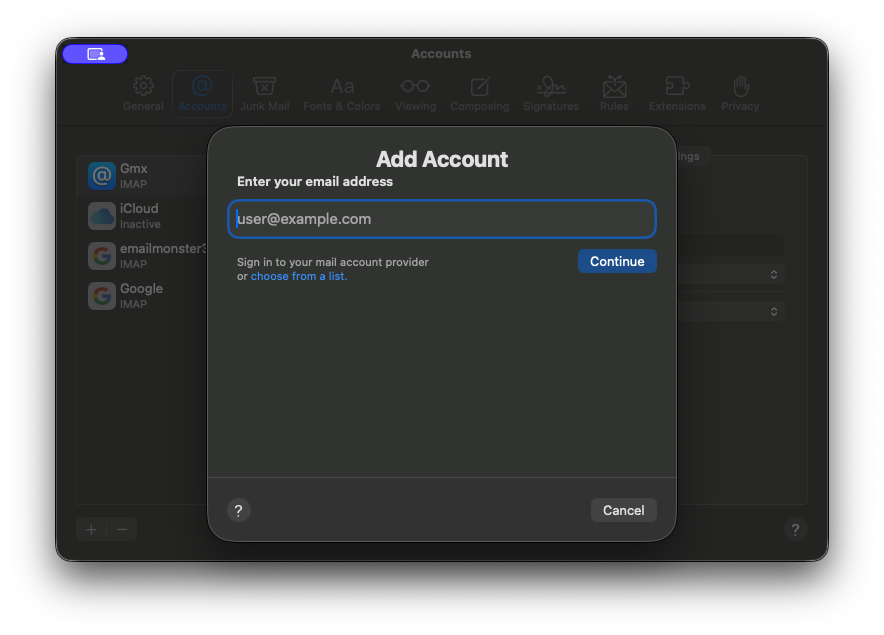
If you're searching for "add email account Apple Mail" or "Gmail setup Apple Mail," here's the straightforward way on macOS.
- Head to the top menu bar, click Mail, then pick Add Account.
- Apple Mail handles tons of services like iCloud, Gmail, Yahoo and others.
- Choose your provider, enter your login details, and let auto-configure it all.
This usually goes smoothly for a quick setup.
Step 3: Customize Your Preferences
After adding your account, take a moment to personalize your setup. Many users look for Apple Mail preferences, notification settings, or email signatures to make work the way they want.
- On Mac: From the Mail menu, click Preferences to adjust notifications, signatures, and other settings.
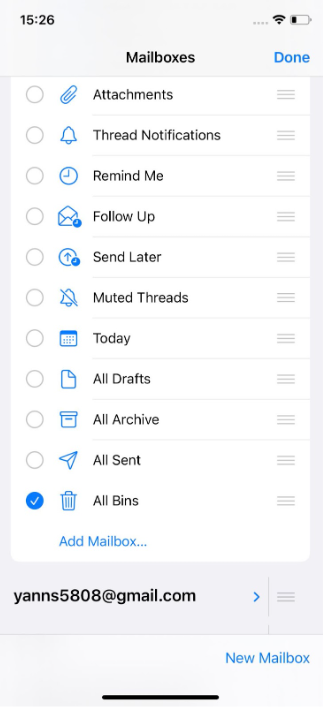
- On iPhone: Open the Settings app, tap Mail, then manage accounts, notification options, and default preferences.
- You can customize alerts, email signatures, swipe actions (including iOS 18’s updated gestures for quick archive or delete), Focus Mode integration to silence non-priority emails, and even set Mail as your default email app for smoother sharing.
All of this is quick to set up and helps Apple Mail fit naturally into your daily workflow. You can also change Mail's look by enabling Mac Mail dark mode.
[cta-block:ctablock1,title="Smarter and More Secure Email for Mac Users",button="Download Canary Mail",buttonlink="https://canarymail.io/downloads"]
Step 4: Sync Apple Mail Across Devices
One of the standout features of Apple Mail is its ability to sync Apple Mail with iCloud, so your emails, folders, and preferences stay consistent using the same mail settings across Mac and iPhone.
- iCloud keeps mail settings in sync across devices signed in with the same Apple ID
- Email data is encrypted while syncing through iCloud
- If messages don’t update, checking iCloud sync status usually helps
Once enabled, Apple Mail syncs automatically, so you can move between devices without missing emails.
Step 5: Secure Your Inbox
Protecting your inbox is an important part of Apple Mail security. Enable two-factor authentication on your email account to add an extra layer of protection against unauthorized access.
Apple Mail (2026) also includes built-in privacy features such as:
- Mail Privacy Protection to block tracking pixels
- Hide My Email with iCloud+ to protect your real address
- End-to-end encryption (E2EE) for iCloud Mail+ in supported region
Together, these features help reduce tracking and keep your email more private and secure.
[cta-block:ctablock4,title="Looking for More Email Privacy Options?",button1="Learn About Email Security",button1link="https://canarymail.io/features/ai",button2="See Privacy-Focused Email Apps",button2link="https://canarymail.io/downloads"]
Bonus: Apple Mail Productivity Tips (New)
Apple Mail includes several built-in tools that help you stay organized and manage your inbox more efficiently.
VIP Contacts
Mark important senders as VIP contacts so their emails stand out in your inbox. Messages from VIPs are prioritized, making it easier to spot urgent or high-priority emails at a glance.
Smart Mailboxes
Smart Mailboxes work like rules in Apple Mail, automatically grouping emails based on criteria such as sender, subject, or keywords.
They’re especially useful for organizing messages without manual sorting and keeping your inbox clutter-free.
Undo Send
The Undo Send feature gives you a short window to stop an email after clicking send. It’s helpful if you notice a typo, forgot an attachment, or need to make a quick edit.
Schedule Send
With Schedule Send, you can write emails now and choose when they’re delivered. This is ideal for planning messages ahead of time or communicating across different time zones.
Mail Categorization with Siri Intelligence
Mail Categorization with Siri Intelligence automatically sorts emails into relevant categories, such as important or time-sensitive messages. This reduces inbox noise and helps you focus on what matters most.
By using these productivity features, you can tailor your inbox to your workflow and make a more powerful tool for everyday email management. Learn more
Troubleshooting & Support
This section helps you fix common Apple Mail issues that users often experience during Apple Mail setup and syncing.
Common Apple Mail Issues in 2026
If Apple Mail is not syncing or shows a Mail setup error, it’s usually caused by one of the following:
- Google Workspace re-authentication issue : Apple Mail may repeatedly ask you to sign in again, even when your login details are correct.
- iCloud folder syncing delay: Email folders or message changes may take longer to appear across your Mac and iPhone due to iCloud sync lag.
How to Fix Apple Mail Issues
Most Apple Mail syncing problems can be resolved by:
- Signing out of the affected email account and signing back in
- Allowing iCloud a few minutes to complete syncing across devices
- Restarting the Mail app after making changes
Apple Support Resources
- Apple Support Website: Visit the official Apple Support website for step-by-step guides, help articles, and FAQs covering common issues.
- Contact Apple Support: If the issue persists, you can contact Apple Support directly for personalized assistance from their technical support team.
Troubleshooting is part of using any email app, and most issues can be fixed quickly using Apple’s built-in tools and support.
Conclusion
Setting up Apple Mail on macOS and iOS is quick and easy, making it simple to manage email across all your Apple devices. With built-in syncing, privacy features, and flexible settings, Apple Mail setup helps keep your inbox organized and consistent whether you’re on your Mac or iPhone.
Whether you’re setting up Apple Mail for the first time or fine-tuning an existing setup, reviewing its features and preferences can make everyday email management smoother. Apple Mail works well for most daily needs, but users who require advanced team workflows or deeper inbox control may want to explore Apple Mail alternatives.
By adjusting Apple Mail to match how you work-or choosing an alternative that better fits your needs-you can keep your inbox clean, reduce friction, and enjoy a more efficient email experience across all your devices.
[cta-block:ctablock5,title="Secure Your Gmail Without Losing AI Power",subtitle="Organize your inbox on Mac with smarter tools and built-in email security.",button1="Try Canary Mail Free",button1link="https://canarymail.io/downloads",button2="Learn More",button2link="https://canarymail.io/pricing"]
FAQ
Why is my Apple Mail not syncing?
Apple Mail may not sync due to internet issues, server outages, incorrect settings, or software glitches. Restarting the app, checking your connection, and reviewing account settings usually fixes it.
Can I use Apple Mail without iCloud?
Yes. Apple Mail works with Gmail, Outlook, Yahoo, and works without iCloud.
How do I manage accounts in Apple Mail?
On Mac, open Mail > Settings > Accounts. From there, you can add, remove, or update account and sync settings.
Can I change Apple Mail privacy settings in 2026?
Yes. In 2026, Apple Mail lets you easily adjust privacy settings on Mac and iPhone, such as blocking email tracking, hiding your IP address, and controlling remote content through Mail and system settings.
Are there more privacy-focused alternatives to Apple Mail?
Yes. Secure email apps like Canary Mail offer end-to-end encryption and advanced inbox management for better privacy.