To add an email account to your iPhone, open Settings, tap Apps > Mail > Mail Accounts > Add Account, type your email address and tap Next, then sign in when your provider asks. Gmail, Outlook.com, Hotmail, Yahoo, iCloud and most work Exchange accounts set themselves up. For any other address, choose Add Other Account and enter the IMAP server details from your provider. The same steps work on iPad.
The steps below are for iOS 26 and iOS 27 (the current release is iOS 27.0.1). Where older versions differ, we say so. For everything else the Mail app can do, see our iPhone Mail guide.
How to add an email account to iPhone (iOS 26 and 27)
Have your email address and password ready, plus the device that gets your two-step codes.
- Open the Settings app, scroll to the bottom and tap Apps.
- Tap Mail. If you can't find it, type "Mail" in the search field at the top of Settings.
- Tap Mail Accounts, then tap Add Account.
- Type your email address and tap Next. Mail works out your provider from the address. To pick it yourself, tap choose from a list under the address field.
- Sign in. Google, Microsoft and Yahoo open their own sign-in page; other providers ask for your password. If you see Next, tap it and wait while Mail checks the account.
- Choose what to sync (Mail, and Contacts, Calendars or Notes if the account offers them), then tap Save.
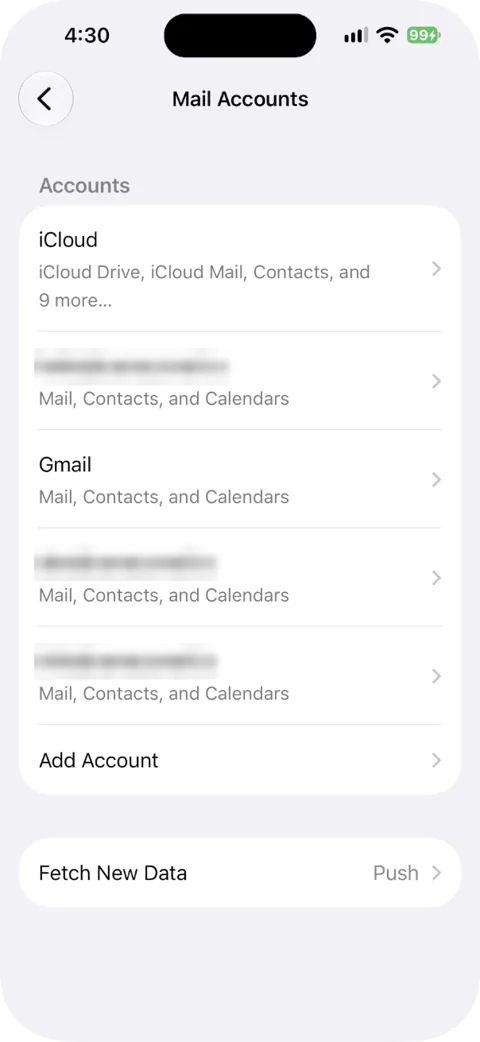
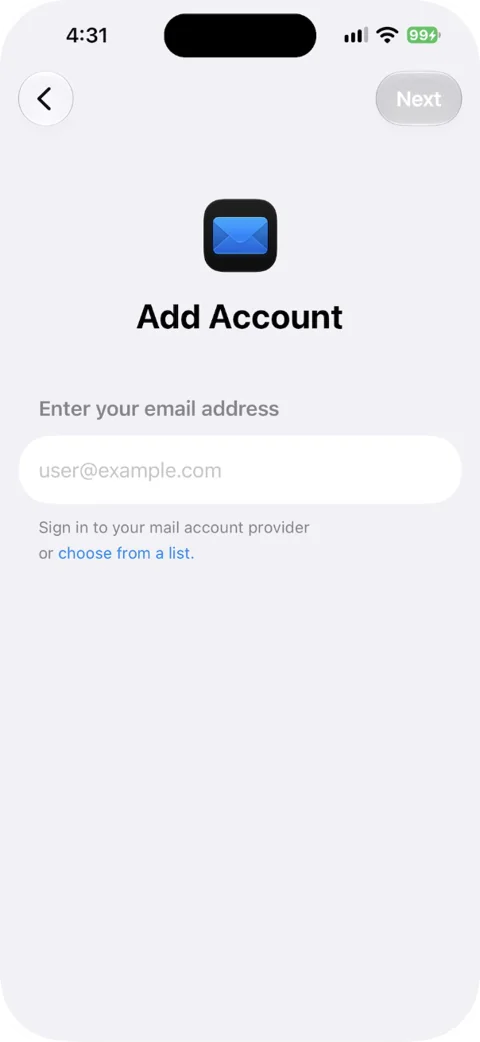
On older versions: iOS 18 uses the same path but has you tap your provider in a list; iOS 17 and earlier use Settings > Mail > Accounts > Add Account.
Which provider to choose
Most of the time Mail picks the provider for you. If it asks, use this table, taken from Apple's list of common addresses. Picking the wrong provider is one of the most common reasons an account won't add.
| Your address ends in | Choose |
|---|---|
| @gmail.com, or a Google Workspace work or school address | |
| @outlook.com, @hotmail.com, @live.com, @msn.com | Outlook.com |
| @onmicrosoft.com, or another work Microsoft 365 address | Microsoft Exchange |
| @yahoo.com, @att.net, @sbcglobal.net, @cox.net, @frontier.com, @rogers.com | Yahoo |
| @comcast.net | Yahoo, or Other if your account hasn't moved to Yahoo |
| @aol.com, @aim.com, @verizon.net | Aol. |
| @icloud.com, @me.com, @mac.com | iCloud |
| Anything else | Other (Add Other Account) |
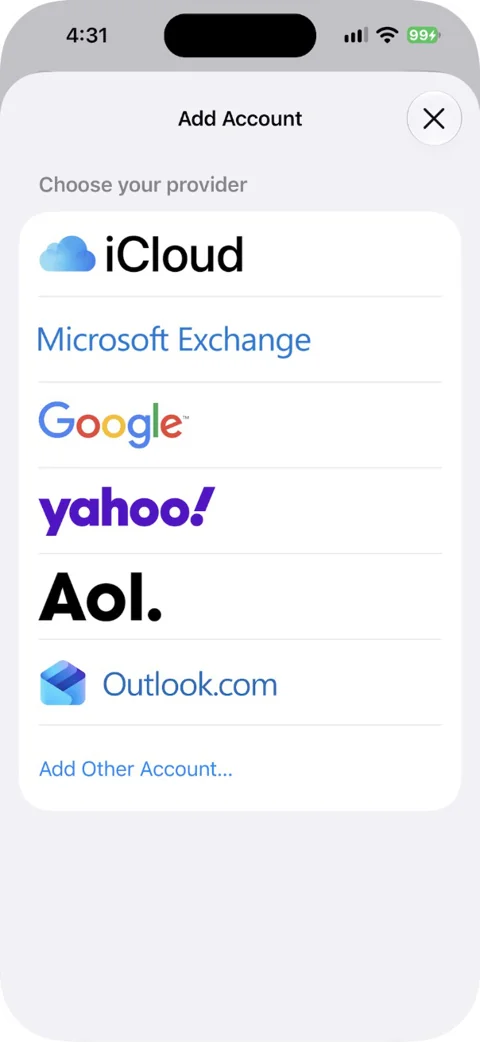
If you chose the wrong one, delete the account and add it again with the right provider. If you don't delete it first, Mail may tell you the account already exists.
Add Gmail or Google Workspace
Type your Gmail address, or choose Google from the list. Google's sign-in page opens inside the setup screen. Sign in, approve the two-step prompt if you get one, choose what to sync and tap Save.
You don't need to switch anything on in Gmail first. Since January 2025, IMAP is always on for personal Gmail accounts. Google also says app passwords aren't needed in most cases: signing in with Google is the supported way to connect.
Work and school Google Workspace accounts need two things. Since May 1, 2025, Workspace only allows sign-in through OAuth, which is what the Google option in iPhone Mail uses. And your admin has to allow IMAP for users. If you can sign in but no mail arrives, ask your admin.
Gmail labels show up as folders in Mail. Google allows up to 15 email apps on one Gmail account at the same time. Past that you can get an error; here's how to fix "too many simultaneous connections" in Gmail.
Add Outlook.com, Hotmail or Live
For personal Microsoft addresses (@outlook.com, @hotmail.com, @live.com, @msn.com), Apple says to choose Outlook.com on iPhone and iPad. On a Mac it's Microsoft Exchange instead. Microsoft's own help page sets up the same addresses with Microsoft Exchange. Either way, you sign in on Microsoft's page.
- Go to Settings > Apps > Mail > Mail Accounts > Add Account.
- Type your address and tap Next, or tap choose from a list and pick Outlook.com.
- Sign in with your Microsoft password and approve the two-step prompt.
- If Mail asks for permissions, tap Accept. Choose what to sync and tap Save.
Add Yahoo or AOL (and AT&T, Comcast and other ISP addresses)
Choose Yahoo for @yahoo.com and for the internet-provider addresses Yahoo runs, such as AT&T, SBCGlobal, Cox, Frontier and Rogers. Comcast addresses also use Yahoo once the account has moved there. Choose Aol. for @aol.com, @aim.com and @verizon.net. Then sign in on the provider's page.
Yahoo Mail works with Fetch, not Push, so new mail only arrives when your iPhone checks for it. To make that happen more often, go to Settings > Apps > Mail > Mail Accounts > Fetch New Data, make sure Fetch is selected under Yahoo, and pick a time interval. The default, Automatically, only downloads new mail while the iPhone is charging and on Wi-Fi.
Add iCloud Mail
The usual way to turn on iCloud Mail is from your Apple Account settings (iCloud is also in the Add Account list):
- Go to Settings > [your name] > iCloud.
- Tap Mail, then turn on Use on this iPhone.
- Open the Mail app. Your iCloud mailboxes appear in their own iCloud section.
No @icloud.com address yet? Go to the same place, Settings > [your name] > iCloud, tap iCloud Mail (or Mail) and follow the instructions on screen. You can pick one of Apple's suggestions or type your own; it has to be more than three characters and not taken. Choose carefully, because you can't rename your main iCloud address later (you can add an alias instead). If no instructions appear, you already have an iCloud address.
Older guides that tell you to open "Settings > iCloud" are out of date: the iCloud settings now sit under your name at the top of Settings. To keep things like mailbox order and VIPs the same on all your Apple devices, turn on iCloud Drive as well.
You don't need iCloud's server settings on an iPhone; they're only for apps that can't use iCloud sign-in. If you're not sure what's iCloud and what's the Mail app, here's how Apple Mail and iCloud Mail differ.
Add a work Exchange or Microsoft 365 account
- Go to Settings > Apps > Mail > Mail Accounts > Add Account and tap Microsoft Exchange.
- Enter your work email address (and a description, if you like), then tap Next.
- Tap Sign In to let Mail find your settings. If your company uses modern authentication, its own sign-in page opens. Tap Configure Manually only if IT gave you server details.
- Enter your password and tap Next.
- Turn on what you want to sync: Mail, Contacts, Calendars, Reminders, Notes. Tap Save.
Three things catch people out:
- Stolen Device Protection. If you're away from a familiar location such as home or work, Apple says to turn off Stolen Device Protection before you add an Exchange account, then turn it back on afterwards.
- Admin approval. If your company uses Microsoft Entra ID and hasn't allowed Apple Internet Accounts, you'll see a message that admin approval is needed. Only your IT team can fix that.
- Company rules. Some employers want work mail in the Outlook app instead. If IT tells you that, follow it.
Once it's added, tap the account under Settings > Apps > Mail > Mail Accounts to change Mail Days to Sync (one month or less syncs a big mailbox faster), set an Automatic Reply, or open Advanced Settings for SSL and S/MIME.
Add any other account manually (IMAP or POP)
Use this for a web host's email or a smaller provider. Get the server details from your provider's help page first.
- Go to Settings > Apps > Mail > Mail Accounts > Add Account.
- Type your email address and tap Next.
- Tap Add Other Account, then Mail Account.
- Enter your name, email address, password and a description, then tap Next. If Mail finds your settings, tap Done and you're finished.
- If it can't, choose IMAP or POP, fill in the Incoming Mail Server and Outgoing Mail Server fields, and tap Next, then Save. If a setting is wrong, Mail asks you to fix it.
| Field | What to enter |
|---|---|
| Email and Password | Your full address and its password (some providers want an app-specific password) |
| Incoming Mail Server: Host Name | From your provider, often imap.yourprovider.com |
| Incoming Mail Server: User Name | Usually your full email address |
| Outgoing Mail Server: Host Name | From your provider, often smtp.yourprovider.com |
| Outgoing user name and password | Usually the same as incoming |
IMAP or POP? Pick IMAP if your provider offers it. IMAP keeps your mail on the server, so your phone, computer and webmail all show the same thing. POP downloads mail to one device and the server may not keep a copy. Apple's advice if you're unsure: ask your provider.
Ports and security settings also come from your provider. For example, iCloud's published settings for other apps are imap.mail.me.com (port 993, SSL) and smtp.mail.me.com (port 587, SSL or TLS, authentication on), with an app-specific password. iCloud doesn't support POP.
Add email on iPad
The steps are the same on iPad: Settings > Apps > Mail > Mail Accounts > Add Account. Everything above applies, including the provider table and the Exchange notes. For iCloud, the switch reads Use on this iPad.
After you add the account
- Check it arrived. In Mail, tap back until you see Mailboxes; the new account has its own section.
- Send a test. In a new message, tap the Cc/Bcc, From field, tap From and pick the new address.
- Pick your default address. New messages go out from your default account unless you change the From field. To change it, go to Settings > Apps > Mail and tap Default Account, the last item under Composing. Our iPhone Mail settings guide covers the rest.
- Set notifications. Go to Settings > Apps > Mail > Notifications > Customize Notifications, tap the account, and choose alerts and badges.
If your email won't add or connect
Work through these in order:
- Wrong provider. Check the table above. If you picked the wrong one, delete the account and add it again.
- "Account already exists." The account is already on the iPhone, often from an earlier attempt. Delete it under Mail Accounts, then add it again.
- Password or two-step verification. Sign in on your provider's website to confirm the password works. Apple notes that with two-step verification you may need a special password or approval from your provider. For Gmail, use the Google sign-in rather than an app password.
- Your work blocks it. Google Workspace admins have to allow IMAP. Exchange may need admin approval for Apple Internet Accounts.
- Gmail connection limit. Sign out of Gmail in apps you no longer use.
- Mail is late, not missing. Check Fetch New Data (more in iPhone not getting emails). Low Power Mode also turns off email fetch until you turn it off or charge past 80%.
Still stuck? Apple's own fix is to remove the account and set it up again. First sign in to webmail and make sure your mail is there. Then go to Settings > Apps > Mail > Mail Accounts, tap the account, tap Delete Account (here's what removing an account deletes), and add it back with the steps above.
Managing several accounts on iPhone
Apple doesn't list a limit on how many accounts Mail can hold. Focus filters can mute a work account on weekends.
If you juggle a lot of accounts, a separate app with a unified inbox is another option. Canary Mail, for example, puts Gmail, Outlook, iCloud, Exchange and IMAP accounts in one inbox, with AI drafting and summaries on paid plans. Disclosure: we make Canary Mail. For a fair look at the choices, including free ones, see our roundup of the best email apps for iPhone.
Use a Mac too? Here's how to set up Apple Mail on a Mac, and our Apple Mail guide covers Mail on every Apple device.
Sources
- Apple: Add and remove email accounts on iPhone
- Apple: Add an email account to your iPhone or iPad
- Apple: Choose the correct email provider in Mail
- Apple: Set up Exchange ActiveSync on your iPhone or iPad
- Apple: Set up iCloud Mail on all your devices
- Apple: Create a primary email address for iCloud Mail
- Apple: iCloud Mail server settings for other email apps
- Apple: If you can't receive email on your iPhone or iPad
- Google: Add Gmail to another email client
- Google Workspace: Set up Gmail with a third-party email client
- Microsoft: Set up an Outlook account on the iOS Mail app
- Yahoo: Set up or remove a Yahoo Mail account in the iOS Mail app
FAQ
Can I have two email addresses on my iPhone?
Yes. Add each one with the same steps under Settings > Apps > Mail > Mail Accounts > Add Account. Apple doesn't list a limit. When you write a message, tap the From field to choose which address it comes from.
How do I add another email address to my iPhone?
Go to Settings > Apps > Mail > Mail Accounts > Add Account, type the new address and sign in. Existing accounts aren't affected.
Why can't I add my email account to my iPhone?
Usually it's the wrong provider, a changed password, two-step verification that needs approval, or a work account your admin hasn't allowed. Sign in on your provider's website to rule out the password, then check the provider table above.
How do I get my emails on my new iPhone?
If iCloud Keychain is on, your accounts stay up to date on all your devices that have it turned on. An iPhone backup saves your Mail settings but not the emails themselves, so mail comes back from the server once the account is set up. If an account is missing, add it again with the steps above.
Should I choose IMAP or POP?
IMAP, whenever your provider offers it. It keeps mail on the server, so every device shows the same messages. POP may leave the only copy on one device.
Do I need the Outlook or Gmail app for work email?
No. The Mail app handles Microsoft Exchange, Microsoft 365 and Google Workspace accounts. The exception is when your employer requires its own app; your IT team will tell you. For a side-by-side look, see how Apple Mail compares with the Gmail app.
How do I set up iCloud on my iPhone or iPad?
Go to Settings, tap your name at the top and sign in with your Apple Account if you haven't. Then tap iCloud and turn on the features you want. For email, tap Mail and turn on Use on this iPhone (or iPad). If you don't have an @icloud.com address yet, the same screen walks you through creating one.
Where did the Mail app go?
Check the App Library: search for Mail, touch and hold the icon and tap Add to Home Screen. If it isn't there either, download Mail again from the App Store.