On iPhone, Mail settings are in the Settings app, not in Mail. Open Settings, scroll to the bottom, tap Apps, then tap Mail. You can also type "Mail" in the search field at the top of Settings. Settings for each email account, including Push and Fetch and the IMAP and SMTP server details, are one level down under Mail Accounts. On iOS 17 and earlier, Mail is directly in the main Settings list.
This guide follows iOS 27 (the current release is iOS 27.0.1) and explains what each setting does and what we'd pick. For the rest of the Mail app, see our iPhone Mail guide.
Where to find Mail settings on iPhone
- Open the Settings app.
- Scroll to the very bottom and tap Apps.
- Tap Mail. The full path is Settings > Apps > Mail.
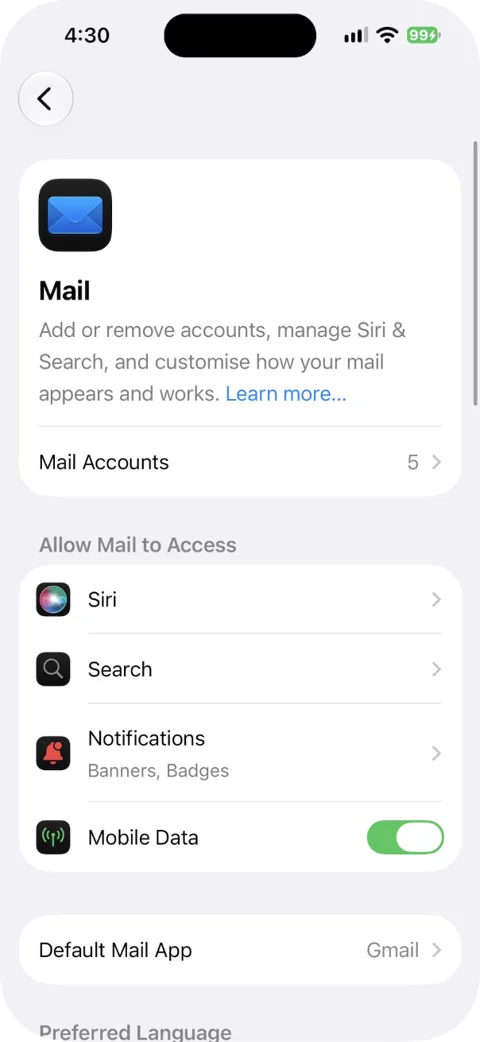
Why people can't find it: iOS 18 moved every built-in app's settings, Mail included, into the Apps list at the bottom of Settings. In iOS 17 and earlier the path was simply Settings > Mail, and the account list was called Accounts rather than Mail Accounts.
A few options aren't in Settings at all. Mail categories, List View, Group by Sender and Show Contact Photos are in the Mail app itself: open an inbox and tap the menu button at the top of the screen.
Quick reference: every Mail setting
Everything below is under Settings > Apps > Mail unless the "Where" column says otherwise.
| Setting | Where | What it does | Our suggestion |
|---|---|---|---|
| Mail Accounts | Top of Mail settings | Add or remove accounts; each account's own settings | Remove accounts you no longer use |
| Fetch New Data | Settings > Apps > Mail > Mail Accounts, at the bottom | Push, Fetch or Manual for each account, and the fetch schedule | Push where offered; a timed schedule for the rest |
| Notifications | Mail settings | Alerts, sounds and badges, per account | Alerts only for the accounts that matter |
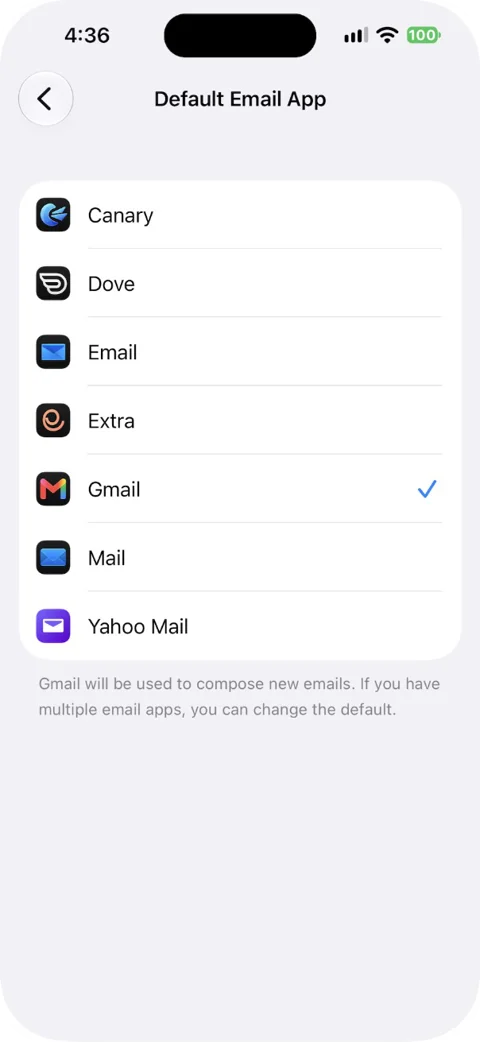
| Default Mail App | Mail settings, or Apps > Default Apps > Email | Which app opens when you email from another app or Siri | Whichever email app you use most |
| Preview | Below Message List | How many lines of each email show in the list (up to five) | Two lines, the default |
| Show To/Cc Labels | Below Message List | Marks emails sent to you directly or copied to you | On, if you get a lot of Cc mail |
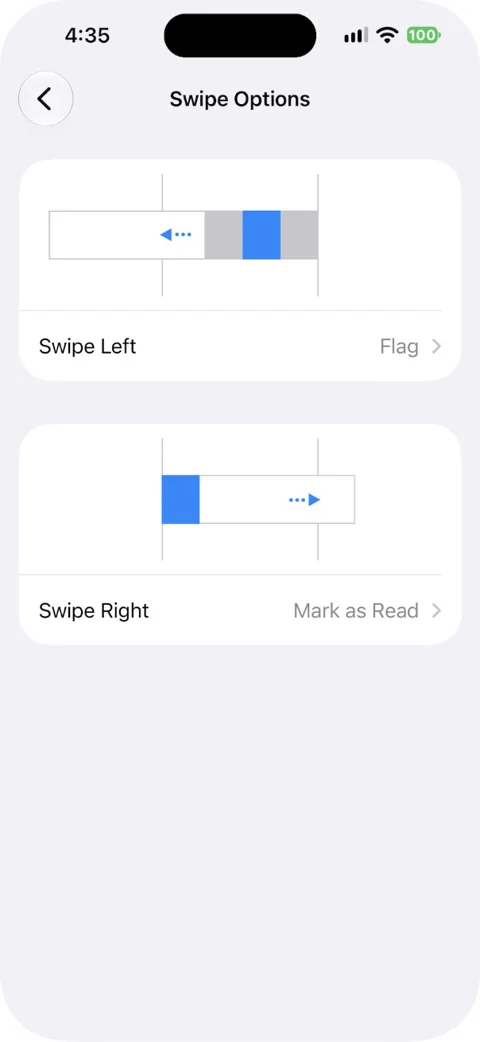
| Swipe Options | Below Message List | Actions for left and right swipes | Put the action you use most on the full swipe |
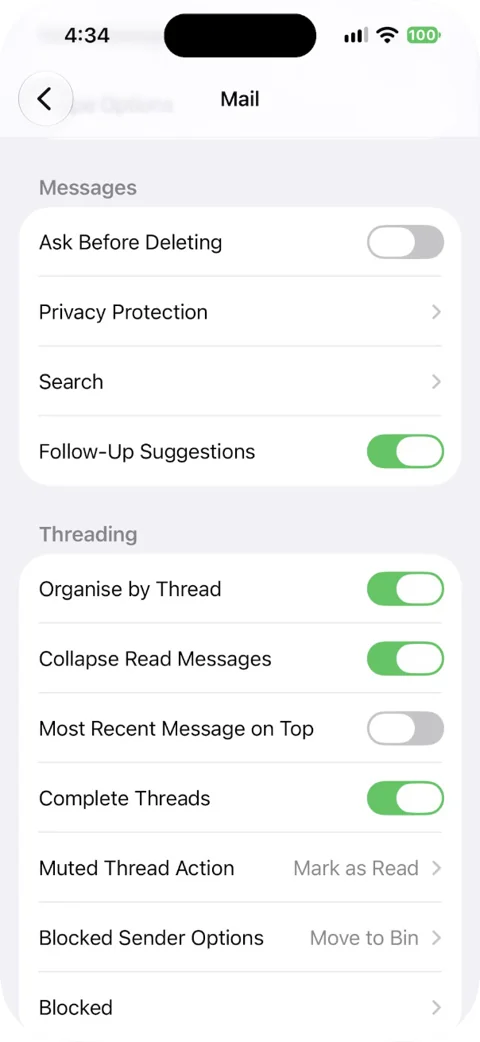
| Ask Before Deleting | Below Messages | Asks you to confirm before deleting | Personal choice |
| Privacy Protection | Below Messages | Hides your IP address and whether you opened an email | On |
| Follow Up Suggestions | Below Messages | Suggests emails you may want to follow up on | On, if you forget to chase replies |
| Organize by Thread | Threading | Groups a conversation into one row | On |
| Collapse Read Messages, Most Recent Message on Top | Threading | How a thread looks when you open it | Most Recent on Top if you read newest first |
| Muted Thread Action | Threading | What happens to new mail in a muted thread | Whatever you prefer |
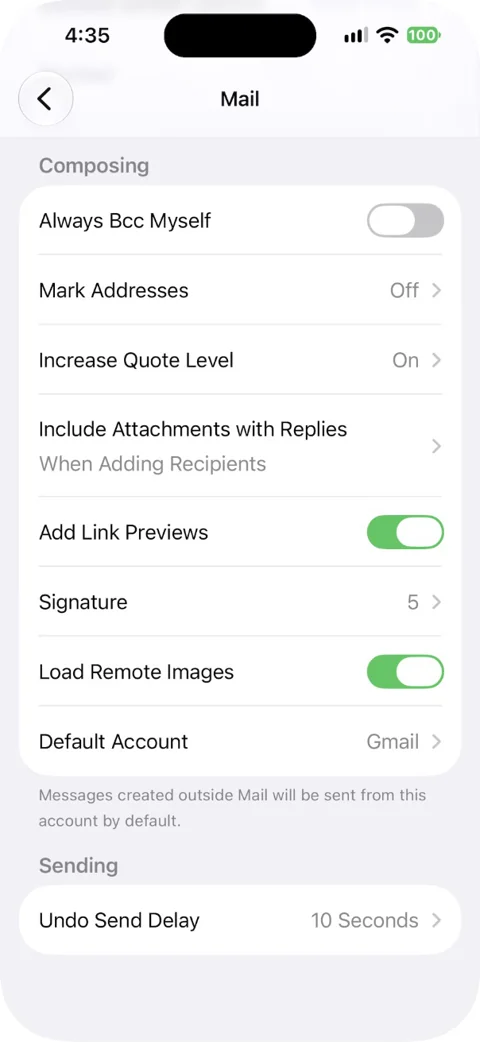
| Always Bcc Myself | Below Composing | Sends you a copy of every email | Off, unless your Sent folder doesn't sync |
| Mark Addresses | Below Composing | Shows addresses outside your domains in red | On for work accounts |
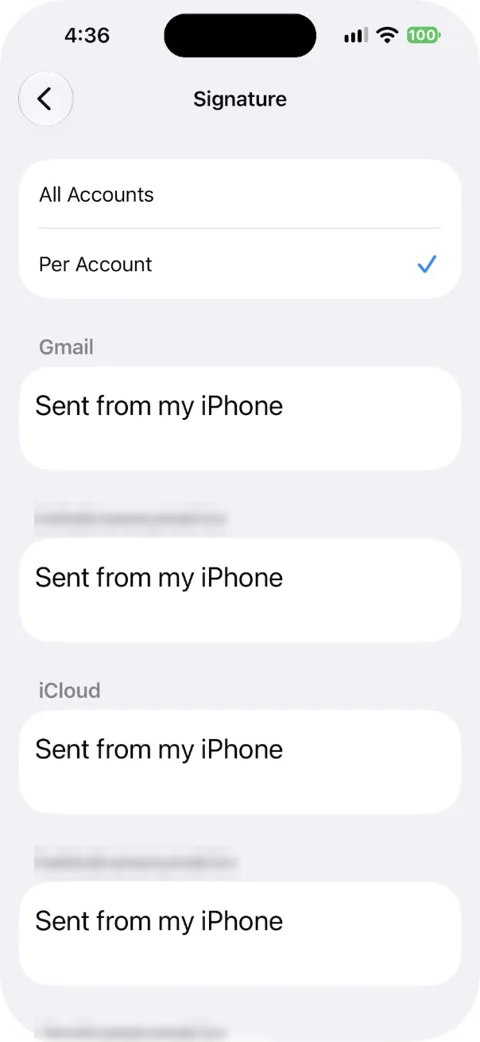
| Signature | Below Composing | Text added to every email; can differ per account | Replace "Sent from my iPhone" |
| Undo Send Delay | Mail settings | How long you have to unsend (up to 30 seconds) | The longest delay, up to 30 seconds |
Mail Accounts and Fetch New Data (Push vs Fetch)
This setting decides how quickly new mail reaches your iPhone. Go to Settings > Apps > Mail > Mail Accounts > Fetch New Data.
- Push: the mail server sends new messages to your iPhone as they arrive. It's the fastest, but only some accounts offer it (Microsoft Exchange, for example).
- Fetch: your iPhone checks for new mail on a schedule. Accounts that don't support Push use Fetch automatically. Yahoo Mail, for one, works with Fetch only.
- Manual: mail only downloads when you open the Mail app.
The catch is the schedule. Its default, Automatically, only downloads new data while the iPhone is charging and on Wi-Fi. If mail from a Fetch account turns up late, pick a timed interval instead. Low Power Mode also turns off email fetch until you charge to 80%.
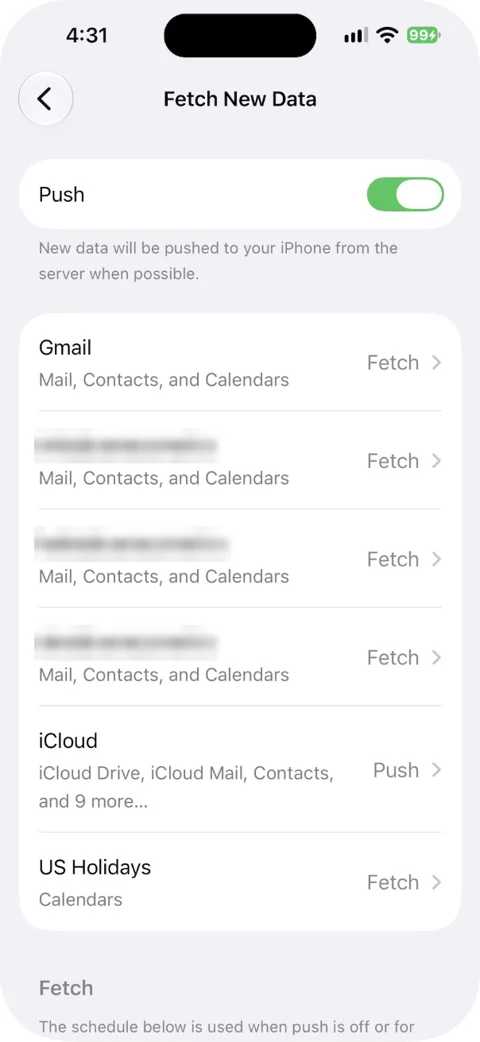
In iOS 27, Fetch New Data sits at the bottom of the Mail Accounts screen, below your list of accounts.
If you want features Mail doesn't have, such as read receipts, a separate app is one option. Canary Mail (used by 2M+ people) adds read receipts and snooze on its Free plan, with AI drafting and summaries on paid plans. Disclosure: we make Canary Mail. Our list of the best email apps for iPhone compares it with the alternatives, free ones included.
Account settings: IMAP and SMTP server details
Each account has its own settings. Go to Settings > Apps > Mail > Mail Accounts and tap the account. What you see depends on the account type.
- IMAP accounts: tap Account Settings to see the incoming server, user name and password (to change it, see how to update your email password on iPhone). The outgoing (SMTP) server has its own screen in the same account settings. Advanced holds SSL, the server port, and where deleted mail goes.
- iCloud: tap iCloud, then Mailbox Behaviors, for the archive and trash options.
- Exchange: choose which apps sync, set Mail Days to Sync (one month or less syncs a big mailbox faster), set an Automatic Reply, or open Advanced Settings for SSL and S/MIME. If you need encryption beyond S/MIME, see our guide to encrypting email on iPhone with PGP.
Archive instead of delete: in the same Advanced (or Mailbox Behaviors) screen, choose Archive Mailbox under Move Discarded Messages Into. To delete a message anyway, touch and hold the archive button and tap Trash Message.
How long Trash keeps mail: tap Remove in the same place and pick a time. Some services override it; iCloud never keeps deleted mail longer than 30 days.
Server values come from your provider. As an example, iCloud publishes these for other apps: incoming imap.mail.me.com, port 993, SSL; outgoing smtp.mail.me.com, port 587, SSL or TLS, with authentication and an app-specific password. On iPhone you don't need them, because iCloud signs in through your Apple Account. More on how iCloud Mail works with Apple Mail.
Notifications
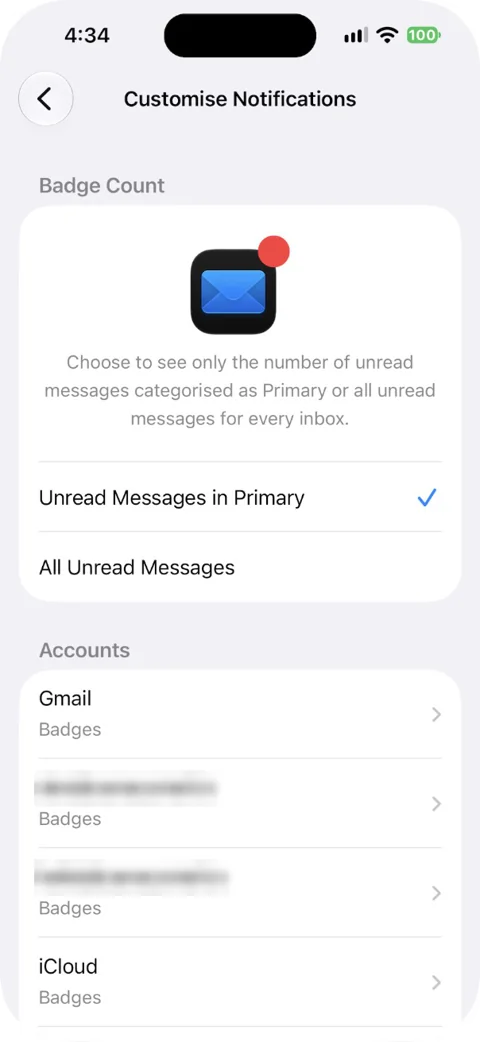
Go to Settings > Apps > Mail > Notifications and make sure Allow Notifications is on. Then tap Customize Notifications and pick an account to set its alerts, sounds and badges. Turning off alerts for a busy newsletter account while keeping them for work is a useful first change.
Inside the Mail app you can also tap Notify Me on a thread to hear about replies, or Mute a noisy thread. What happens to mail in muted threads is set under Muted Thread Action.
One quirk: the red badge on the Mail icon counts only unread Primary mail. To count everything, go to Settings > Notifications > Mail > Customize Notifications and turn on All Unread Messages.
Default email app vs default account
These are two different settings.
- Default email app decides which app opens when you tap an email address in another app or ask Siri to send an email. Change it in Settings > Apps > Default Apps > Email. The Mail settings screen also lists it as Default Mail App.
- Default account decides which of your addresses new emails come from. To change it for one message, tap the Cc/Bcc, From field and then From. To change the default for all new emails, go to Settings > Apps > Mail and tap Default Account under Composing.
Message list: preview, labels and swipes
Under Message List, Preview sets how many lines of each email you see without opening it. The default is two, and you can go up to five. Show To/Cc Labels marks emails sent straight to you and ones you were copied on.
Swipe Options sets the actions behind a left or right swipe. A full swipe to the left runs the rightmost action. For every option, see how to change swipe actions in Mail.
Messages: Ask Before Deleting, Privacy Protection and Follow Up Suggestions
Ask Before Deleting shows a confirmation each time you delete. Turn it off if you find the prompt slows you down.
Privacy Protection is worth turning on. Tap it, then turn on Protect Mail Activity. It hides your IP address, so senders can't tie it to your other activity or pin down your location, and it stops them seeing whether you opened their email. It doesn't cover links or attachments. It also needs Limit IP Address Tracking: go to Settings > Wi-Fi, tap the info button next to your network, and turn it on. If pictures in emails aren't showing up, see what to do when images don't load in Apple Mail.
Follow Up Suggestions lets Mail point out emails you may want to follow up on.
Threading
Organize by Thread groups a conversation into one row in your inbox. If your inbox suddenly shows every reply as a separate email, this is the switch to turn back on. The related options control how a thread looks once opened: Collapse Read Messages folds away what you've read, and Most Recent Message on Top flips the order so the newest reply comes first.
Composing
- Signature: tap Signature (below Composing) and type your own. It's text only. Tap Per Account to give each account a different one. This is also how you remove "Sent from my iPhone".
- Always Bcc Myself: sends you a copy of every email.
- Mark Addresses: enter your work domains, separated by commas, and any address outside them shows in red. It's a simple guard against emailing the wrong person.
- Other Composing options cover things like including attachments when you reply and showing link previews.
Undo Send Delay
After you send an email, an Undo Send button appears at the top of the inbox. By default you have 10 seconds. To give yourself longer, go to Settings > Apps > Mail > Undo Send Delay and choose up to 30 seconds. Once the delay is over, the email is gone; here's what you can still do if you need to unsend an email after that.
Mail categories
Mail can sort your inbox into four categories: Primary (personal and time-sensitive mail), Transactions (receipts, confirmations, shipping), Updates (news, newsletters, social) and Promotions. Time-sensitive messages from the other three also show in Primary. Categories aren't available in every country or region.
The controls are in the Mail app, not Settings:
- Turn categories off: in an inbox, tap the menu button at the top of the screen and choose List View.
- See everything once: swipe left on the categories at the top of the inbox to open All Mail.
- Move a sender: open one of their emails, open its menu, choose Categorize Sender, pick a category and tap Continue. Their past and future mail moves too.
- Stop grouping by sender: deselect Group by Sender in the same inbox menu.
How to get Mail back to normal
There's no single reset button for Mail. If the inbox looks wrong after an update, work through these:
- Switch to List View in the Mail app if your inbox is split into categories.
- Turn Organize by Thread back on if replies show up as separate emails.
- Set Preview back to two lines.
- If one account still misbehaves, sign in to its webmail to check your mail is all there, then delete the account under Mail Accounts and add it again. Apple recommends this for accounts that won't send or receive.
On a Mac the options are laid out differently; see Mail settings on a Mac, or our Apple Mail guide for both devices.
Sources
- Apple: Change your Mail settings on iPhone
- Apple: Add and remove email accounts on iPhone
- Apple: Check your email in Mail on iPhone
- Apple: Delete and recover emails in Mail on iPhone
- Apple: Organize email in mailboxes on iPhone
- Apple: Use Mail Privacy Protection on iPhone
- Apple: Automatically categorize incoming emails in Mail on iPhone
- Apple: Set email notifications on iPhone
- Apple: Unsend email with Undo Send in Mail on iPhone
- Apple: Change the default apps on iPhone
- Apple: If you can't receive email on your iPhone or iPad
- Apple: Set up Exchange ActiveSync on your iPhone or iPad
- Apple: Use Low Power Mode to save battery life
- Yahoo: Set up or remove a Yahoo Mail account in the iOS Mail app
FAQ
Where are Mail settings on iPhone in iOS 18 and later?
Open Settings, scroll to the bottom, tap Apps, then tap Mail. Since iOS 18, Mail is no longer in the main Settings list. You can also search for "Mail" at the top of Settings.
How do I get my email back to normal on my iPhone?
If your inbox is split into Primary, Transactions, Updates and Promotions, open the Mail app, tap the menu button at the top of the inbox and choose List View. If replies show up as separate emails, turn on Organize by Thread in Settings > Apps > Mail.
Should I use Push or Fetch?
Use Push for accounts that offer it, because mail arrives straight away. For accounts that only fetch, such as Yahoo, choose a timed schedule rather than Automatically, which only checks while the iPhone is charging and on Wi-Fi.
How do I find my IMAP and SMTP settings on iPhone?
Go to Settings > Apps > Mail > Mail Accounts and tap the account. Tap Account Settings for the incoming server, the outgoing (SMTP) server screen for the outgoing one, and Advanced for SSL and the port.
How do I mark all emails as read on iPhone?
In the Mail app, open the inbox or mailbox, tap the menu button, tap Select, and select the messages. Then tap the button at the bottom of the list and choose Mark as Read. Selecting a Transactions, Updates or Promotions message selects all of that sender's messages in that category.
How do I change which email address I send from?
For one message, tap the Cc/Bcc, From field, then tap From and pick an address. To change the address new emails use by default, go to Settings > Apps > Mail and tap Default Account, under Composing.
How do I stop the "Delete?" confirmation?
Go to Settings > Apps > Mail and turn off Ask Before Deleting, below Messages.
Do Mail settings affect whether I get new email?
Yes, mainly Fetch New Data: on Automatically, Fetch accounts only check while the iPhone is charging and on Wi-Fi. Low Power Mode also stops fetching. See iPhone not getting emails for the full checklist.