Email Security and Encryption: The Complete Guide
Our guide to email security: whether email is secure, the types of email encryption, how to send and open encrypted email in Gmail and Outlook, and how to deal with phishing.
Email encryption scrambles a message so that only the people meant to read it can. Almost all email today is encrypted in transit with TLS, which stops strangers on the network from reading it. TLS is not end-to-end encryption, though: your email provider and the recipient's provider can still read the message on their servers. For end-to-end protection you need PGP, S/MIME, your provider's own encryption (Microsoft 365, some Google Workspace plans), or a secure message link. This guide gives a short answer for each topic and links to the full step-by-step article. Facts were checked against Google, Microsoft, Apple and FTC help pages in October 2026.
- Is email secure?
- Types of email encryption
- Send encrypted email, by provider
- Password-protect or open an encrypted email
- Phishing
- Choose a secure email app or provider
- FAQ
Is email secure?
Email is secure against casual snooping, but it isn't private by default. Three things decide how safe a given message is: whether it's encrypted on the way, who can read it once it arrives, and whether the email itself is genuine.
What TLS protects, and what it doesn't
TLS (Transport Layer Security) encrypts the connection between mail servers and between your app and your provider. Gmail uses it on every message automatically, and Microsoft describes Outlook.com's default as "opportunistic TLS". Two limits matter. First, TLS works only when the receiving server supports it too; if it doesn't, the message can travel unencrypted. Second, the message is decrypted at each end, so it sits readable on both providers' servers and on every device that syncs the mailbox. As Microsoft puts it, TLS encrypts the connection, not the message.
How to check whether an email was encrypted
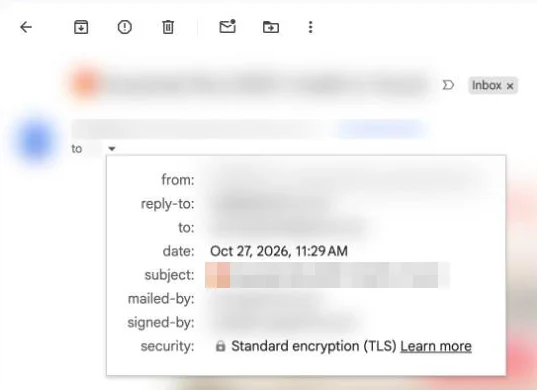
In Gmail on a computer or Android, open the message's recipient details (or select Message security while you write). A gray lock means standard TLS, a green lock means S/MIME, a blue shield means client-side encryption, and a red open lock means the message wasn't encrypted at all. Google's advice for a red lock is not to send anything sensitive in that thread.
The bigger risks are accounts and fake emails
Most people who lose data through email don't lose it to someone reading traffic on the network. They lose it to a stolen password or a convincing fake email. Turn on 2-Step Verification or a passkey for your email account, and learn the signs of phishing (covered below). For the difference between keeping messages encrypted and keeping them private from your provider, see encrypted email vs private email.
Types of email encryption
"Encrypted email" can mean five different things. They differ in who can read the message and in what the recipient has to do.
| Method | Who else can read it | What the recipient needs | Where you get it | Good for |
|---|---|---|---|---|
| TLS (in transit) | Both email providers | Nothing; it's automatic | Gmail, Outlook, iCloud and almost every major provider | Everyday email |
| Provider encryption (Microsoft 365 Encrypt, Gmail client-side encryption) | The provider on most plans; not Google with client-side encryption | Same provider, or a sign-in or one-time passcode on a web portal | Microsoft 365 Personal, Family and business plans; Google Workspace Enterprise and Education plans | Sending sensitive mail inside one ecosystem |
| S/MIME | Only the recipient | Their own certificate, and certificates exchanged before the first encrypted message | Outlook, Apple Mail, Gmail for work or school | Companies and government with managed certificates |
| PGP (OpenPGP) | Only the recipient | A PGP key pair and an app or extension that supports it | PGP email apps, browser extensions, Proton Mail | People who want end-to-end encryption on any address |
| Password-protected secure link | The service hosting the message, depending on how it's built | A password or identity check; no software | Microsoft 365 portal, Proton Mail, Tuta, encrypted-send tools in email apps | Sending one sensitive message to anyone |
Two points the table can't show. End-to-end methods protect the message body and attachments, but the subject line and the sender and recipient addresses usually stay visible, so don't put anything sensitive in the subject. And Gmail's confidential mode isn't on the list because it isn't encryption: it controls expiry, forwarding and downloads, and Google warns that recipients can still take screenshots.
PGP is the option that works with any email address you already have. Our beginner's guide to PGP encryption explains public and private keys, and PGP vs SecureSend compares key-based encryption with a secure message link.
Send encrypted email, by provider
Gmail
Every Gmail message gets TLS. Work and school accounts on qualifying Google Workspace editions can add S/MIME or client-side encryption if the admin turns it on. A personal @gmail.com account has no built-in end-to-end option, so you'd use PGP through an email app or browser extension, or send a password-protected file. Steps for each: how to send encrypted email in Gmail.
Outlook
With a Microsoft 365 Personal or Family subscription, Outlook.com and new Outlook for Windows add an Encrypt button: in a new message, open the Options tab and select Encrypt or Do Not Forward. Without a qualifying Microsoft 365 subscription you can open encrypted messages but not send them. Work accounts may also have S/MIME, which needs a certificate set up first. Steps for new Outlook, classic Outlook, Outlook for Mac and the web: how to encrypt email in Outlook.
Apple Mail, Yahoo and everything else
Apple Mail on iPhone, iPad and Mac supports S/MIME once you install a certificate (on iPhone: Settings > Mail > Accounts, pick the account, then Account > Advanced). Other providers usually offer TLS only, which leaves PGP or a secure link. Our cross-provider guide on how to send an encrypted email covers Apple Mail, Yahoo and the options that work on any account.
Password-protect or open an encrypted email
Password-protect an email
You have two routes. One is a secure message link: the recipient gets a notice, enters a password or verifies their identity (for example with a one-time code or Magic Link), and reads the message in a browser. Proton Mail, Tuta, the Microsoft 365 portal and some email apps work this way. The other is to encrypt the attachment itself, for example a password-protected PDF or Word file, and send the password by text or phone, never in the same email. Gmail blocks password-protected ZIP files, so a protected PDF or Word file is the safer choice for Gmail recipients. More detail: how to password-protect an email.
Open an encrypted email
How you open it depends on how it was sent. Microsoft 365 messages open directly in Outlook; in another app you get a link and sign in with your Microsoft, Google or Yahoo account, or ask for a one-time passcode. Secure-link messages from other services open in the browser after a password or identity check. PGP and S/MIME messages need your private key or certificate in an email app that supports them, otherwise you'll see an attachment or scrambled text. Fixes for each case: how to open an encrypted email.
Phishing
How to spot a phishing email
Phishing emails pretend to come from a company or person you trust so you'll click a link, open an attachment or share a password. The FTC lists the usual hooks: a problem with your account or payment, "suspicious activity", an invoice you don't recognize, a refund you're owed, or a free offer. Look for a generic greeting, a sender address that doesn't match the company, and links whose real address (hover or long-press to see it) points somewhere else. If you do have an account with the company, contact it through its website or app, not through the email. Our guide to phishing emails explains the common types.
Phishing email examples
The warning signs are easier to learn from real patterns than from a checklist. See phishing email examples, with how to check each one.
If you clicked a phishing link
Don't enter anything else. If you typed a password, change it at the real site and turn on 2-Step Verification. If you shared card, bank or Social Security details, the FTC's IdentityTheft.gov has steps for each kind of information. If you opened an attachment, update your security software and run a scan. Report the email by forwarding it to reportphishing@apwg.org and at ReportFraud.ftc.gov. Step by step: what to do if you clicked a phishing link.
Choose a secure email app or provider
The first decision is whether to keep your address. A secure email app (a client) adds encryption and protection to the accounts you already have, such as Gmail or Outlook. A secure email provider gives you a new address with encryption built in, which usually means moving your mail and telling your contacts. Secure email provider vs secure email client walks through the trade-off.
Keep your address: secure email apps
Our list of the best secure email apps compares the options on price, platforms and encryption, each with a real downside. For a specific platform, see the secure email client for Mac guide, safe ways to use Gmail on a Mac and how to use PGP on iPhone and iPad.
How Canary Mail handles this
Disclosure: we make Canary Mail. Canary is an email app that works with Gmail, Outlook, iCloud and most IMAP accounts, so you keep your address. Its Pro+ plan ($100 a year, or a one-time lifetime purchase, with a 7-day free trial) adds OpenPGP encryption, where recipients don't need Canary, and SecureSend, a secure message link that the recipient opens by signing in to their email or with a one-time Magic Link, with expiry and revoke for people who don't use PGP. Pro+ also adds phishing and ransomware protection and impersonation detection, which warns you about spoofed senders and suspicious links. Tracker blocking is on by default. PGP is available in the Mac, Windows, iPhone, iPad and Android apps. Canary doesn't support S/MIME. Feature details are on the Canary security features page.
Switch provider: encrypted email services
Proton Mail and Tuta encrypt mail end to end automatically between their own users, and send password-protected messages to everyone else. The cost is a new address and, for most features, a paid plan. If you're comparing them, see the Proton Mail alternatives, Tutanota alternatives and Hushmail alternatives lists, and Canary Mail vs Proton Mail for the app-or-provider choice side by side.
Frequently asked questions
What is encrypted email?
Encrypted email is a message turned into unreadable text that only someone with the right key or password can turn back into the original. Most email is encrypted only in transit (TLS). End-to-end encrypted email, such as PGP or S/MIME, stays unreadable on the email servers too.
Is email encrypted by default?
Usually only in transit. Gmail, Outlook.com and most major providers use TLS automatically, but messages are decrypted on the providers' servers. End-to-end encryption is something you or your organization have to set up.
Is Gmail an encrypted email?
Gmail encrypts all messages in transit with TLS. It isn't end-to-end encrypted for personal accounts. Some Google Workspace editions add S/MIME or client-side encryption.
Is Outlook email encrypted?
Outlook.com uses TLS by default. With a Microsoft 365 Personal, Family or qualifying business subscription you can also choose Encrypt or Do Not Forward on a message, and work accounts may have S/MIME.
Can encrypted email be hacked?
Strong encryption is very hard to break, so attackers go after the ends instead: a stolen email password, a phishing page, malware on a device or a lost private key. Protect the account and the device as well as the message.
Is it safe to send personal information by email?
Not in an ordinary email. Send sensitive details such as ID or bank numbers only with end-to-end encryption or a secure message link, and share any password another way.
Is it a good idea to encrypt your email?
For everyday mail, TLS is usually enough. Encrypt anything you'd be upset to see leaked: financial, medical, legal and identity documents, and passwords.
Sources
- Google Gmail Help: Learn how Gmail encrypts your emails (answer 6330403)
- Google Gmail Help: Send and open confidential emails (answer 7674059)
- Google Gmail Help: Messages that have attachments blocked (answer 6590)
- Microsoft Support: Send encrypted messages with a Microsoft 365 personal or family subscription
- Microsoft Support: Learn about securing and protecting email messages in Outlook
- Microsoft Support: Send S/MIME or Microsoft Purview encrypted emails in Outlook
- Apple Support: Use S/MIME to send and receive encrypted messages in the Mail app in iOS (102245)
- FTC Consumer Advice: How to recognize and avoid phishing scams
- Proton Support: Password-protected emails
- Tuta: Encryption
Canary Mail adds PGP and SecureSend to Gmail, Outlook, iCloud and IMAP accounts on Mac, Windows, iPhone, iPad and Android. Try every Pro+ feature free for 7 days.
Download Canary Mail