Most phishing emails copy a handful of everyday messages: an invoice or renewal you don't recognize, a delivery problem, an account on hold, a security alert, a shared document, or a quick request from your boss. The giveaways rarely change: the sender's real address doesn't match the company, the message pushes you to act now, the link goes somewhere other than the company's site, and it asks for a password, a payment or gift cards. To check one safely, use nothing inside the email. Open the company's app, type its web address yourself, or call a number you already have.
Below are 10 common phishing email examples, based on patterns published by the FTC, the FBI, the UK's NCSC, Microsoft and other security teams. Each has a mock email, the red flags and a safe way to check it. Then come a checklist and the steps to report phishing in Gmail, Outlook and Apple Mail. For what phishing is and how it differs from spam, see our guide to phishing emails. For encryption, spoofing and the rest, see our guide to email security.
All names and addresses in the mock emails are made up and use the reserved example.com domain.
Phishing email examples at a glance
| Example | What it wants | Quickest tell |
|---|---|---|
| 1. Fake invoice or renewal | A phone call, then remote access or card details | A charge you never made and a number to call |
| 2. Package delivery problem | A small "redelivery fee" and your card | You weren't expecting a package |
| 3. Account on hold | Your login and payment details | A link to "update your payment information" |
| 4. Password expiry or mailbox full | Your work email password | The sender isn't your IT department's domain |
| 5. Fake security alert | Your password or a verification code | The alert isn't in your account's own security page |
| 6. Shared document or e-signature | Your Microsoft or Google sign-in | A file you didn't ask for, behind a sign-in page |
| 7. Boss asking for gift cards | Gift card numbers | Gift cards, secrecy and a rush |
| 8. Vendor with new bank details | A payment to the scammer's account | Any change to where money goes |
| 9. Tax or IRS notice | Your SSN, refund or login | The IRS doesn't email you out of the blue |
| 10. QR code | Your login, entered on your phone | A QR code in an email you didn't expect |
Many of these arrive dressed as Microsoft, Apple, PayPal, Amazon, a bank or a delivery company. The pattern is the same whichever logo is on top, so the examples are brand-neutral.
10 phishing email examples and how to check each one
1. A fake invoice or subscription renewal
What it looks like:
From: "Billing Support" <invoice.desk.4471@example.com>
Subject: Your annual protection plan has been renewed: $399.99
"Thank you for renewing. $399.99 will be charged to your card on file within 24 hours. If you did not authorize this renewal, call our cancellation team now at 1-800-555-0142."
This is callback phishing. There may be no link at all, which helps it get past filters. The FTC says scammers use names like Geek Squad, McAfee and Norton. If you call, the "agent" may ask for remote access to your computer, then install spyware and steal your banking logins, or "refund" you, claim you were overpaid and ask for the difference in gift cards.
Red flags: a large charge you don't remember, a deadline, a phone number as the only way out, and a sender on a random domain.
How to check safely: look at your card or bank statement. No charge means a scam. If you do have that subscription, call the number on the company's official website, never the one in the email.
2. A package delivery problem
What it looks like:
From: "Parcel Services" <tracking@delivery-notice.example.com>
Subject: Delivery attempt failed: action required
"We could not deliver your package because the address was incomplete. Confirm your address and pay a $0.30 redelivery charge within 48 hours, or the parcel will be returned to the sender. [Reschedule delivery]"
The FTC warns about these every holiday season. They claim you missed a delivery or need to update your address, and threaten to return the package. The link leads to a fake site that asks for a card number for a tiny "redelivery" charge, or your banking or email login.
Red flags: no package expected, no tracking number that matches an order, and a request to pay or sign in.
How to check safely: check the order on the retailer's site, or enter the tracking number from your order confirmation in the carrier's own app or website.
3. "Your account is on hold"
What it looks like:
From: "Account Services" <no-reply@streaming-account-billing.example.com>
Subject: Your membership is on hold
"Dear Customer, we were unable to process your last payment, so your account has been suspended. Update your payment details within 24 hours to avoid losing access. [Update payment]"
This is the FTC's own example of a phishing email, with three signs: the generic greeting, an account on hold over a billing problem, and a link to update your payment details. As the FTC puts it, legitimate companies won't email or text you a link to update your payment information.
Red flags: "Dear Customer" from a company that knows your name, a threat to cut you off, and a link straight to a payment form.
How to check safely: sign in through the company's app or a bookmark you made yourself. A real billing problem will show up in your account there.
4. Password expiry, mailbox full or license expired
What it looks like:
From: "IT Help Desk" <helpdesk@mail-admin-portal.example.com>
Subject: Your password expires today
"Your email password will expire in 2 hours. To keep your current password and avoid losing messages, verify your account below. [Keep my password]"
These target work and school accounts, usually styled like Microsoft 365. University IT teams publish many: "license has expired", "terminate Office 365 account", "mailbox storage full". The button opens a fake sign-in page that sends your password to the attacker.
Red flags: a sender outside your organization's domain, a tight deadline, and an offer to "keep" a password that's supposedly expiring. Microsoft adds that real messages won't ask you to enable macros, adjust security settings or install applications.
How to check safely: go to your organization's sign-in page from a bookmark, or ask your IT team through contact details you already have, and report it to them.
5. A fake security alert
What it looks like:
From: "Account Security Team" <security-alert@account-protect.example.com>
Subject: Unusual sign-in attempt detected
"Someone tried to sign in to your account from a new device in another country. If this wasn't you, secure your account now. [Review activity]"
The FTC lists "suspicious activity or log-in attempts" among the most common phishing stories. Some versions add a phone number and a "security agent" who asks for your code.
Red flags: a link to "secure" your account and any request for your password or a verification code. Google says its emails won't ask for the password of the account you're signed in to, and it will never call you about account security or ask you to read out a code. Apple says the same about Apple Account passwords and codes.
How to check safely: ignore the email and open your account's security page yourself (for Google, your recent security activity). A real alert will be listed there.
6. A shared document or e-signature request
What it looks like:
From: "Jordan Lee via File Share" <share-notify@docs-portal.example.com>
Subject: Jordan Lee shared "Q4 Payment Schedule.pdf" with you
"You have a new secure document waiting for review and signature. [Open document]"
Shared files and e-signature requests work because they're normal at work. Microsoft reported in 2024 that attackers compromised users at trusted vendors and shared files from SharePoint, OneDrive or Dropbox with targets. The sharing email is genuine, so it passes the usual checks. The trap is inside the file, which points to a fake sign-in page.
Red flags: a file you didn't expect, a document that only opens after you sign in again, and a vague name about payments, payroll or contracts.
How to check safely: ask the sender, by phone or a new message you start yourself, whether they shared it. Never type your password into a page you reached from the document.
7. Your boss asking for gift cards
What it looks like:
From: "Dana Ortiz (CEO)" <dana.ortiz.office@example.com>
Subject: Quick favor
"Are you at your desk? I need six $200 gift cards for a client event. Keep this between us, it's a surprise. Send me photos of the card numbers. I'm in meetings all day, so email only."
The FBI's Internet Crime Complaint Center (IC3) has warned about spoofed emails, calls and texts from "a person in authority" asking employees to buy gift cards. The FTC says no real business or government agency will ever tell you to buy a gift card to pay them.
Red flags: gift cards, a request to keep it quiet, a personal email address instead of the work one, and a sender who "can't talk right now".
How to check safely: call the person on a number you already have, or walk over to their desk. If you've sent card numbers, contact the gift card company right away.
8. A supplier with "new bank details"
What it looks like:
From: "Accounts Receivable" <ar@supplier-co.example.com>
Subject: RE: Invoice 20419: updated remittance details
"Please note our bank account has changed due to an audit. Kindly send this month's payment to the new account below and update your records. The previous account is no longer active."
This is business email compromise (BEC). It can come from a lookalike domain or from a real supplier's hacked mailbox, sometimes as a reply in a genuine thread. The FBI says to verify any change in account number or payment procedures with the person making the request.
Red flags: any change to where money goes, a sudden reason like an "audit", pressure to pay early, and an address a character or two off the supplier's real one.
How to check safely: call the supplier on a number from your own records or contract, not the email signature. Many businesses also have a second person approve bank detail changes.
9. A tax or IRS notice
What it looks like:
From: "Tax Refund Department" <refunds@irs-notice.example.com>
Subject: IRS Refund Eligibility Notification
"Our records show you are eligible for an additional refund of $1,286.40. Complete the attached verification form within 72 hours to receive your payment. Attachment: Refund_Form_2026.pdf"
Tax lures spike in filing season. Microsoft documented early-2025 campaigns with subject lines like the one above and "IRS Has Flagged Issues with Your Tax Filing", carrying PDFs with links or QR codes to fake sign-in pages. The IRS says it never emails you without your permission.
Red flags: an unsolicited email from the "IRS", a refund you didn't expect, and an attached form asking for your SSN or bank details.
How to check safely: type IRS.gov yourself and sign in to your account, or call the IRS. Report the email to phishing@irs.gov (steps below).
10. A QR code in an email
What it looks like:
From: "Email Administrator" <admin@mfa-update.example.com>
Subject: Action required: re-register your authenticator
"Your multi-factor authentication expires today. Scan the QR code below with your phone to keep access to your account."
A QR code hides the link from you and many filters, and moves you to your phone, where the address is harder to check. The FTC says QR scams claim a failed delivery, an account problem or suspicious activity. The NCSC says to be wary of scanning QR codes in emails at all.
Red flags: any QR code in an email you weren't expecting, especially one asking you to sign in or pay.
How to check safely: don't scan it; go to the service's app or website yourself. If you do scan one, your phone usually previews the address first. Close it if anything looks misspelled or off.
How to spot a phishing email: a checklist
One sign alone doesn't prove a scam, but two or three together almost always mean one.
- Check the real sender address, not the name. Look for lookalike domains (CISA's example is amazan.com) and free email accounts posing as companies. In Outlook, a "?" in place of the sender's picture means Outlook couldn't verify the sender, and a "via" tag means the sender isn't who the From line claims.
- Look at where links really go. Hover over a link on a computer, or press and hold it on a phone, and read the address. Shortened links you can't read are a warning sign too.
- Ask whether you expected it. Microsoft lists "unexpected and unsolicited" as a sign. The FTC's test is: do I have an account with this company, or know this person?
- Notice the pressure. The NCSC lists five tactics: authority, urgency, emotion, scarcity and current events. Deadlines, threats and secrecy are there to stop you checking.
- Watch what it asks for. Passwords, codes, card or bank details, your SSN, gift cards or a change of payment account. Real companies don't ask for these by email.
- Treat attachments with care. Be especially wary of HTML, SVG, ZIP and Office files that ask you to enable macros or sign in.
- Don't scan QR codes in emails. Go to the site yourself instead.
- Don't rely on bad spelling. Many phishing emails are now well written, and some come from hacked real accounts. A clean email proves nothing.
- Read your email app's warnings. When Gmail warns you, Google's advice is to avoid clicking links, downloading attachments or entering personal information.
Still unsure? Don't reply or use anything in the message. Contact the company or person through a website, app or phone number you know is real.
How to report a phishing email
Reporting from inside your email app removes the message and helps the filter catch the next one. Our guide to phishing and spam also covers reporting spam and blocking senders.
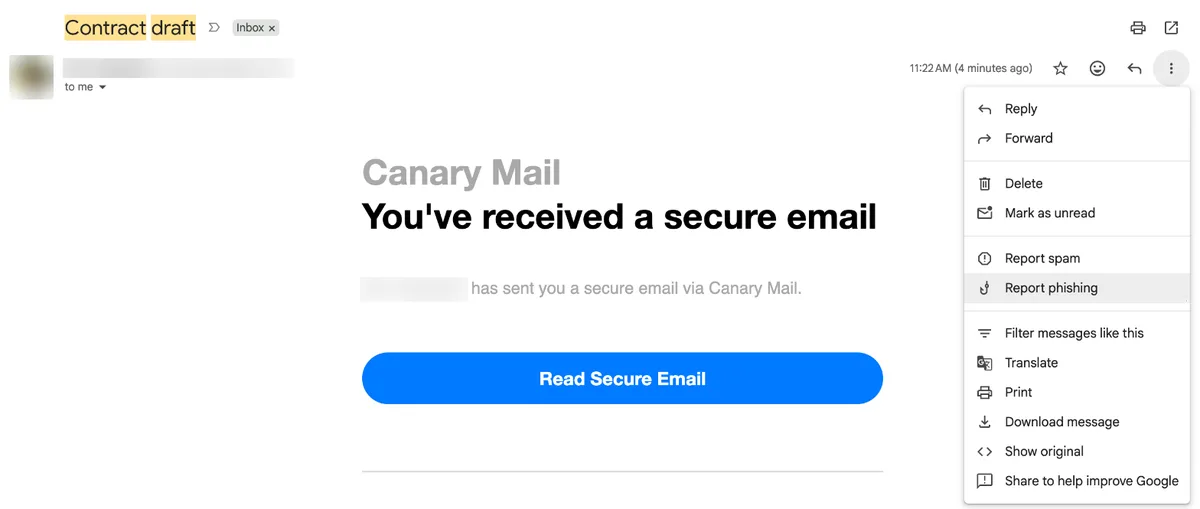
Gmail
- On a computer: open the message, click More (three dots) next to Reply, then Report phishing.
- In the Gmail app on Android or iPhone: open the message, tap More at the top right, then Report spam, or report it from Gmail's warning banner if one shows.
Outlook
- Outlook on the web and Outlook.com: select the message, then choose Report > Report phishing above the reading pane. Reporting doesn't block the sender, so block them separately if you want to.
- Classic Outlook for Windows: in the message, select Report message on the ribbon, then Phishing.
- Outlook for iPhone and Android: open the message, tap the three dots at the top right, choose Report Junk, then Phishing.
On a work or school account, follow your organization's own report button or process, since IT can pull the same email out of everyone's inbox.
Apple Mail and iCloud Mail
Apple Mail has no phishing button. Mark the message as junk (the Junk button on a Mac, or move it to Junk on iPhone). If the email pretends to be from Apple, forward it to reportphishing@apple.com.
Report it to the authorities
- US: forward phishing emails to the Anti-Phishing Working Group at reportphishing@apwg.org, and report the attempt to the FTC at ReportFraud.ftc.gov.
- Fake IRS or tax emails: send them to phishing@irs.gov as an attachment (or save the email and attach it), because a normal forward strips information the IRS needs.
- Business email compromise or gift card fraud at work: file a complaint with the FBI at ic3.gov, whatever the amount.
- UK: forward suspicious emails to the NCSC at report@phishing.gov.uk. You don't need to forward messages already in your junk folder.
Already clicked a link or replied?
If you typed a password, change it on the real site and anywhere else you use it, then turn on two-step verification. If you gave card or bank details, call your bank. If you opened an attachment, run a full security scan. In the US, if you gave out an SSN or account numbers, get a recovery plan at IdentityTheft.gov. Our guide on what to do if you clicked a phishing link goes through each case.
Phishing and impersonation detection in Canary Mail
Disclosure: we make Canary Mail. Gmail and Outlook catch most phishing, but well-written messages and spoofed senders still get through. Canary Mail is an email app for Mac, iPhone, iPad, Android and Windows that works with Gmail, Outlook, iCloud and most IMAP accounts. Its Pro+ plan adds phishing and impersonation detection on top of your provider's filter: it checks each email for spoofed senders and fake links and warns you before you click. Tracker blocking is on by default on every plan.
Pro+ costs $100 a year or a one-time lifetime price, with a 7-day free trial. There's no monthly plan, and the free plan doesn't include phishing protection. No filter catches everything, so the checklist still applies. Canary has 2M+ users and has been featured by Apple. The Canary security features page lists everything in Pro+, and our roundup of the best secure email apps compares other options.
Frequently asked questions
What are the red flags of a phishing email?
The common ones are a sender address that doesn't match the company, a generic greeting, urgency or threats, links that point to a different site, unexpected attachments or QR codes, and requests for passwords, codes, payment details or gift cards.
What is the most common sign of a phishing email?
Pressure to act quickly. Almost every example above uses a deadline, a threat or the promise of money. A request to sign in or pay through a link in the email is the other near-constant.
How can I check if an email is phishing?
Check the sender's real address, hover over links to see where they go, and ask whether you expected it. Then verify it outside the email: open the company's app or website yourself, or call a number you already have.
Can I get phished just by opening an email?
Usually not. The damage comes from clicking a link, opening an attachment, scanning a QR code or replying. Opening one can still tell the sender your address is active if images load.
Can a phishing email come from a real address?
Yes. Attackers send phishing from hacked accounts of real colleagues and suppliers, and real file-sharing services can deliver the lure. Checking the request through another channel matters more than the address.
What should I do with a phishing email?
Don't click, reply or unsubscribe. Report it with your email app's phishing option, forward it to reportphishing@apwg.org if you're in the US, then delete it.
Do phishing emails always have spelling mistakes?
No. Many are well written and copy real company emails closely. Errors are still a warning sign, but a clean email isn't proof it's real.
Sources
- FTC: How to recognize and avoid phishing scams
- FTC: How to spot, avoid and report tech support scams and How to recognize a fake Geek Squad renewal scam
- FTC: Scammers are delivering phishing messages this holiday season and Fake shipping notification emails and texts
- FTC: Scammers hide harmful links in QR codes
- FTC: Gift card scams
- FBI IC3: Business email compromise: gift cards
- FBI: Business email compromise
- IRS: Report phishing
- CISA: Recognize and report phishing (archived)
- NCSC: How to spot a scam email and Report a scam email
- Microsoft Learn: How to protect against phishing attacks
- Microsoft: Phishing and suspicious behavior in Outlook
- Microsoft: How do I report phishing or junk email? (Outlook mobile)
- Microsoft Threat Intelligence: File hosting services misused for identity phishing
- Microsoft Threat Intelligence: Tax-themed phishing campaigns
- Huntress: Phishing techniques spotted in 2025
- Google: Avoid and report phishing emails, Report spam in Gmail, Respond to security alerts, Google Account security scam via phone call
- Apple: Recognize and avoid phishing messages
- Canary Mail: Pricing
For encryption, private messages and the rest of staying safe over email, see our guide to email security.