Google doesn't publish a limit on how many Gmail accounts you can have, and you can sign in to several of them at the same time. To add one on a computer, click your profile picture at the top right of Gmail and choose Add another account. In the Gmail app on Android or iPhone, tap your profile picture and then Add another account. To switch, tap or click the profile picture again and pick the account. Your default account is usually the one you signed in with first. To change it, sign out of all accounts, sign in to the one you want as the default, then add the others back.
To read every account in one place, use All inboxes in the Gmail app, forward one account into another, or use an email app with a unified inbox. Gmail on the web is dropping its own way of doing this: "Check mail from other accounts" (POP) and Gmailify stopped taking new users after the first quarter of 2026, and existing users keep them only until January 2027.
This guide covers managing accounts you already have. To make a new one, see how to create a new Gmail account. For everything else, see our complete guide to Gmail.
How many Gmail accounts can you have?
There's no published cap. Google's help pages don't give a maximum number of accounts per person. The limit you're more likely to hit is phone verification: Google says it limits how many times one phone number can be used to verify accounts, to prevent abuse. It doesn't say what the number is. If you see "This phone number has been used too many times," Google suggests using a different number.
Each Gmail address is a separate Google Account with its own password and storage. Google also says you can't merge two Google Accounts into one. You can only move some data across product by product. So decide early which account is your main one, because that's where you'll forward or import the others.
Add a second Gmail account
These steps add an account you already have. Adding it doesn't combine anything: each account keeps its own inbox.
On a computer (Gmail on the web)
- Open Gmail in your browser.
- Click your profile picture or initial at the top right.
- Click Add another account.
- Sign in to the other Gmail account.
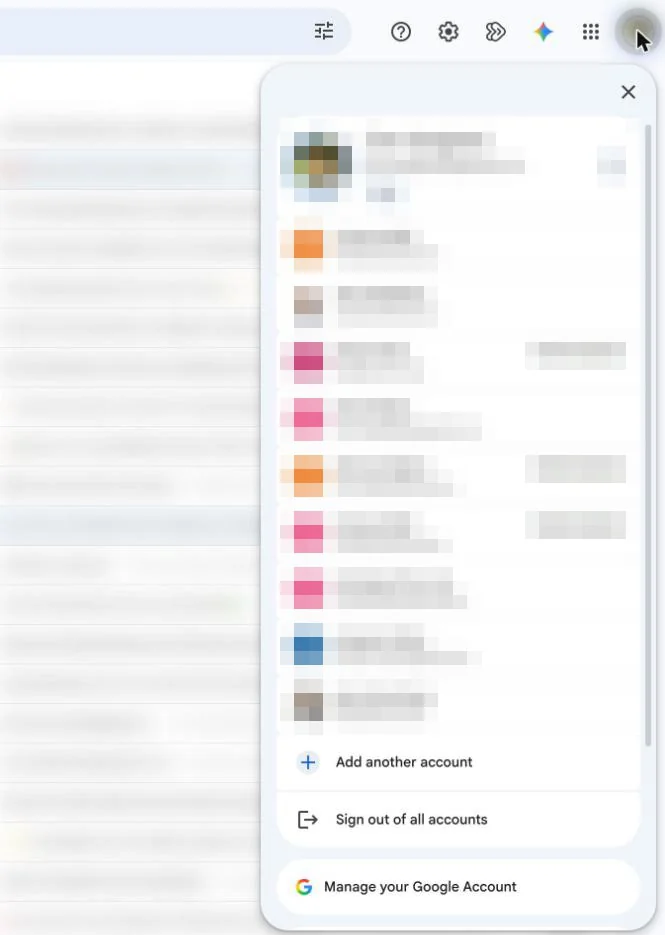
In the Gmail app on Android
- Open the Gmail app.
- In the search bar at the top right, tap your profile picture.
- Tap Add another account.
- Tap Google for a Gmail address, or pick another provider such as Outlook, Yahoo or iCloud Mail. Choose Other for any other IMAP account.
- Follow the steps to sign in.
In the Gmail app on iPhone and iPad
- Open the Gmail app.
- In the search bar at the top right, tap your profile picture.
- Tap Add another account.
- Tap Google, choose a provider from the list, or tap Other (IMAP).
- Follow the steps to sign in.
If the other account has extra sign-in security, Google says you might need an app password or another sign-in method from that provider.
Switch between Gmail accounts
On a computer: click your profile picture or initial at the top right and choose the account you want.
In the Gmail app (Android, iPhone, iPad): tap your profile picture in the search bar and tap the account you want.
You don't have to sign out to switch. Every account you've added stays signed in until you sign out or remove it.
Change your default Gmail account
Google says that "in many cases, your default account is the one you signed in with first." That's why Gmail, Drive or YouTube can keep opening the wrong account: the first sign-in in that browser became the default. There's no "make default" setting for this, so you change it by changing the order you sign in.
On a computer
- Open Gmail or any Google page, such as google.com.
- Click your profile picture at the top right and choose Sign out of all accounts.
- Sign in to the account you want as your default.
- Click your profile picture again, choose Add another account, and sign in to your other accounts.
The default is set per browser. If you use Chrome and Safari, for example, repeat the steps in each one. Before you sign out, Google recommends making sure each account has backup verification methods set up, in case you have trouble signing back in.
On a phone
Google says that on mobile devices, the default account "can vary depending on your device's operating system and the apps you use." In the Gmail app, you don't need a default: switch with your profile picture whenever you want.
If you mean the address Gmail sends from
Some people mean a different "default": the From address inside one Gmail account. If you've added other addresses under Send mail as, you can pick which one Gmail uses first. On a computer, click Settings > See all settings > Accounts and import (or Accounts), then click Make default next to the address you want.
Keep two Gmail accounts separate
If you don't want accounts sharing one browser window at all, give each its own Chrome profile. Each profile keeps its own bookmarks, history, passwords and settings, and its own signed-in Google account. That also solves the default problem: each profile has one account, so it always opens the right one.
- Open Chrome on your computer.
- Click the profile icon at the top right and choose Add Chrome profile.
- Sign in with the second Gmail account and pick a name and color.
- To switch, click the profile icon and choose the profile.
Sign out of one Gmail account only
On a computer
Click your profile picture on a Google page. Google's menu offers Sign out or Sign out of all accounts. If you're only offered the second option, sign out of all of them and sign back in to the accounts you want to keep. Sign in to your main account first so it stays the default.
To take an account off the sign-in list in that browser, Google gives these steps:
- Go to myaccount.google.com.
- Click your profile picture or initial at the top right.
- Choose Sign out or Sign out of all accounts.
- Choose Remove an account.
- Click Remove next to the account.
Repeat this in any other browser where you're signed in.
In the Gmail app on Android
- Tap your profile picture.
- Tap Manage accounts on this device.
- Select the account and tap Remove to confirm.
On Android, this takes the account off the phone, not just out of Gmail. Google says removing an account deletes everything tied to it from the device, including email, contacts and settings. You can add it back later from the same menu.
In the Gmail app on iPhone and iPad
- Tap your profile picture.
- Tap Manage accounts on this device.
- Next to the account, tap Remove from this device, then tap Remove.
Check all your accounts in one place
Switching works if you check a second account now and then. If you check three or four every day, you'll want them in one list. Gmail gives you a few ways to do that, and one of them is on its way out.
Gmail app: All inboxes
In the Gmail app on Android, iPhone or iPad, tap Menu at the top left, then All inboxes. You'll see new mail from every account you've added to the app in one list. This is the easiest option if you mostly read email on your phone. Gmail on the web doesn't have All inboxes. There, you switch accounts one at a time.
Gmail on the web: Check mail from other accounts and Gmailify (being retired)
For years, Gmail on a computer could fetch mail from another account over POP (Settings > See all settings > Accounts and import > Check mail from other accounts). Gmailify went further and applied Gmail's spam protection, inbox categories and search to a linked non-Gmail account. Google is retiring both:
- After the first quarter of 2026, neither feature takes new users.
- Existing users can keep using them until January 2027. Then Gmail stops checking other accounts over POP, and the option goes away on computers.
- Messages that synced before the change stay in Gmail.
- Google also says that from January 2027, Gmail will stop supporting Send mail as for third-party addresses (such as Yahoo or Outlook). Other Gmail addresses you own and Google Workspace aliases aren't affected.
Google's suggested replacements are automatic forwarding and the Gmail app. If you use Google Workspace through work or school, Google says to ask your admin about its data migration service.
Forward one account into another
Forwarding sends new mail from a second Gmail account into your main one, on any device. It's a good fit for an old address you rarely send from. Set it up on a computer, signed in to the account you're forwarding from:
- Click Settings > See all settings.
- Open the Forwarding and POP/IMAP tab.
- Click Add a forwarding address and enter your main address.
- Open the verification email in your main account and click the link.
- Back in the first account's settings, refresh the page, choose Forward a copy of incoming mail to, and pick what happens to the original. Google suggests Keep Gmail's copy in the Inbox.
- Click Save Changes.
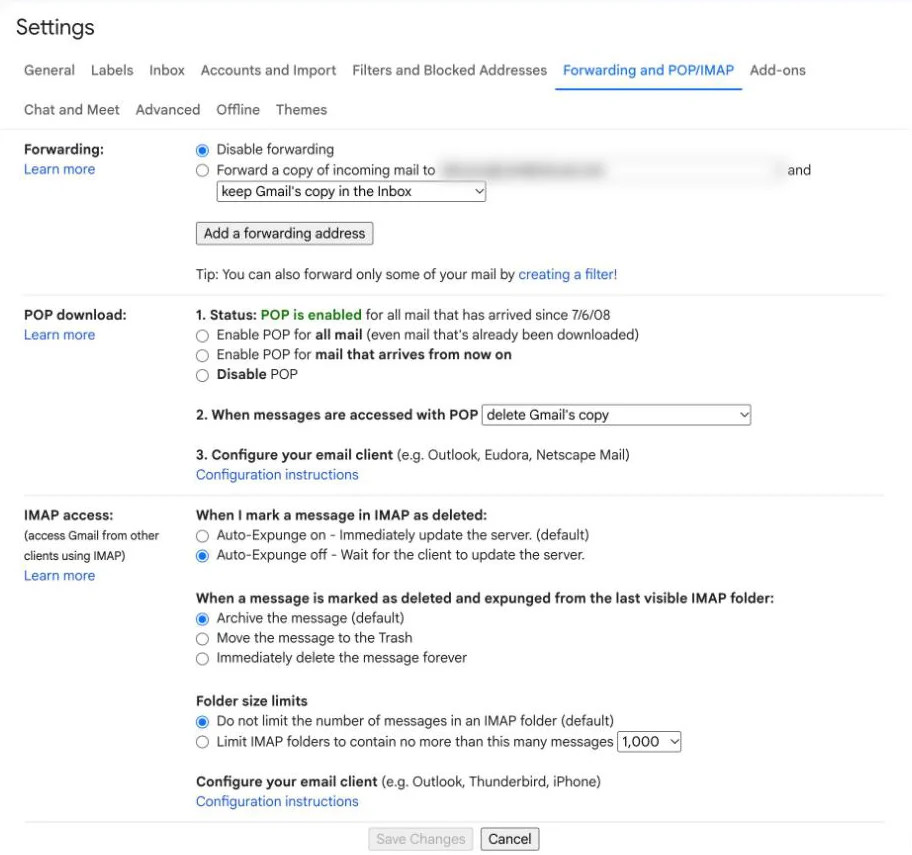
Forwarding covers new mail only, and spam isn't forwarded. To forward only some messages, use a filter with Forward it instead. Since both accounts are Gmail, you can also add the old address under Send mail as in the main account so your replies can still come from it. The January 2027 change doesn't affect Gmail addresses.
Use an email app with a unified inbox
A desktop or phone email app can sign in to each account over IMAP and show them in one combined inbox, with separate folders when you need them. Unlike forwarding, the accounts stay fully separate, and you reply from the right address without extra setup. On a computer, it's the only way to see separate accounts together without forwarding. It's often easier than the Gmail settings above if you have more than two accounts, or a mix of Gmail, Outlook and iCloud.
Disclosure: we make Canary Mail. Canary has a unified inbox for Gmail and other accounts on Mac, iPhone, iPad, Android and Windows. The free plan covers unlimited accounts and the unified inbox on up to two devices; AI writing and summaries are on the paid plans. Dove, an AI email client from the same company as Canary, also puts all your accounts in one inbox and runs on the web as well. Its free plan includes unlimited accounts, and Pro costs $20 a month or $200 a year.
For other options, see our comparison of the best email apps for multiple accounts. If you want a native app rather than a browser tab, we also cover the best Gmail apps for Mac and iPhone and Gmail apps for Windows. New to the idea? Our unified inbox explainer covers how it works and how to set one up.
Multiple inboxes: a Gmail setting for one account
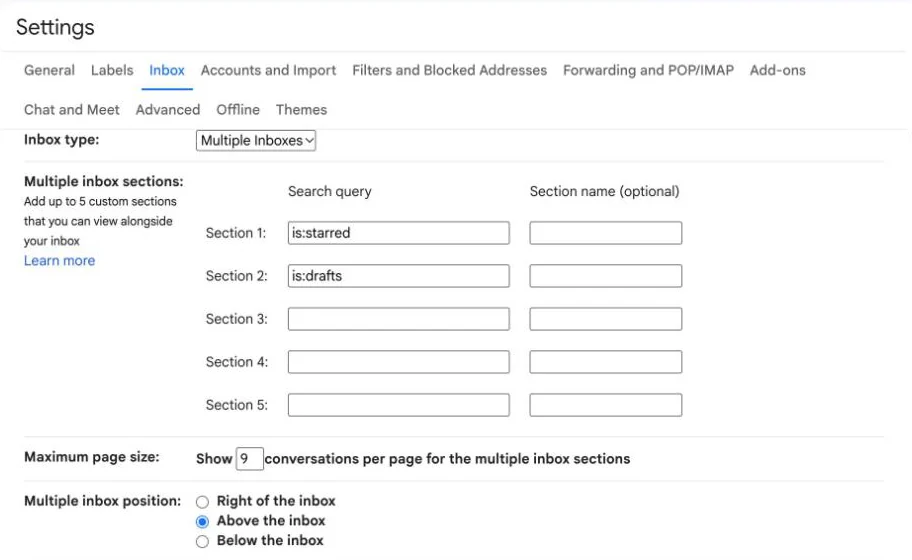
Gmail has a setting called Multiple inboxes, and the name is misleading. It doesn't combine accounts. It splits one account's inbox into sections based on searches, such as starred mail or mail from your manager. It works on a computer only:
- In Gmail on the web, click Settings at the top right.
- Next to Inbox type, choose Multiple inboxes.
- Click Customize.
- For each section, enter a search, such as
is:starred, and a Section name. - Set the Maximum page size and the Multiple Inbox position, then click Save Changes.
Google says you can't set up Multiple inboxes in the mobile app. If you've forwarded a second account into your main one, a section with a search like to:old.address@gmail.com gives that account's mail its own panel.
Why isn't it working?
- The wrong account keeps opening. That account was the first you signed in with in this browser. Sign out of all accounts and sign in to the right one first, or use a separate Chrome profile.
- "This phone number has been used too many times." You've hit Google's verification limit for that number. Google suggests using a different phone number.
- You can't find "Check mail from other accounts". Gmail stopped offering it to new users after the first quarter of 2026. Use forwarding, the Gmail app or an email app instead.
- An Outlook account won't add in Gmail on a computer. Google says to add Outlook accounts in the Gmail app. The app doesn't support Exchange or POP accounts, though.
- A non-Gmail account won't sign in to the Gmail app. Its provider may need an app password or a different sign-in method. Check with that provider.
- Forwarded mail isn't arriving. Check that you clicked the verification link and turned on Forward a copy of incoming mail to, then saved. Spam messages aren't forwarded.
For more settings and fixes, see our Gmail guide.
Frequently asked questions
How many Gmail accounts can I have?
Google doesn't publish a limit. In practice the cap is phone verification: Google limits how many times one number can verify accounts, without saying how many.
Can I have two email accounts in the same Gmail app?
Yes. Tap your profile picture, then Add another account. You can add more Gmail accounts plus Outlook, Yahoo, iCloud and other IMAP accounts, and switch by tapping your profile picture.
How do I change my default Gmail account?
On a computer, choose Sign out of all accounts, sign in to the account you want as the default first, then add your other accounts. Repeat in each browser you use.
Why does Gmail keep opening the wrong account?
Your default account is usually the first one you signed in with in that browser. Change the sign-in order, or give each account its own Chrome profile.
Can I see all my Gmail accounts in one inbox?
Yes, in the Gmail app on Android or iPhone with All inboxes, or in an email app with a unified inbox. Gmail on the web has no combined inbox, but you can forward one account into another.
Is Gmailify going away?
Yes. Gmailify and "Check mail from other accounts" stopped taking new users after the first quarter of 2026. Existing users can keep them until January 2027.
Can I merge two Gmail accounts?
No. Google doesn't let you combine accounts. You can forward new mail from one to the other and send from both addresses in your main account with Send mail as.
Can I sign out of just one Gmail account?
In the app, yes: use Manage accounts on this device and remove it. In a browser, if only Sign out of all accounts is offered, sign out and sign back in to the accounts you want to keep.
Sources
- Google: Sign in to multiple accounts at once
- Google: Add another email account in the Gmail app
- Google: Upcoming changes to Gmailify and POP in Gmail
- Google: Check emails from other accounts
- Google: Send emails from a different address or alias
- Google: Automatically forward Gmail messages to another account
- Google: Manage your emails with multiple inboxes
- Google: Verify your account
- Google: Combine or merge Google Accounts
- Google: Add or remove an account on Android
- Google: Share Chrome with others (Chrome profiles)