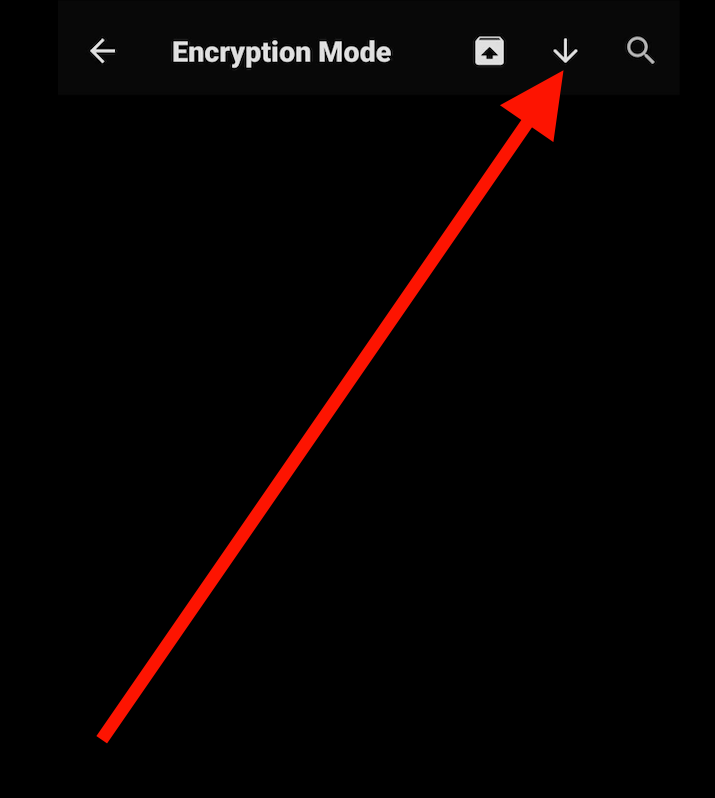
Add, import, transfer, search & manage existing PGP keys via Canary Mail's Key Manager.
You must use the Manual encryption mode (PGP) in Canary Mail if:
1) You plan on using your existing PGP keys generated via other apps / tools such as GPGTools, Symantec Encryption Desktop etc
2) You prefer to manage your encryption manually, using your existing PGP keys instead of SecureSend.
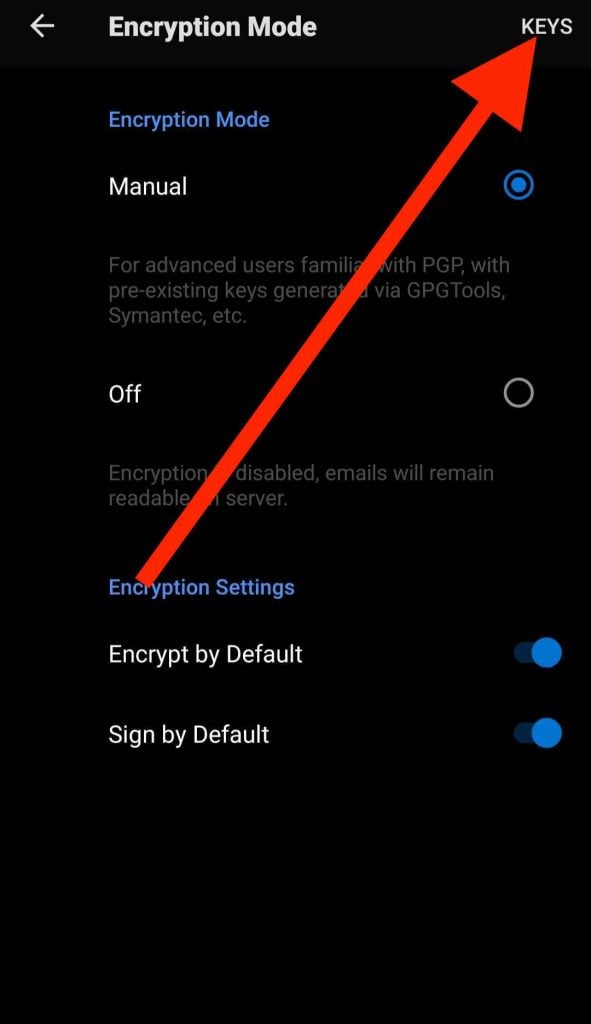
On an Android Device, you can select Manual Encryption Mode via Canary Mail > Settings > Security > Encryption Mode > PGP.
- To import your keys to Canary Mail, you must first export them to your Android device from your current app / tool as a .asc file.
- After transferring the keys, open Key Manager in Canary Mail for Android via Canary Mail > Settings > Security > Encryption Mode > PGP > Keys:
3. Now, click on Import > Browse and select the keys you want to add to the Key Manager.
4. You can also create keys in Canary Mail via Import > Generate Key.