On both macOS and iOS, Canary Mail uses the Calendar accounts that have been added via System Preferences > Internet Accounts. You must first add the relevant account (if not already added), and then enable Calendar for that account.
macOS
1) First, ensure that the relevant account has been added under System Preferences > Internet Accounts. If not, click on Add Account (+) to add the relevant account:
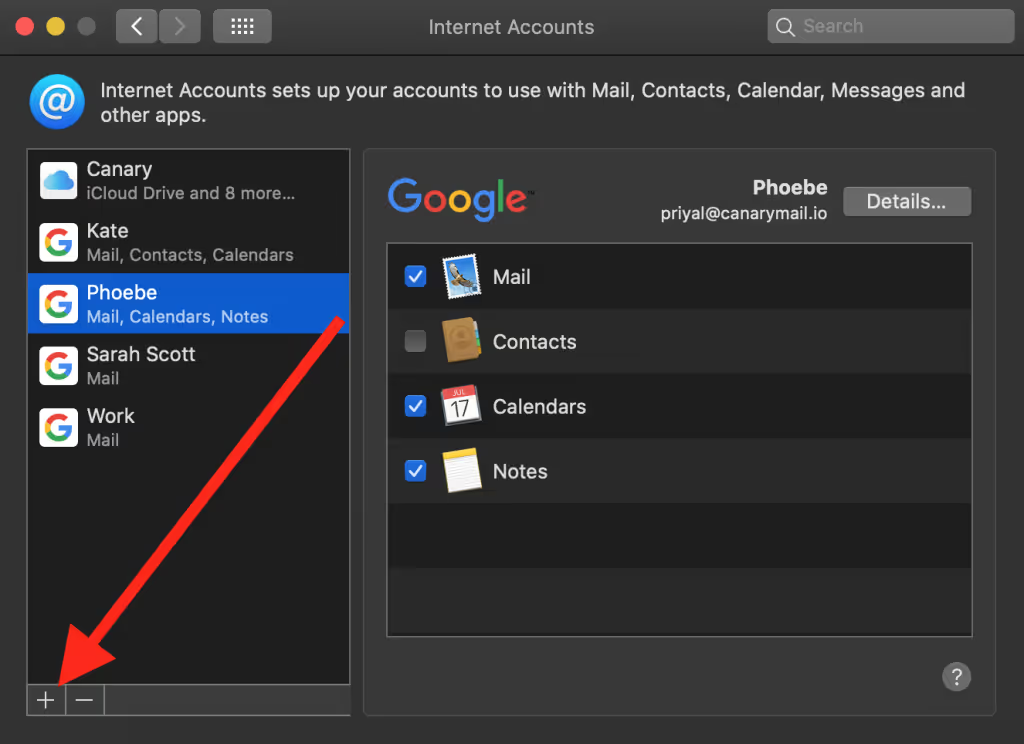
2) Once the relevant account(s) have been added, ensure that 'Calendar' has been enabled for those account(s):

3) macOS System Preferences > Security & Privacy > Calendar > Select Canary Mail.
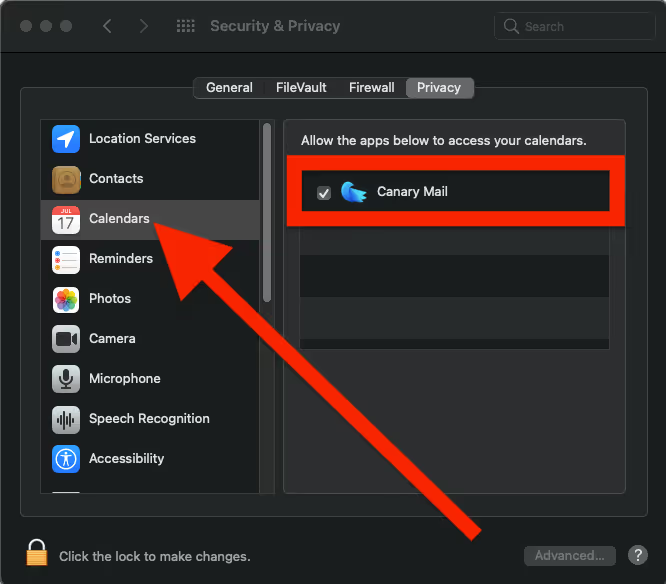
4) Finally, restart Canary Mail to see the updated Calendar.
iOS
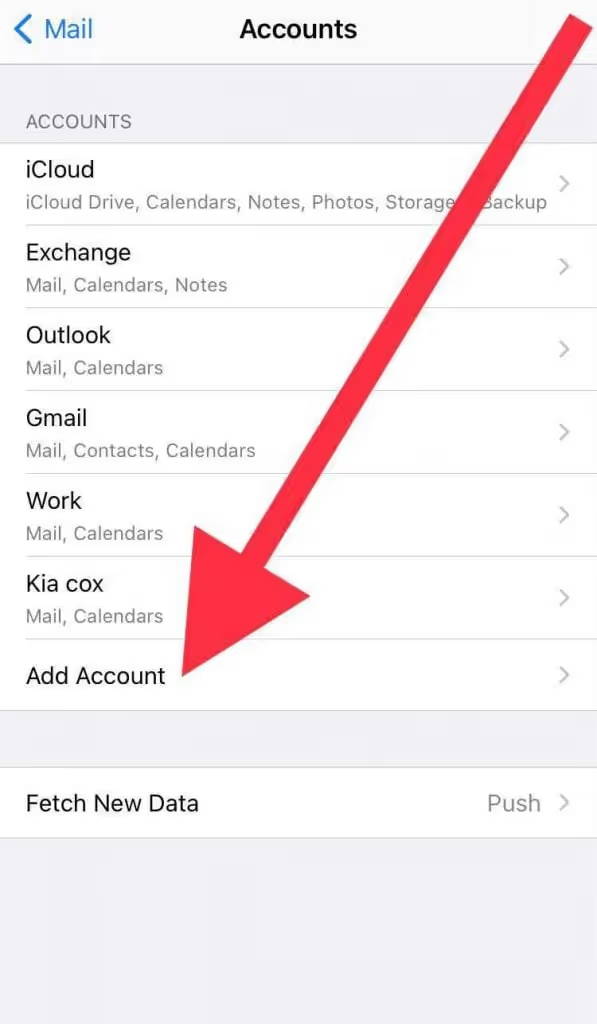
1) First, ensure that the relevant account has been added under Settings > Passwords & Accounts. If not, Open device Settings > Mail > Accounts > Add Account:
2) Once the relevant account(s) have been added, ensure that 'Calendar' has been enabled for those account(s): Open device Settings > Mail > Accounts > Select Account > Toggle ON Calendar.
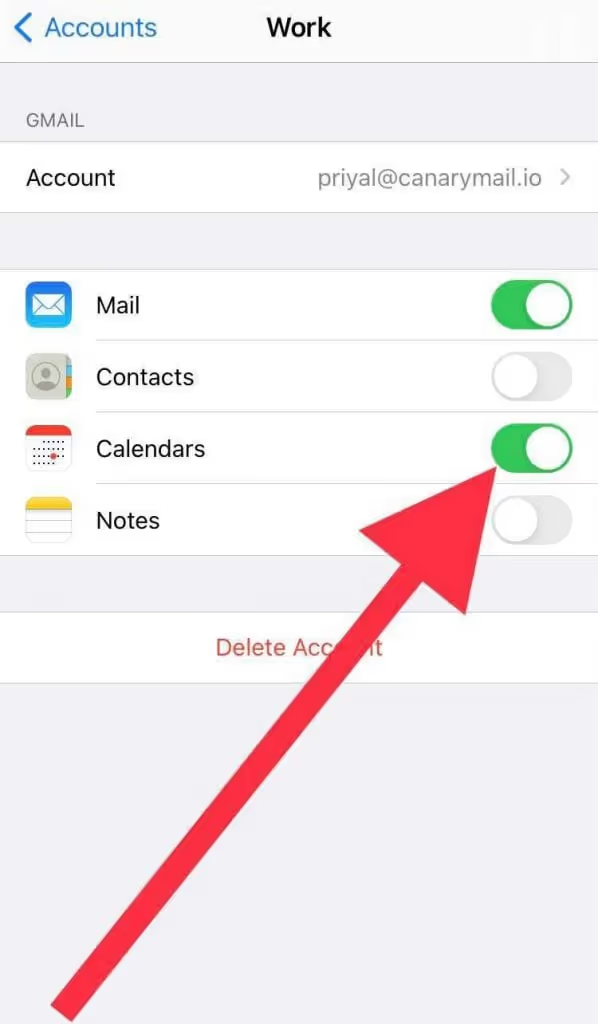
3) iOS Settings > Canary Mail > Calendar > Toggle ON.
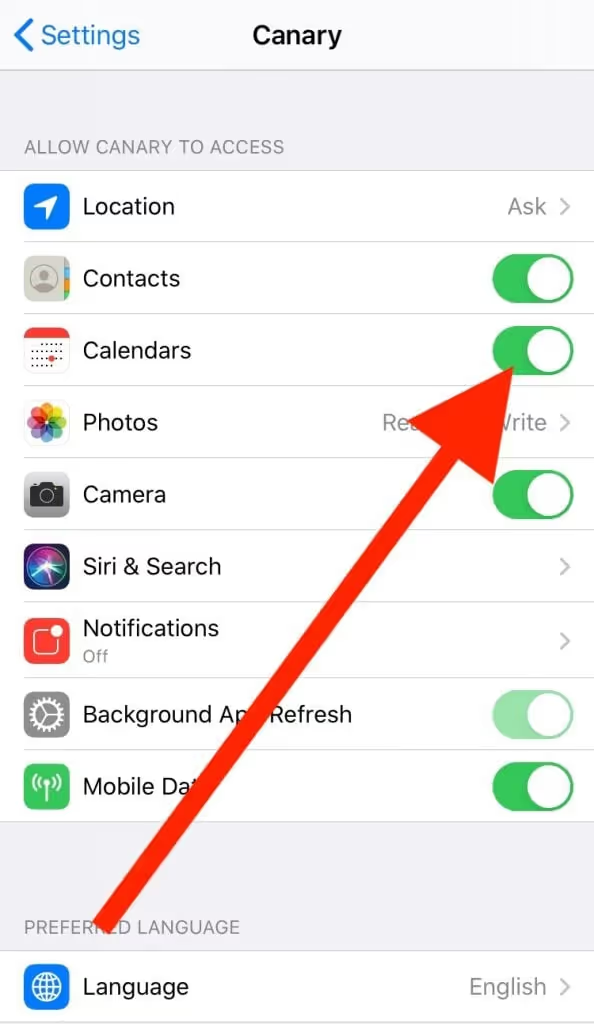
4) Finally, restart Canary Mail to see the updated Calendar.
Just a heads-up, the calendar feature is available on iOS, macOS, and Windows (currently supports Gmail only) but isn’t yet available on Android.